Putting a job online is one thing. Whether it attracts candidates depends heavily on the campaigns running on it. With thirty jobs, you do not want to open each one to check. You want one list that shows where things are fine and where something still needs doing.
Booston brings all campaigns on one job together in the Boost! step of the job editor. There you publish the job on Facebook and Instagram with Meta job ads and add it to a Jobboard network campaign. In the Jobs overview, the Boost column shows per job, with a ring and a percentage, how many of those channels are running. The goal of this article: every active job that needs reach is at 100% in the Boost column.
After this article you know what the percentage means, how to see per job which channel is running and what it costs, and how to bring a job to 100% from the overview. You find the overview via Menu → Recruitment → Jobs.
Before you start
- You use Meta job ads, the Jobboard network or both. A channel you do not use cannot count towards the percentage.
- The job is active. You cannot boost a paused job. How to create and activate a job is in Vacatures aanmaken, bewerken en beheren.
- You need access to the jobs and the campaigns. Which role can do what is in Users: toegang geven, rollen kiezen en inloggen via je ATS.
What the Boost percentage means
The percentage shows how many of your channels are running for the job right now. Two channels count, and they count equally:
| Channel | Counts when |
|---|---|
| Social job ads | A published Meta job ad for this job runs on Facebook and Instagram. |
| Jobboard network | The job is in a published Jobboard network campaign. |
That is why you always see one of three values:
| Percentage | What it says |
|---|---|
| 0% | Nothing is running for this job. It can only be found on your own website. |
| 50% | One channel is running. The pop-over shows which one, see The boost summary per job. |
| 100% | Both channels are running for this job. |
The percentage is about reach. A job at 100% can still bring in few applicants. What it brings in is on the Cost & Performance tab, see The Boost! step in the job. Which channel brings the most applicants across all your jobs is in Analytics: zien welk kanaal je sollicitanten oplevert.
The Boost column in the Jobs overview
In the Jobs overview, each job has a cell in the Boost column:
- The green ring with the percentage. The fuller the ring, the more channels are running. An empty light green ring means 0%.
- The lightning icon next to the ring. It has its own function. Clicking it does not open the job and does not change the percentage.
- No ring for a paused job. You then only see a grey lightning icon.
You manage the campaigns themselves in the job, on the Boost! step. You get there with the pencil in the Edit column, or faster through the pop-over, see The boost summary per job.
The boost summary per job
Hover over the cell in the Boost column, not over the lightning icon. After a short pause the pop-over Boost for this job opens, with the percentage in its title. Everything in the pop-over covers the last 30 days.
Per channel you see on one line the status, the name and what it cost in that period:
- Social job ads: the status of the Meta job ad, with Facebook and Instagram below it, each with its own status (Published or Unpublished).
- Jobboard network: the status of the job in the network, with the logos of the job boards below it. A + with a number stands for the job boards that do not fit.
- Total spend: the cost of both channels together.
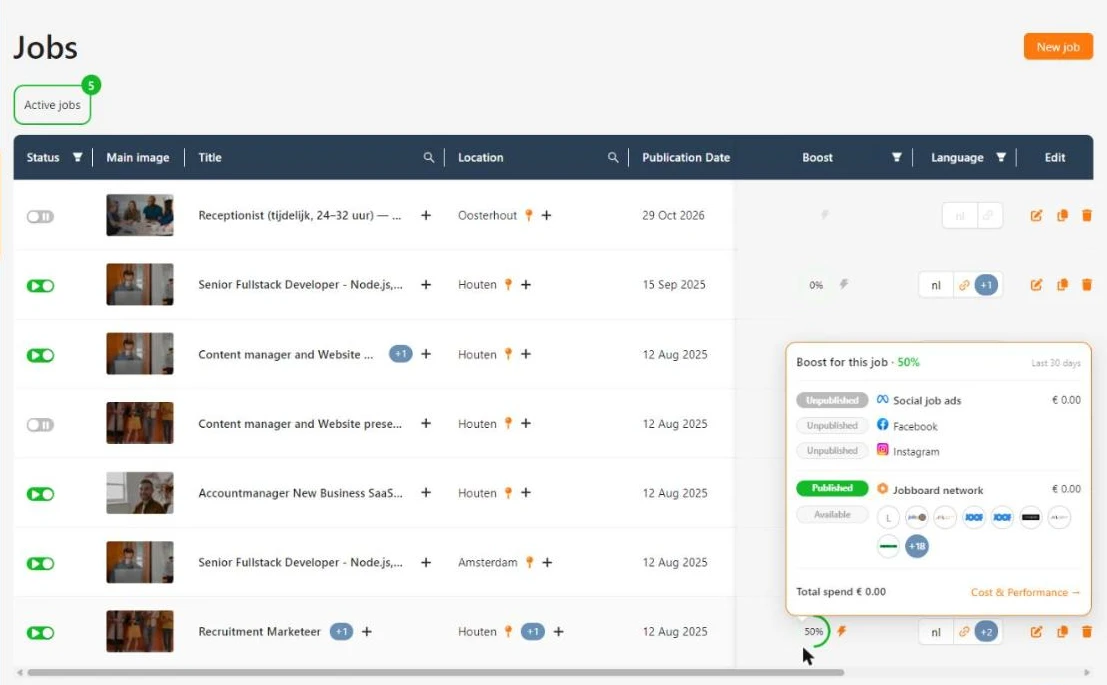
At the bottom right is the link Cost & Performance →. It opens the job straight on the Boost! step. There you manage the campaigns, and the Cost & Performance tab shows what they bring in.
A grey status shows where you are leaving reach on the table. In the example above, Social job ads is Unpublished and the Jobboard network is Published. That is why the ring is at 50%.
The Boost! step in the job
The Boost! step is where you manage all campaigns on one job. In the step bar of the job editor, the percentage follows the name, the same as in the overview. At 100% the step is called Boosted!.
The step has two tabs:
- Campaigns: one card per channel, where you publish or add the job.
- Cost & Performance: what the campaigns on this job cost and bring in.
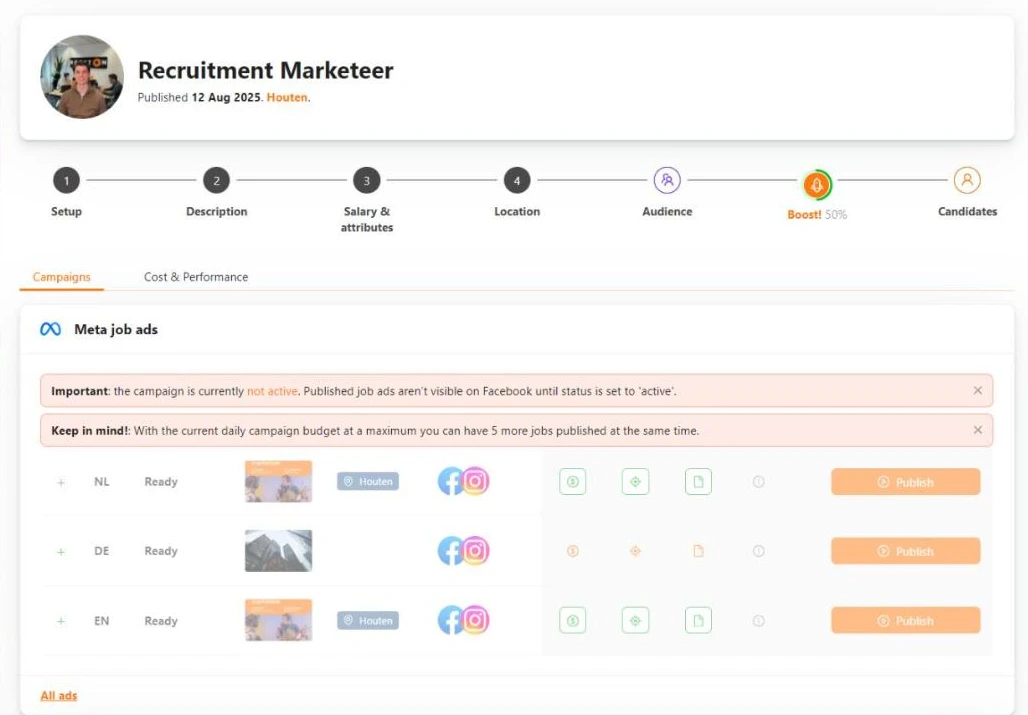
Meta job ads: publishing per language
The Meta job ads card has one row per language version of the job, with the status, the image, the location and the buttons for budget, targeting and ad text. A row at Ready means the ad is ready to publish.
- Open the Boost! step and the Campaigns tab.
- On the row for the language, check the ad text, the targeting and the budget.
- Click Publish.
Meta then reviews the ad. What every button and status means is in Meta job ads. For help with the text, see Advertentieteksten voor Meta: een template invullen of AI ze laten schrijven, and for the audience Meta (Facebook & Instagram) targeting voor werkgelegenheid campagnes. The All ads link at the bottom of the card takes you to all your ads.
Jobboard network: adding per language
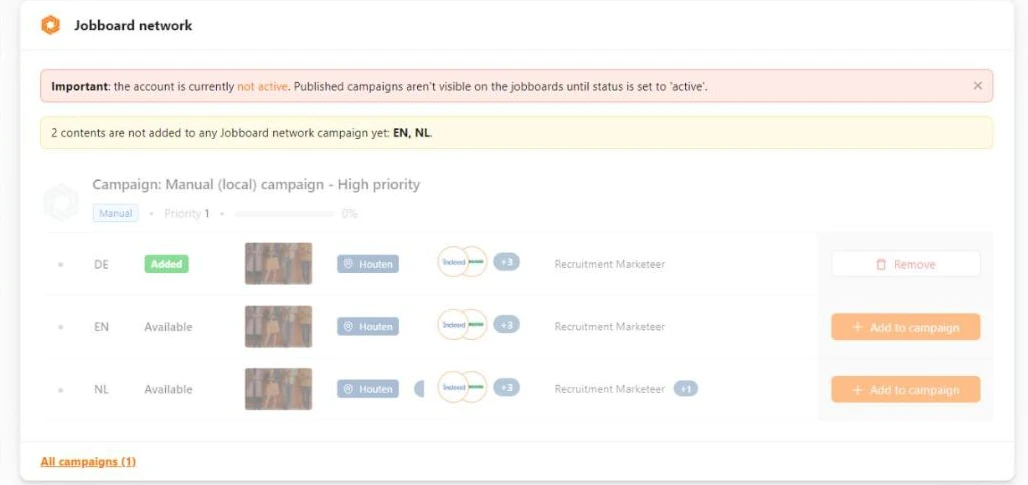
The Jobboard network card lists the campaigns this job fits. Each campaign has one row per language version, with the status Added when that language takes part and Available when it still can.
- Find the campaign and the language you want to boost the job with.
- Click Add to campaign.
Remove takes a language out of the campaign again. All campaigns at the bottom of the card takes you to all your campaigns.
A yellow message such as 2 contents are not added to any Jobboard network campaign yet: EN, NL. means those language versions are not in any campaign yet. How campaigns and filters work is in Jobboard network.
Cost & Performance: what the job costs and brings in
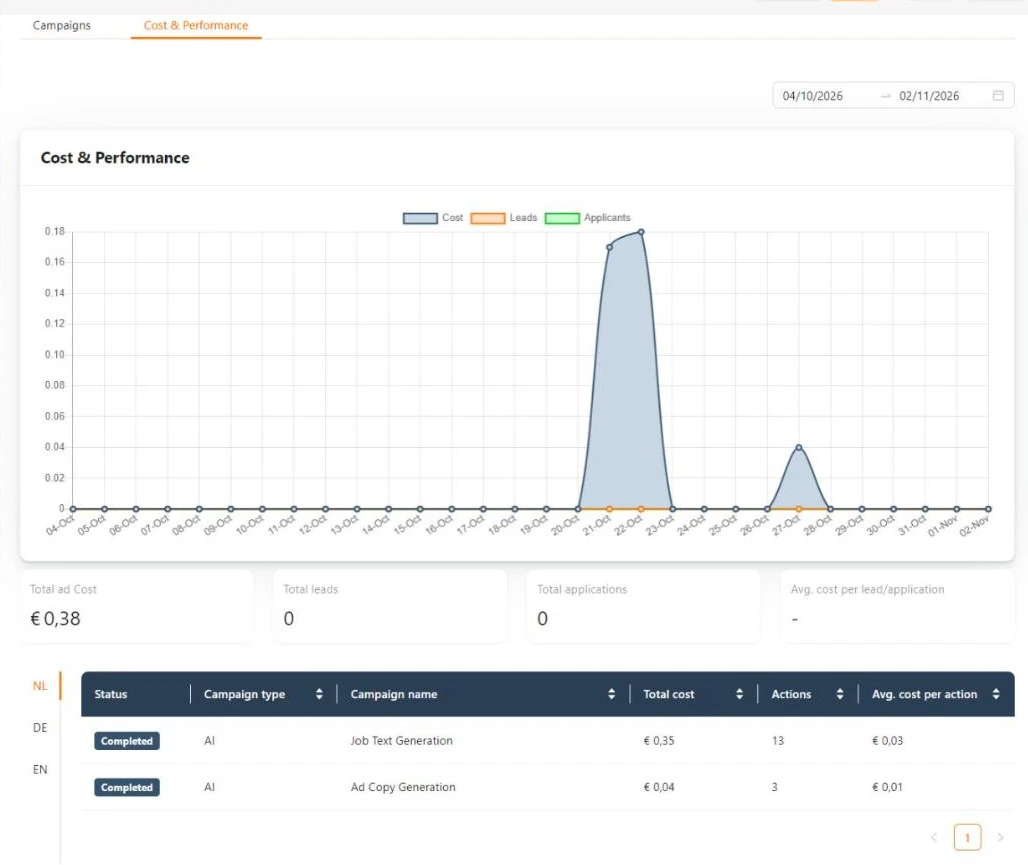
On the Cost & Performance tab you choose the period at the top right. The chart shows the cost, the leads and the applicants per day. Below it are Total ad Cost, Total leads, Total applications and Avg. cost per lead/application, and per language a table with each campaign, its type, its cost and the number of actions.
The cost of AI actions on the job is here too, for example for writing the job text. The pop-over in the overview only counts Social job ads and the Jobboard network. That is why the amount there can be lower. More about those costs is in AI aanzetten, instellen en je kosten bijhouden.
How to bring your jobs to 100%
Use the overview as a worklist. In a few minutes you see which jobs still lack reach.
- Go to Recruitment → Jobs.
- Go down the Boost column and look for active jobs at 0% or 50%.
- Hover over the cell and see which channel is Unpublished.
- In the pop-over, click Cost & Performance →. The job opens on the Boost! step.
- Publish the Meta job ad or add the job to a Jobboard network campaign, as in The Boost! step in the job.
- Close the job and check that the ring has updated.
Do this after every new batch of jobs, for example when new jobs have come in from your ATS. How that import works is in Je ATS en Booston koppelen: welke gegevens heen en weer gaan.
What you cannot arrange yourself
You can see the account budget and the account status of the Jobboard network, but you cannot change them yourself. A few related details have to be right, such as the monthly budget of all your campaigns together. An admin of Booston arranges it for you. Everything at campaign level is yours: the budget per campaign, the filters, and publishing or pausing.
Troubleshooting
The ring is at 100%, but I do not see the job on Facebook or on the job boards
The percentage only checks whether the job is published. It does not tell you whether the campaign itself is active. Open the Boost! step and read the messages at the top of each card. If you see Important: the campaign is currently not active for Meta job ads or Important: the account is currently not active for the Jobboard network, the job is published but not visible yet. See What you cannot arrange yourself.
I do not see a ring for a job
The job is paused. Switch it back on in the Status column first. If that does not work, check Vacatures aanmaken, bewerken en beheren for the message you get.
The Jobboard network card says: This job is not eligible for any Jobboard network campaign.
The job does not pass any campaign filter. Widen the filters of a campaign or add the job to a campaign by hand. How that works is in Jobboard network.
The Publish button for Meta job ads is grey
The daily budget of the campaign is used up. Raise the budget or stop another job. More in Meta job ads.
Frequently asked questions
Does the lightning icon count towards the percentage?
No. The lightning icon has its own function and does not change the percentage.
Why does a channel at Published show € 0.00?
The cost covers the last 30 days. A job that was just added, or has no clicks yet, has not cost anything yet.
Does my colleague see the same percentage?
Yes. The percentage belongs to the job, not to the user. The Boost! step shows the same percentage as the overview.
Coming soon
- AI as the third part of Boost. AI actions on a job will show the same way as Meta job ads and the Jobboard network. As soon as this is live, we will update this article.
Need help?
Stuck, or not sure which channel fits a job? Email support@booston.io or call 085 0044 215 and mention:
- the name of your environment;
- what you want to achieve;
- the name of the job, and the message you see, if there is an error.
Would you rather go through the settings together? Book a free 30 minute online demo, and we will go through it with you. Job Done!


