A job that is running produces CVs. Someone reads them, copies the details into the file and decides whether there is anything there. With ten applications that works fine. With fifty it moves to tomorrow, and then to the day after, and meanwhile the candidate you were looking for sits waiting halfway down the pile.
Booston takes that work over as soon as there is a CV. AI reads the document and fills in the candidate's fields with it. Then it puts that same candidate next to your job and gives a score from one to five stars, with a report alongside it: what fits, what is missing, and why. The end goal of this article: every application sits in your candidate list within minutes, filled in and scored, so all you have to do is choose who to call first.
After reading this you know what you need to get started, how to record what AI should judge on, how to add a candidate yourself with a CV, and where to see per job what it cost. You set it up in Menu → Campaigns & AI → AI and you read the result in Menu → Recruitment → Candidates.
Before you start
Three things have to be in place before AI does anything with your candidates. All three come back below as a separate step.
- AI is switched on for your environment, with a monthly budget. Without a budget nothing happens, not even with the switch on. See Step 1: switch AI on for your environment.
- The data processing agreement has been accepted. A CV is personal data, so that needs a signature under it. See Step 2: accept the data processing agreement.
- The Candidates section is switched on in your prompts. Those are two separate switches: reading and scoring. See Step 3: switch on Resume Parsing and Review Score.
On top of that:
- You need a user with access to Campaigns & AI → AI and to Recruitment → Candidates. If one of the two is missing, the rights are not switched on. A colleague with the Manager role arranges that through Users & Permissions.
- There has to be a CV. No CV means no reading and no score. The candidate still comes in, they just stay empty and unscored.
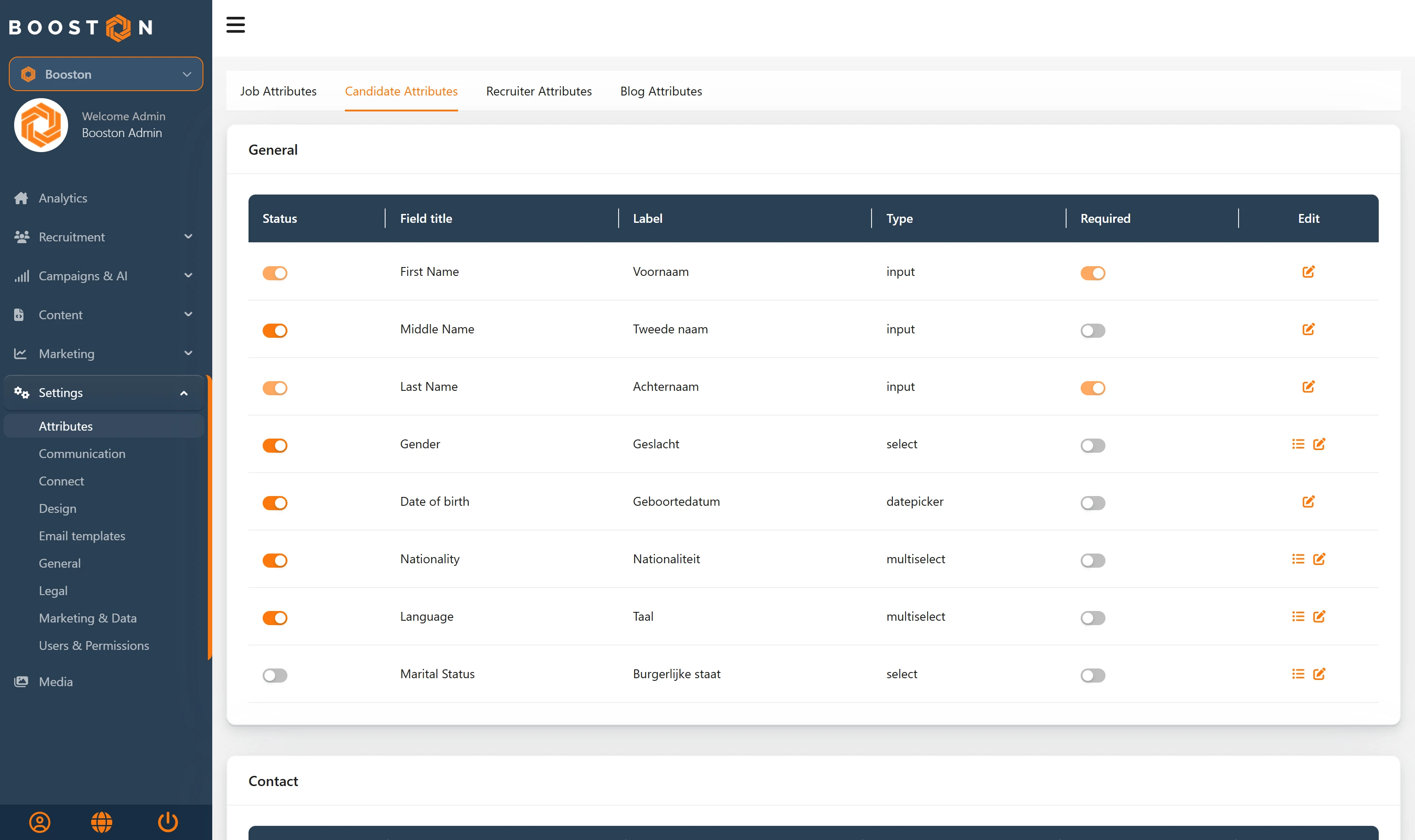
- Which fields AI can fill is set in your candidate attributes under Settings → Attributes → Candidate Attributes. An attribute that is switched off is not filled. See Managing attributes for jobs and candidates.
Step 1: switch AI on for your environment
AI is an add-on to your subscription. With it switched off your dashboard works exactly as before: nothing disappears, there is simply nothing extra.
- Go to Campaigns & AI → AI → Settings.
- Switch Status on. This is the master switch for everything AI related.
- At Monthly AI Budget, enter the maximum amount AI may cost per calendar month.
- Click Save.
Before every AI action Booston checks whether the amount still fits within your budget. If it does not, that action does not run. So a budget of 0 or an empty field means no actions at all. On the first of the month the counter starts again.
Not sure whether it is on? Open Campaigns & AI → AI → Cost & Performance. With AI switched off you see a red message at the top of that page.
Switching AI on, the budget and the other parts of the AI module are described in full in Switching on AI, setting it up and tracking your costs.
Step 2: accept the data processing agreement
Booston processes applicants' personal data on your instructions. You are the controller, Booston is the processor, and the GDPR then asks for a data processing agreement. As soon as AI reads CVs and scores candidates, processing by AI is added to that. This is why Booston asks you to confirm the current version of that agreement before you use these functions.
As long as nobody has accepted, a red bar sits at the top of your dashboard. That bar blocks nothing, but it does not go away with a cross either.
- Click Review & accept in the red bar. If the bar is gone, use the Review & accept button on the Data Processing Agreement card under Settings → General → Subscriptions.
- Read the agreement and check your company details in the window.
- Tick the declaration at the bottom and click Agree.
Only a Manager or administrator sees the bar and can sign. One authorised colleague accepts on behalf of the whole organisation, after which nobody gets the question again. The full procedure, the statuses on the card and what exactly is recorded are in Subscription information.
Step 3: switch on Resume Parsing and Review Score
Only now does the candidate section itself come into view. It sits on one screen with your prompts.
That card holds two switches. They work independently, so you can perfectly well have CVs read and leave the scoring off.
| Switch | What it does | When to switch it on |
|---|---|---|
| Resume Parsing | Reads the CV and fills the candidate's empty fields. | As soon as you work with CVs. This saves the most retyping. |
| Review Score | Gives the candidate one to five stars with a report alongside. | With larger volumes of applications, to prioritise. |
Click Save at the bottom of the page. There is one Save button that saves every card on this screen at once, so your changes under General and Jobs as well.
With both on they work one after the other: Booston reads the CV first and scores after that. That is deliberate, because the scoring uses the fields that have just come out of the CV.
Step 4: record what AI should judge on
This is the step that decides whether you get a score you can act on or a score you end up double-checking every time. By default AI judges on general suitability. You know what counts in your market, and this is where you record it. All fields sit on the same screen as in the previous step.
About the Company
This field sits at the top, on the General card. Describe who you are as an employer: what you stand for, how you work, what keeps people with you. This text goes along as context with every review, so a candidate is not only measured against the job requirements but also against the kind of organisation you are.
Do not write slogans here but concrete facts and atmosphere. Two paragraphs is enough.
Review Notes
Back on the Candidates card sits Review Notes, a free text field. Here you put what AI should pay attention to with every candidate, regardless of the job. Think of hard requirements that apply across your organisation, a diploma that is mandatory, a maximum travel distance, or something you are willing to look past.
The five star levels
Below that sit five text fields, 1 Star through 5 Stars, each with the matching stars next to it. Per level you describe when a candidate deserves that score. Booston fills these fields on delivery with a general description in English, such as "a good fit with solid experience and limited gaps" for four stars. That works, but it is not your yardstick.
Replace them with your own requirements, in your own language, and make them measurable:
| Field | What you put in it |
|---|---|
| 5 Stars | The candidate you call straight away. Name the hard requirements they meet. |
| 4 Stars | Good candidate with one point you still need to ask about. |
| 3 Stars | Borderline, worth reading. |
| 2 Stars | Does not fit this role, perhaps another one. |
| 1 Star | Not relevant, or the document is not a CV. |
What else AI weighs up
You do not have to supply everything yourself. A review takes in:
- The candidate's CV.
- The candidate fields that are already filled, so the answers from your application form or lead form as well.
- The job: title, job text, the attributes you added to it, location, salary and the link to the job page.
- Your About the Company, your Review Notes and your five star levels.
So the job text is the yardstick. If there is little in it, AI has little to measure against and the score becomes more general. See Creating and optimising jobs with AI if you want to sharpen those texts.
The report comes in the language of the recruiter attached to the job. If that recruiter has several languages, the language of the job wins. If no recruiter is attached, Booston uses the default language of your environment. So set your recruiters up properly through Team members.
Step 5: add a candidate and have the CV read
This is the quickest way to see what the reading does, and at the same time the way you add someone who came in outside your job page.
- Drag the CV into the upload area at the top, or click it to pick a file. Do this first, before filling in any fields.
- Wait until the message Parsing CV… disappears. Booston is reading the document.
- Check what has been filled in. Name, email address and phone number are usually there right away, together with every other attribute AI found in the CV.
- At Select action, choose the job the candidate is responding to, or leave Open Application as it is.
- Add whatever is still missing and click Save & close.
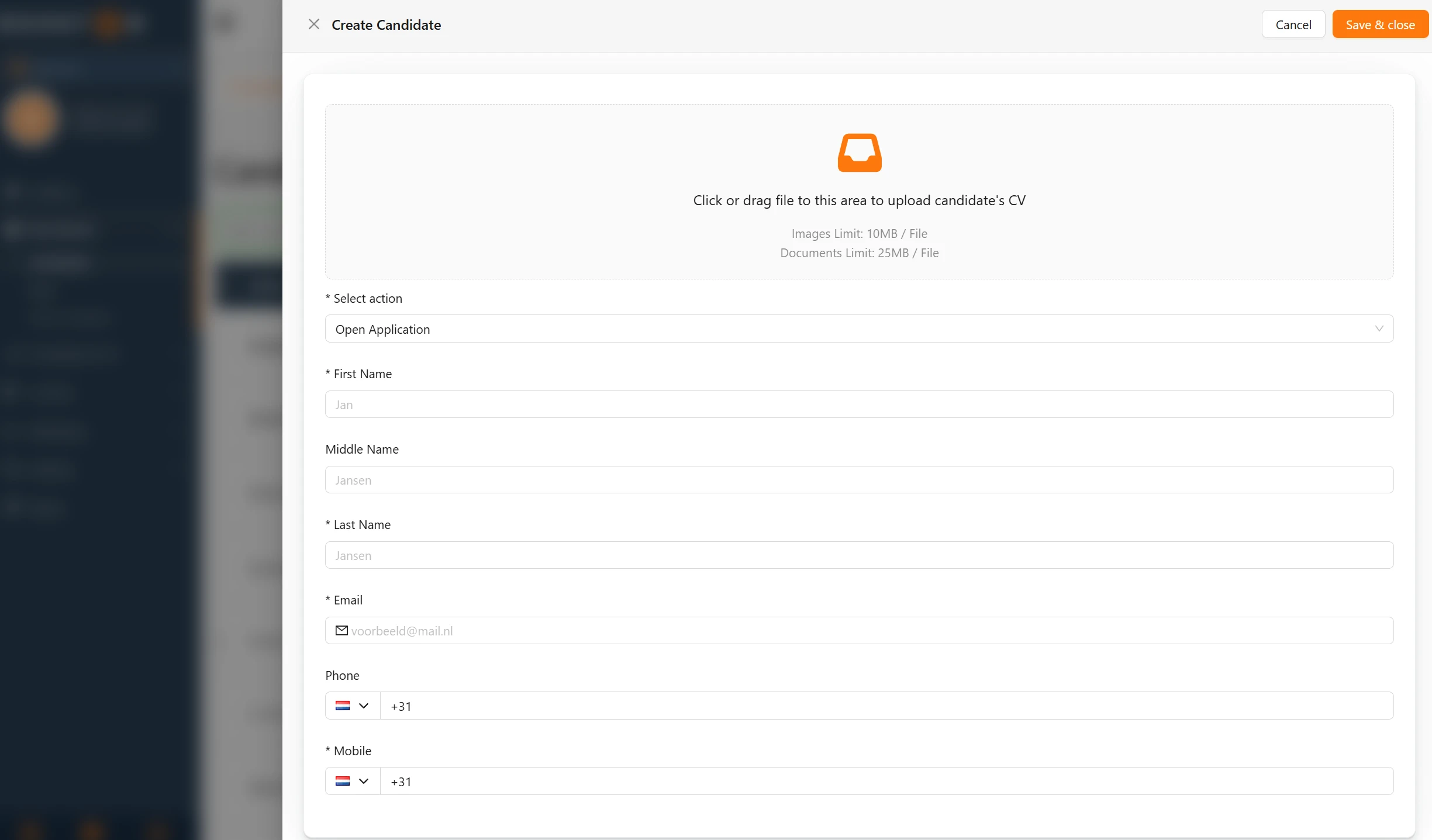
Two things to know at this step:
- Only empty fields are filled. Whatever you typed yourself stays. So if you upload the CV after filling in half of it yourself, the reading has little left to do.
- A PDF works best. Word files are converted automatically before they are read. A document may be up to 25 MB, an image up to 10 MB.
Missing a field that was in the CV? Then the attribute is probably switched off. AI only fills what you switched on under Settings → Attributes → Candidate Attributes, so a field that is greyed out there does not exist as far as the reading is concerned.
The review does not follow immediately on saving. Booston runs a round every night over the candidates of the last two days, so the stars of a manually added candidate are there the next morning. How you fill in the rest of the file is in Creating, editing and reviewing candidates.
Step 6: let applications through your job be handled automatically
This is where the real gain sits, and you do not have to do anything for it. As soon as somebody applies through your job page and there is a CV with it, Booston gets to work straight away. In this order:
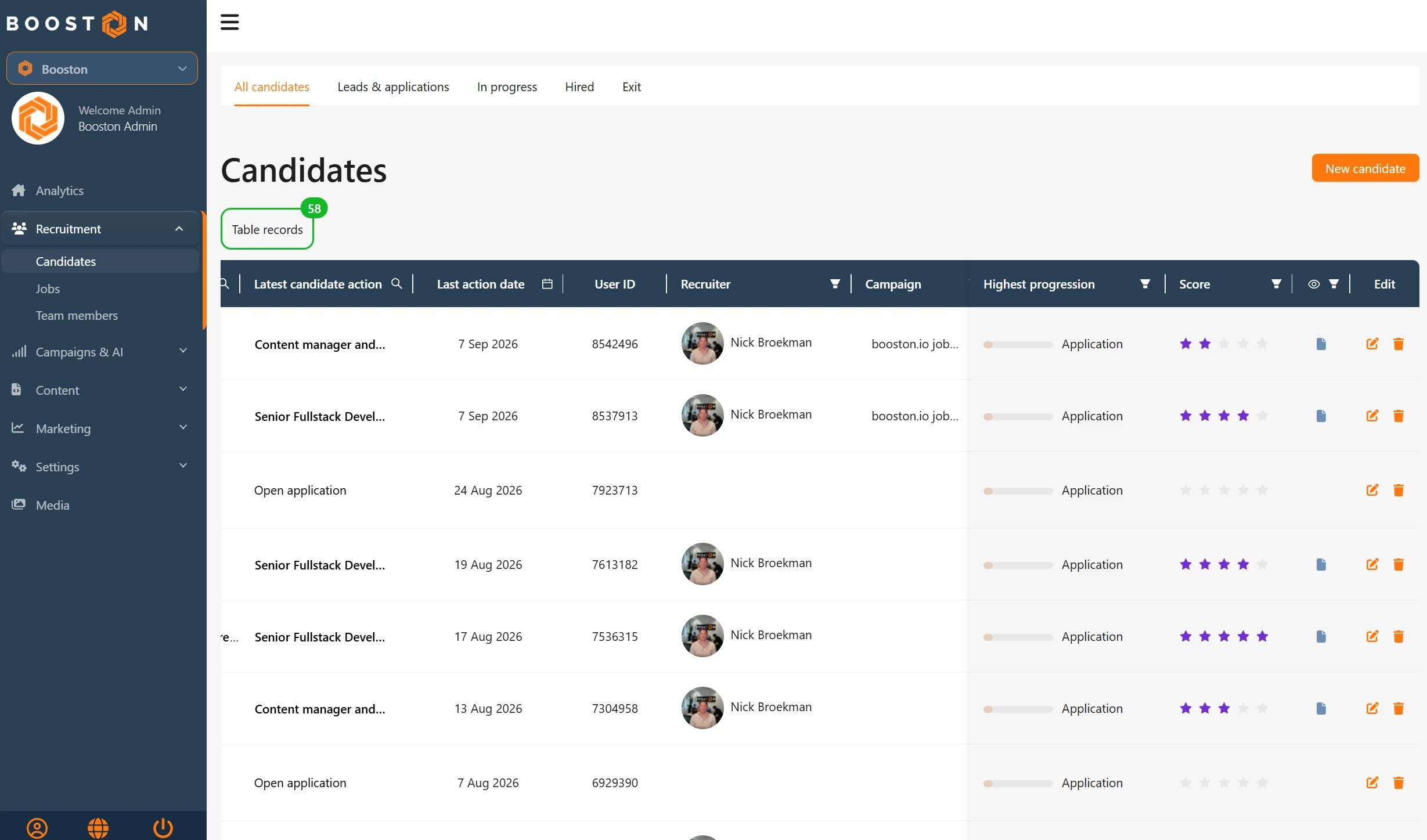
- The application comes in and the candidate appears in your overview.
- The CV is read and the empty fields are filled.
- The candidate is scored against the job they responded to.
- If you work with an ATS connection, the candidate then goes to your ATS, including the fields that were just recognised.
That happens within a few minutes of the application, in the background. You do not have to press a button and there is no queue for you to watch.
The nightly catch-up round
If something did not go through, for instance because your budget was full or because AI was switched off that day, it is not lost straight away. Every night Booston goes over the candidates of the last two days and handles whatever was still open. So if you switch AI on midweek, that round still picks up the applications of the two preceding days. Anything older stays unscored.
Open applications and second responses
A candidate who applies without a job, an open application in other words, is scored as well. There is no job text to measure against, so AI looks at this candidate's general employability, at your About the Company and at your Review Notes. That is exactly why those two fields are worth filling in properly.
If the same candidate responds to a second job later on, they get a new review for that application. Every application is scored once, not every candidate.
Step 7: read the outcome in the candidate file
Open a candidate in the overview. Everything AI did is recognisable by the colour purple.
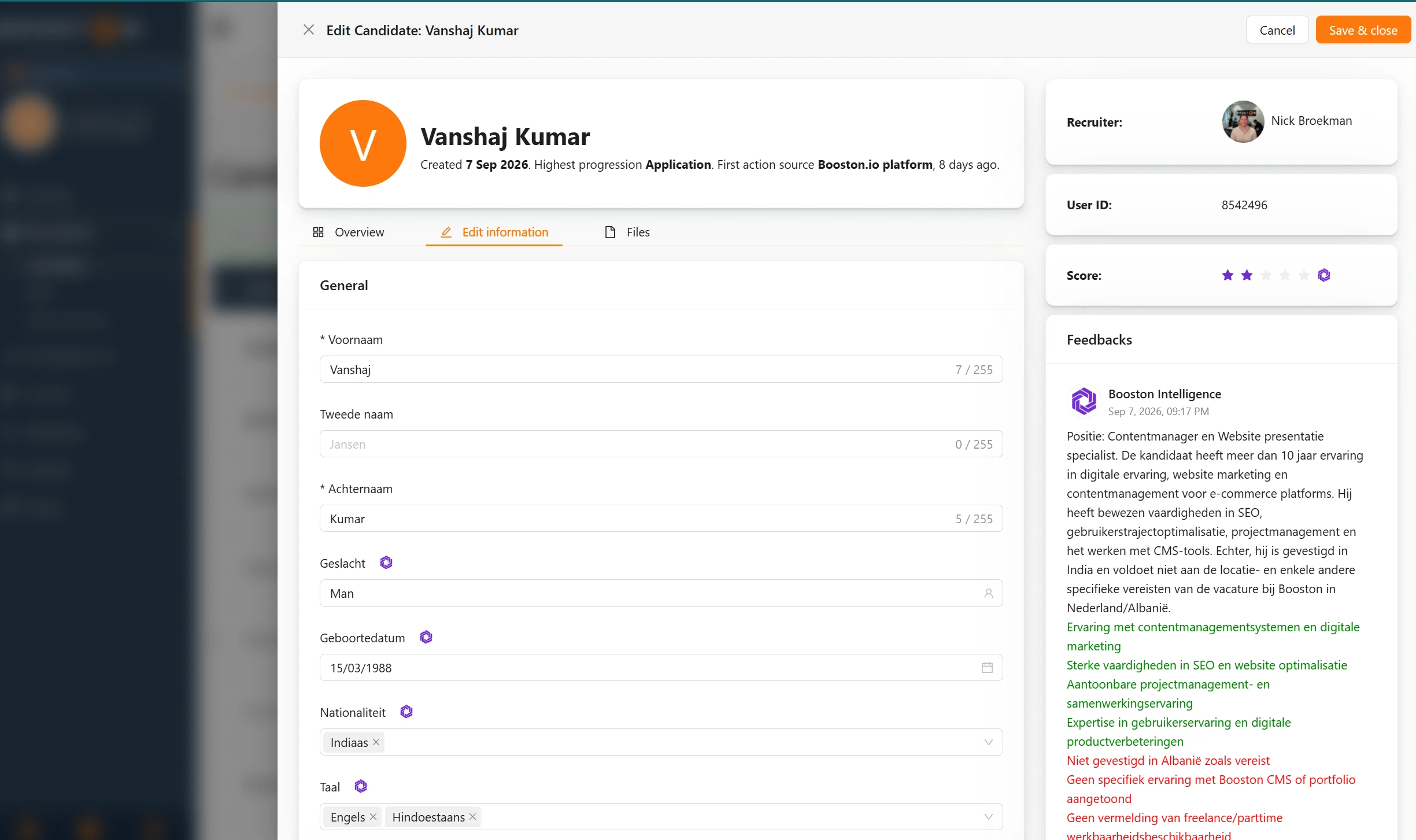
- A purple icon next to a field label: that value came from the CV. Point at it and you see Filled by AI. Change the field yourself and the icon disappears on saving, and from then on it is your value.
- Purple stars at Score: the review came from AI. Give stars yourself and your judgement counts, and the purple display disappears. Your score always wins from the AI one.
- A note from Booston Intelligence under Feedbacks: the report. At the top sits a summary naming the role it was measured against, below that the strengths in green and the points of attention in red. That note sits among the notes of your colleagues, with the date and time on it.
Use the report the way you use a note from a colleague: as a starting point. It is there precisely so you can see why a candidate got that score, and disagree with it yourself.
What it costs and where you see it back
Every CV read is one action and every review is one action. For these two a fixed amount per action applies, agreed per environment. So the length of the CV or of the job text makes no difference to the price, and two candidates cost twice as much as one.
A candidate who comes in through your job with both functions switched on therefore costs two actions: one for the reading and one for the review.
Watching live: Cost & Performance
- Pick your period with the date picker in the top right. The last 30 days are set by default.
- Read the totals under AI Usage Stats: Total AI Cost, Total Actions and Avg Cost per Action.
- Zoom in on the AI Cost per Job table. Per job there are two columns about candidates: Resume Parsing and Review Score, with the total amount for that job next to them at Spend.
- Sort on Spend to see where your budget goes, or on Review Score to see which job had the most candidates reviewed.
The job title in that table links through to the job itself. If you have an ATS connection the Job ATS ID is there too, so you can find the same job on the other side.
Per month: the Subscriptions page
Under the heading AI sits what last calendar month cost, per type of action. The two lines about candidates are Applicant Review Score last month and Resume Parsing last month. The rate per action is in brackets behind the name, so you see at a glance what you pay per candidate.
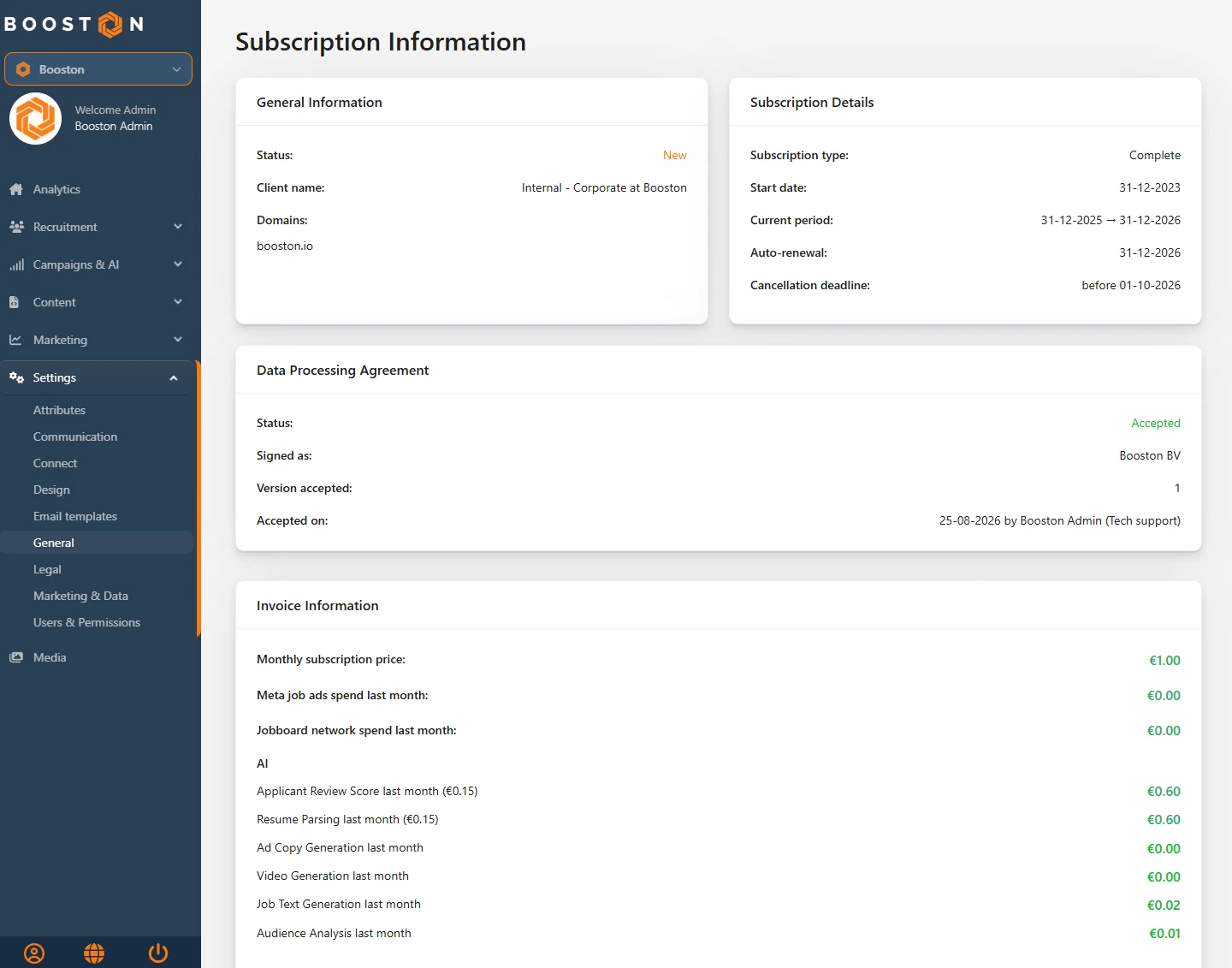
Where Cost & Performance gives you live insight to steer with, this is the monthly settlement.
Per candidate: System activity
If you want to know whether one specific candidate was handled, go to Menu → Analytics and scroll down that dashboard to the System activity block. Every AI action sits there as its own line: Resume parse or Resume review, with the candidate number and the job number in the description. That is where you trace an amount on the invoice back to a single candidate. What else that dashboard shows is in Analytics.
What you cannot arrange yourself
A few things are deliberately fixed. Email support@booston.io if you want something changed here.
- The rate per action. That is fixed per environment. You steer costs through your Monthly AI Budget and through the switches, not through the rate.
- The AI model and the environment your actions run in. Booston picks and manages those, so quality and cost stay predictable.
- The structure of the prompt. You steer the review through About the Company, Review Notes and the five star levels. The rest of the instruction is fixed.
- Running a review again. There is no button to have a candidate scored a second time. If you sharpen your instructions, that applies to the candidates who come in afterwards.
Troubleshooting
A candidate has no score
Check four things: does the candidate have a CV, is Review Score on, is AI on, and was there budget left when they came in. If the application is older than two days, the nightly round no longer picks it up.
The fields stay empty even though the CV was read
Then there was nothing usable in the CV, or the matching attribute is switched off under Settings → Attributes → Candidate Attributes. With choice fields it also happens that AI recognises the information but cannot pick a matching value. Add that value, or make the name of the attribute clearer.
The stars are not purple
Then the score did not come from AI. Either someone on your team reviewed the candidate, or your ATS manages the review. Point at the stars: if it says Set by ATS, it is your ATS.
The report is in the wrong language
The language comes from the recruiter attached to the job. Check that recruiter's languages under Team members. If no recruiter is attached to the job, Booston uses the default language of your environment.
Nothing happens at all, with any candidate
Almost always the budget. Check under Campaigns & AI → AI → Settings whether Monthly AI Budget holds an amount greater than 0, and look in Cost & Performance to see whether you have already used it up this month.
Frequently asked questions
Does AI decide whether a candidate is rejected?
No. AI fills in fields and gives a score with a justification. Inviting, rejecting and changing statuses stay actions performed by a person.
Does the candidate see their score or the report?
No. The score and the report only exist in your dashboard and go to your ATS. The candidate does not see them and they are not in the confirmation email.
Can I switch the reading on and leave the scoring off?
Yes. Resume Parsing and Review Score are separate switches. Many clients start with the reading only, because that is where the time saving is biggest and no judgement is attached to it.
Does this work for candidates from a Meta campaign?
Yes, provided there is a CV. Candidates from a lead form often do not supply one. Without a CV they are not read and not scored, but they do appear in your overview as normal. See Meta job ads.
What happens to the CV at the AI service?
The document is offered for the analysis and removed again straight afterwards. The CV itself stays with the candidate in Booston, under the Files tab.
Coming soon
We are working on a few additions around candidates and AI. As soon as they are live, we will update this article.
- Excluding candidates from AI actions. You set criteria yourself to keep certain candidates out of the reading and the scoring, for instance applications for a job where you do not need it.
- One way of calculating across all channels. The amounts for Meta, the jobboard network and AI are calculated and shown the same way, so you can put them side by side without converting anything.
Need help?
Stuck, or unsure which setting fits your situation? Email support@booston.io or call 085 0044 215 and mention:
- the name of your environment;
- which candidate or job it concerns;
- what you want to achieve, or the message you are seeing.
Would you rather walk through the settings together? Book a free 30 minute online demo and we will go through it with you. Job Done!


