Two questions come back every month. The first one comes from your manager: what is Booston costing us, and where does that usage sit? The second one comes from your privacy officer or from an auditor: do we have a data processing agreement with Booston, and who signed it? Until now you went looking in your mailbox for both.
Booston puts those facts together on one screen. You see which subscription you have and how long it runs, what you used last month on advertising and AI, and the status of your data processing agreement. The end goal of this article: being able to say within a minute what your subscription costs, where your usage comes from and whether your GDPR arrangements with Booston are in order.
After this article you know what is on every card, why you sign the data processing agreement inside the platform instead of by e-mail, how that signing works and which amounts you will and will not find on this page. You reach the screen through Settings → General → Subscriptions.
Before you start
- You need a role with admin rights. Managers and admins see the Subscriptions tab, recruiters do not. Who has which role is set in Users: giving access, choosing roles and logging in through your ATS.
- This page is an overview, not a form. Everything here is read-only. The one thing you can do on it is read and accept the data processing agreement.
- The Data Processing Agreement card only appears when AI is switched on for your environment. With AI off, Booston skips the question and the card is not shown.
- Do not confuse this with Settings → Legal in the menu. That one covers the legal texts and the cookie notice on your own website.
What you find on this page
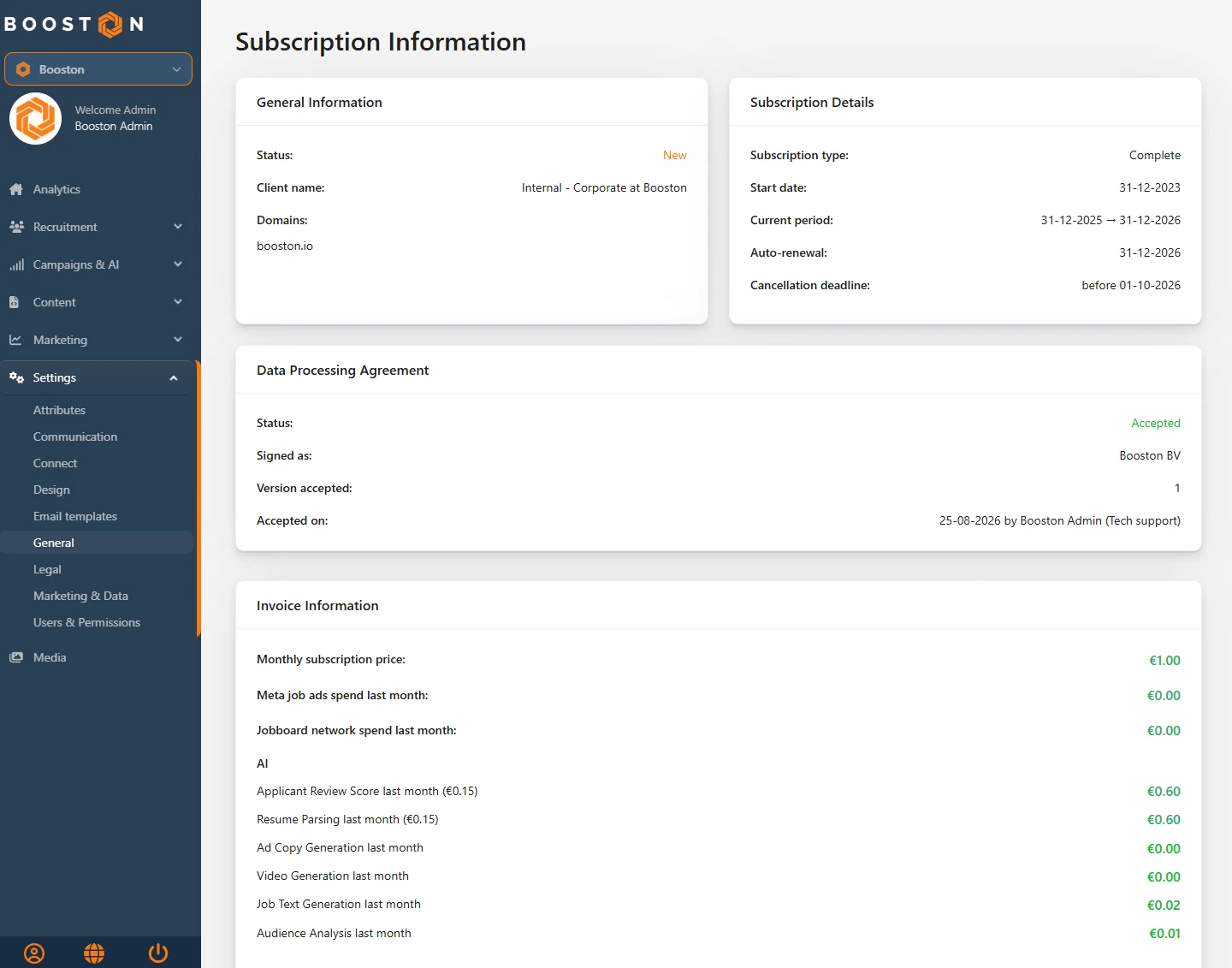
The screen is called Subscription Information and holds four cards. The top two sit side by side, the other two below them across the full width.
| Card | What is on it | Where it comes from |
|---|---|---|
| General Information | The status of your environment, your client name and your domains. | What Booston has on record for your environment. |
| Subscription Details | Your subscription type, the start date, the current period, the renewal date and the cancellation date. | Calculated from your start date. |
| Data Processing Agreement | The status of your data processing agreement, who accepted it and which version. | The acceptance recorded in Booston. |
| Invoice Information | Your subscription price and last month's usage, per part. | Your advertising spend and your AI actions. |
General Information: your environment
Three lines, and mostly useful when you have several environments or several domains.
- Status: the state of your environment at Booston. Active is a running environment, New and Install belong to an environment that is still being set up, Archived to an environment that is switched off and Pending cancellation to a cancelled subscription that is still running.
- Client name: the name your environment is known by at Booston. That is not always literally your trading name.
- Domains: the domains that belong to your environment. When a date appears behind SSL expires, that is the expiry date of the security certificate for that domain. Booston renews that certificate in time, you do not have to do anything for it.
Subscription Details: your subscription and the dates
Here you read which package you have and which dates hang on it. The subscription type is shown the way Booston administers it: Launch, Grow or Scale, and for older contracts names such as Start, Campaigns, Website, Complete or Website only.
| Field | What it means |
|---|---|
| Subscription type | Your package. It decides which modules you see and which rights new users get by default. |
| Start date | The day your subscription started. |
| Current period | The period running now, from one anniversary to the next. |
| Auto-renewal | The date on which your subscription continues automatically. |
| Cancellation deadline | The last day to cancel, three months before the renewal date. |
Booston calculates the last three lines from your start date, so they move along every year. If your start date is not filled in at Booston, they stay empty.
Data Processing Agreement: why you sign it here
Booston processes personal data of applicants on your instructions: their application, their CV, their details in the dashboard. Under the GDPR that is processing, you are the controller and Booston is the processor. The law then asks for a data processing agreement between those two parties. As soon as AI helps out with job texts, with reading CVs and with scoring candidates, processing by AI is added to that. That is why Booston asks you to confirm the new version of the agreement.
That happens inside the platform, and not by e-mail, for three reasons that turn out to be very practical the moment an audit starts:
- You always read the version that applies. The text you see in the window is the version published at that moment, with the name of your organization already filled in.
- Who signed, when, and on whose behalf is recorded. On acceptance Booston records the name and job title of the signer, the legal entity they sign for, the date and the version of the agreement. An e-mail thread with an attachment does not give you that.
- It covers your whole environment. One authorized colleague accepts on behalf of the organization. After that nobody else gets the question.
As long as nothing has been accepted, a red bar sits at the top of the dashboard. That bar shows on every admin page, including the older screens, and it does not close with a cross. It blocks nothing: you can simply keep working. Only managers and admins get to see it, recruiters do not.
How to sign the agreement
- Click Review & accept in the red bar. If the bar is gone, or you want to open it from this page, use the Review & accept button on the Data Processing Agreement card.
- Read the agreement in the window. Your own details are highlighted in it, so you can see which parts are about your organization.
- Check Statutory company name. Booston prefills your account name, but what belongs here is the name of the legal entity as registered with the Chamber of Commerce.
- Check KvK number and correct it if it is wrong. If no number is known, fill it in yourself or leave it empty.
- Fill in your role at Your job title. Booston prefills whatever is in your profile.
- Click Download agreement if you want to keep the agreement or have someone read along. You get a PDF with your details already merged into it.
- Tick the declaration at the bottom. With it you state that you are authorized to sign on behalf of your organization and that you accept the agreement.
- Click Agree. The red bar disappears straight away and the status on this page jumps to Accepted.
There are two more buttons in the window. Later closes the window for now, the red bar stays and you get the question again next time. I am not authorized to sign this does the same thing: the window closes and nothing is recorded. If you are not the authorized person, ask a colleague with a manager or admin role to log in and sign. As long as nobody accepts, the bar stays.
The status on this page
The Data Processing Agreement card is the memory of that action. The bar is gone the moment it is signed, the card stays.
| Status | What you see | What you do |
|---|---|---|
| Accepted (green) | Under which name it was signed, which version, and on which date by whom. | Nothing. This is your evidence. |
| New version available (orange) | The version you accepted and the version that applies now. | An authorized colleague accepts the new version. |
| Not accepted (red) | The message that AI is active and that there is no agreement yet. | Sign, or ask the authorized colleague to do it. |
At Accepted you find exactly what an audit asks for: Signed as is the legal entity the signer declared, Version accepted the version that was accepted, and Accepted on the date with the name and the job title of the signer behind it.
If Booston publishes a new version later, the status jumps to New version available and the red bar comes back. Your earlier acceptance stays visible, because it applies to the version you signed at the time.
Invoice Information: your usage last month
The bottom card adds up what Booston did for you last month. Last month means the previous calendar month: the first day up to and including the last. So these are not rolling thirty days.
| Line | What it is |
|---|---|
| Monthly subscription price | Your fixed subscription price per month. |
| Meta job ads spend last month | What you spent advertising on Facebook and Instagram last month. |
| Jobboard network spend last month | What you spent on the job boards last month. |
| AI | Six lines with your AI usage, one per type of action. |
| Total expenses last month | The sum of your subscription, your advertising and your AI usage. |
Under the AI heading the six types of action are listed separately: Applicant Review Score, Resume Parsing, Ad Copy Generation, Video Generation, Job Text Generation and Audience Analysis. The first two show the rate per action in brackets, so you can see what one scored applicant or one parsed CV costs. If you did not use a type of action, it reads € 0.00. How you switch those actions on and rein them in is covered in Switching AI on, setting it up and keeping track of your costs.
Where the amounts come from
The AI lines are added up from the actions Booston records with every AI handling. Those go in straight away, so the total is right as soon as the month is over.
The amounts for Meta job ads and the Jobboard network are collected from the advertising channels once a month, during the night of the second day of the month. That explains what you see on the first of the month: the AI lines are already updated to the month that just closed, while the advertising amounts are still those of the month before. Look a day later and everything lines up. If a channel is not connected at all, that line stays at € 0.00.
The difference with the AI cost screen
You find your AI costs in two places, and they answer a different question.
- Campaigns & AI → AI → [Cost & Performance](https://booston.io/blog/post/ai-prompts-en-kosten) is your steering screen. There you pick a period yourself, see the day by day pattern and zoom in as far as the individual job. Use it to adjust while the month is running.
- Settings → General → Subscriptions is the closing of the previous month, without a date picker and without detail per job. Use it to check your monthly usage.
If this page shows a different amount than the AI cost screen, look at the period first. Odds are it is still set to the last thirty days, and that is something else than the previous calendar month.
What you cannot arrange yourself
This page shows what has been agreed. Changing it goes through your contact person or through support@booston.io.
- Your subscription type, your price and your term. They follow from your contract.
- The status of your environment and your domains. An extra domain or a name change goes through the helpdesk.
- The text and the version of the data processing agreement. Booston publishes the agreement centrally. You accept a version, you do not edit it.
- The rates per AI action. You steer your AI costs with your monthly budget and with your settings, not with the rate.
Solving problems
I do not see the Subscriptions tab
Your role has no admin rights, or the page is hidden for your role. A colleague with an admin role can change that in the rights of your role.
The Data Processing Agreement card is not there
Then AI is switched off for your environment. Booston only asks for the agreement from clients who use AI, so without AI the card does not appear and there is no red bar either.
The red bar stays, even after Later
That is how it works. Later only closes the window. The bar disappears once somebody clicks Agree. It does not block your work.
The status says Accepted, but I see a red bar again
A new version has been published. The card then shows side by side which version you accepted and which version applies now. An authorized colleague accepts the new version, and it goes quiet again.
All amounts read € 0.00
Look at the month first. If you only went live this month, the previous month is still empty. If your environment has been running longer, check whether your advertising channels are connected and whether any AI actions ran last month.
Frequently asked questions
Who may accept the data processing agreement?
Everybody with a manager or admin role gets to see the question. Whether that person is also authorized to sign on behalf of the organization is up to your own organization. You declare it with the tick box at the bottom of the window.
Does the acceptance cover our whole organization?
Yes, your whole Booston environment. Other users in that environment no longer get the question afterwards.
We already signed the agreement outside Booston. What now?
Mail support@booston.io with the date and the version you signed. As long as nothing is recorded in Booston, the message stays in the dashboard.
Can I download the signed agreement later?
The Download agreement button sits in the window, so before accepting. If you missed it, request a copy through support@booston.io.
Is this overview my invoice?
No. It shows what you used last month and what your fixed subscription price is. The invoice itself arrives separately.
Coming soon
- One calculation for all your amounts. Booston is bringing the calculation of the advertising and AI amounts into one shared method, so the amounts on this page and those in Cost & Performance come about in the same way.
- Candidate audience analysis for everyone. The rollout switch of the audience analysis is being removed, which keeps the feature available for every environment. If you use it, you see it back on the Audience Analysis last month line. What the analysis does is covered in Candidate audience analysis.
As soon as this is live, we will update this article.
Need help?
Stuck, or unsure whether you are allowed to change something yourself? Mail support@booston.io or call 085 0044 215 and mention:
- the name of your environment;
- what you want to achieve;
- the message you see, if there is an error message.
Would you rather walk through the settings together? Book a free 30 minute online demo and we will go through it with you. Job Done!


