Someone landing on your jobs overview is not going to scroll through eighty vacancies. They type a word, or tick two boxes, and expect what is left to make sense. Put a filter there that nobody uses, or let the word everybody types return nothing, and they drop out on the very page you paid the most to get them to.
Booston has two things for this: a search bar visitors type into freely, and filters where they tick values. You switch both on per attribute, in the same Search block. The goal of this article: a jobs page where a visitor reaches the vacancies that suit them in two moves, with filters you pick yourself and a search bar that looks in the fields that matter.
After this article you know which switch turns on which part of the search, what the search bar actually looks in, how to add or remove a filter, and what happens to your search results in Google. You start in Settings → Attributes → Job attributes.
Before you start
- You need the website module and a role with edit rights. With read-only rights you see the screens, but the switches are greyed out.
- Which attributes exist was set up at handover. You can switch them on and off, rename them, translate them and give them values. Adding a completely new attribute goes through the helpdesk. See Managing attributes for jobs and candidates.
- The search element is already on a page of your site, usually your jobs overview. Where it sits and how you adjust it is covered in Page elements. Just handed over? Start with Setting things up yourself after handover: it tells you in which order to fill in the rest of your site.
- Working with an ATS connection? Then the values visitors filter on come from your ATS. Add a new value there and it appears in the filter by itself.
The two ways of searching
Visitors search in two ways, and the two work independently. You can switch both on, and usually that is the right call: one catches the visitor who knows exactly what they want, the other the one who is still looking around.
| Way | What the visitor does | What you switch on for it |
|---|---|---|
| Search bar | Types a word or a couple of words. | The Text search switch, per attribute. |
| Filters | Ticks values in a list, for example three disciplines at once. | The Advanced search switch, per attribute. |
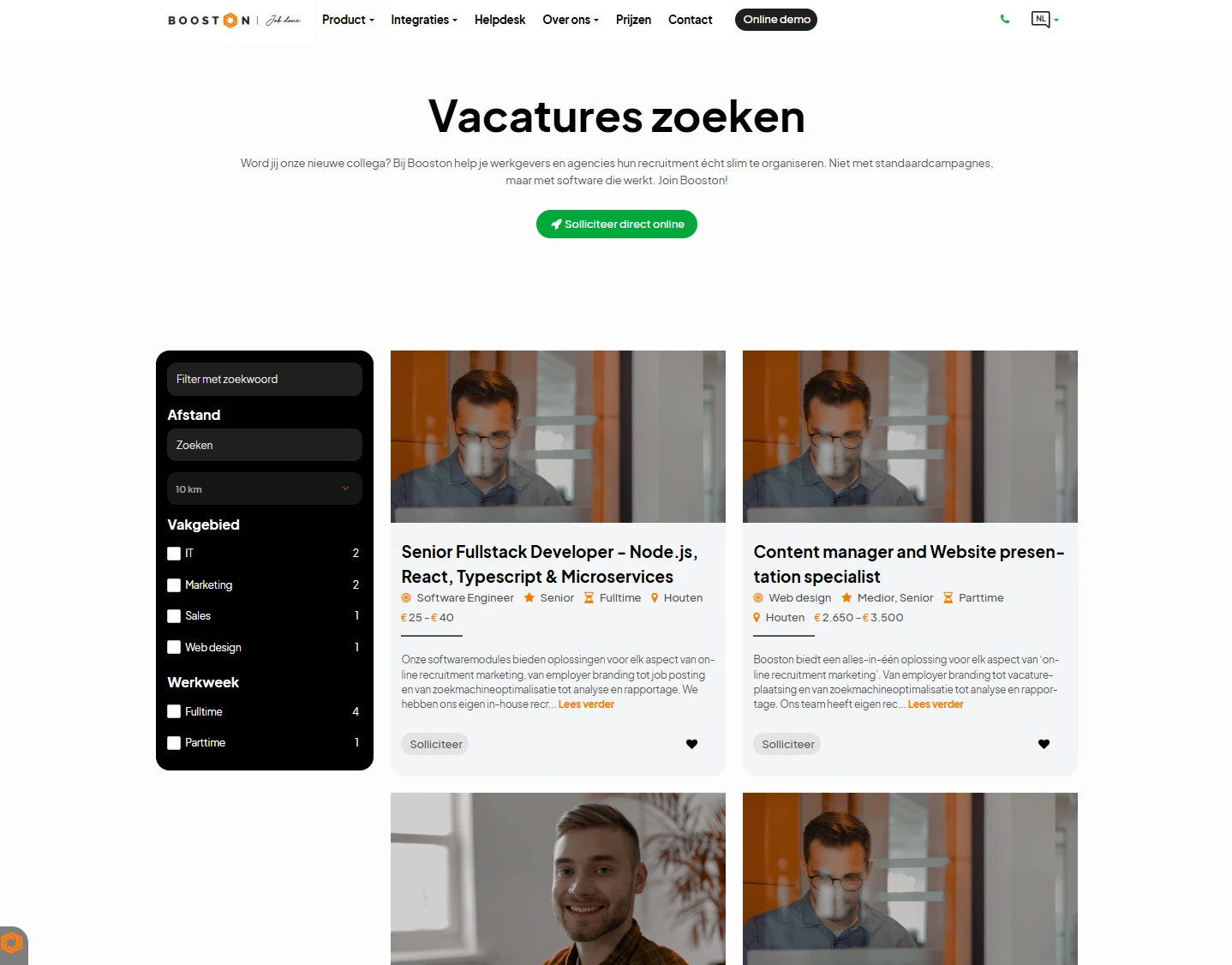
On top of that come two fixed search options that do not hang off an attribute: searching by town with a radius around it, and a salary slider. You switch those on or off in one go for the whole site, under Settings → General → Job.
The filters are multiple choice, not single choice. Tick three values inside one filter and the visitor sees the vacancies of all three. Tick something in two different filters and a vacancy has to match both. So their list gets wider within a topic and narrower across topics, exactly the way they expect.
What the search bar looks in
The search bar only looks at attributes that have Text search switched on. Leave the switch off everywhere and every word returns nothing. That is the most common cause of a search bar that "does not do anything".
What gets searched depends on the type of attribute:
- Choice fields (Select and Multiselect): the search bar looks at the labels of the attribute values, in the visitor's language. Someone typing "logistics" finds the vacancies with the value Logistics in the discipline.
- Text fields and numbers (Input, Textarea and Number): the search bar looks at what the recruiter filled in. That is how you find on the job title, on the town, or on a word halfway through the description.
- Yes/no fields (Boolean) cannot take part. On such an attribute the switch is greyed out.
Three things worth knowing before you start flipping switches:
- Part of a word is enough. Type "nurs" and you also find "nursing". Capitals make no difference.
- Several words have to sit together. When a visitor types two words, those words have to appear together in the same text, or together in the same attribute value. So "nurse Amsterdam" works if the town is a text field that takes part in the search, and not if the town only exists as a tick-box filter. For combinations across topics, the filters are what you want.
- Every language searches its own texts. A visitor on the German version searches the German job texts and the German labels. A vacancy that has not been translated cannot be found there.
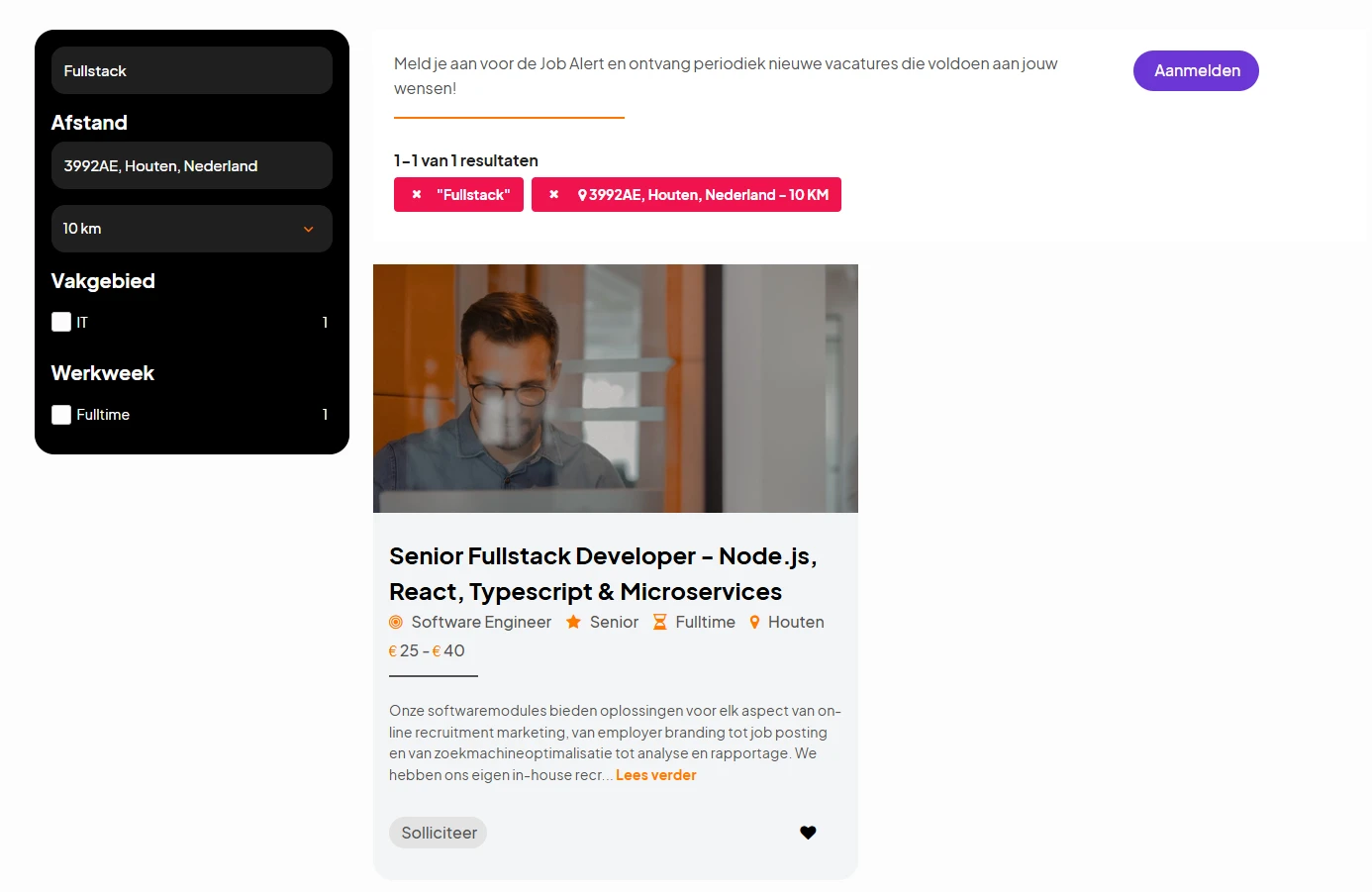
Above the results the visitor sees what their search produced: the number of vacancies found, and every choice as a small block with a cross in it. That lets them take one step back without starting over, and clear all filters wipes everything in one click.
Turning filters on with Advanced search
A filter is a block beside or above the search results with values to tick. You decide yourself which attributes get a block there.
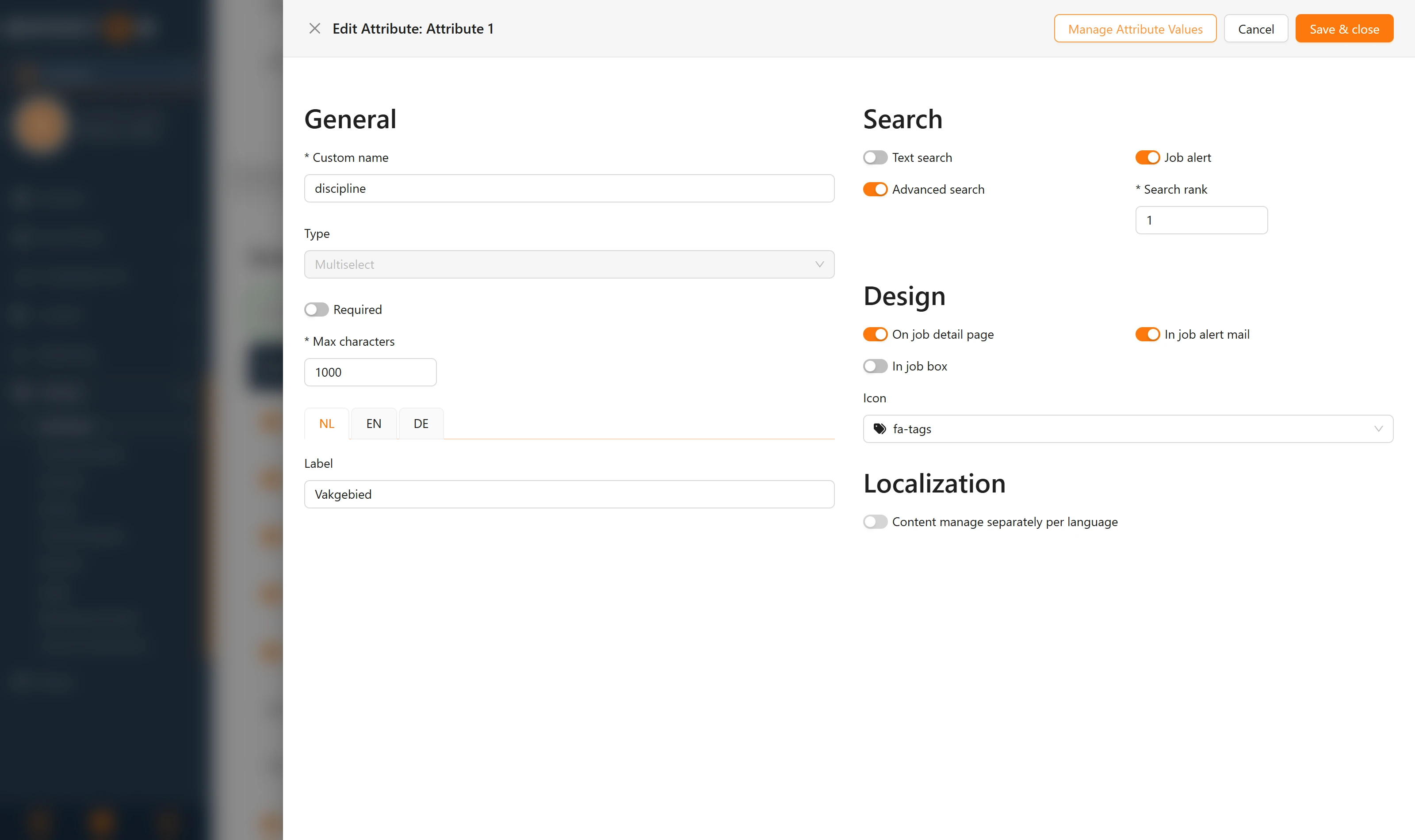
- Go to Settings → Attributes → Job attributes.
- Open the attribute you want to use as a filter.
- In the Search block, switch Advanced search on.
- Fill in a number at Search rank. It decides the order of the filter blocks: the lower the number, the higher the block sits.
- Click Save & close.
Three conditions, or the filter will not appear on your site:
- The attribute is of the type Select or Multiselect. On a text field the switch is greyed out, because there is nothing to tick.
- The attribute is set to Active.
- Attribute values have been filled in. An empty filter is not shown.
The Search block from top to bottom
| Setting | What it does | When do you use it |
|---|---|---|
| Text search | The content of this field counts in the search bar. | On title, description, town and any choice field whose values are words visitors type. |
| Advanced search | The field appears as a tick-box filter next to the search results. | On choice fields with a manageable number of values, such as discipline, contract type or education level. |
| Job alert | The field may be used in the job alert form. Which fields end up there you pick on the form itself. | On the same fields you use as filters. |
| Search rank | The order of the filter blocks, lowest number on top. | Put the most used filters on 1 and 2. |
What the visitor gets back
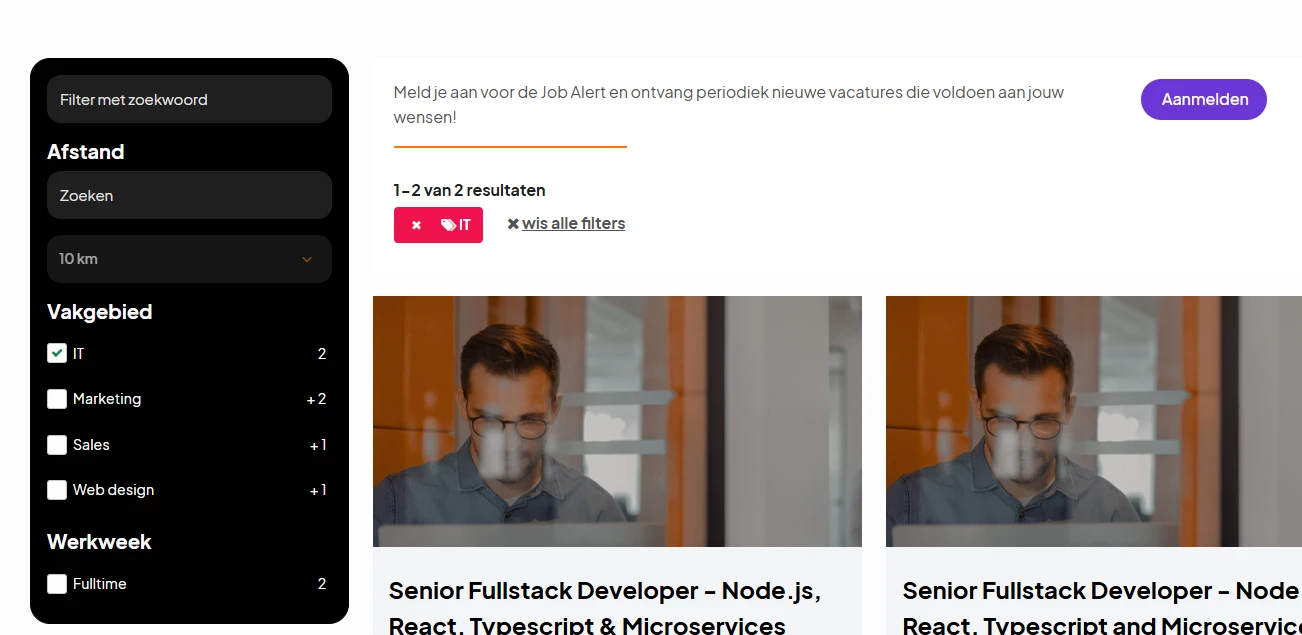
Behind every value there is a number, and that number moves with what they have already ticked. The values they picked show how many vacancies they are seeing now. The other values in that same filter show a plus number: that is how many vacancies get added if they tick that one as well. So they know up front whether another tick buys them anything, without having to try it. A value with no number behind it has no vacancies and is a dead end.
The search element on your page
The search itself is a page element. You find its settings through Content → Pages, the page with your jobs overview, and then the Job advanced search element.
What you set there, per page:
- Advanced search filters type: whether the filters sit to the left of the vacancies or as a bar above them. On mobile they slide behind a button either way.
- Maps search is visible: a map view next to the results.
- Sort jobs by: the order of the results. You can switch on several criteria and rank them: by job number, alphabetically, by boosted, by start date or by end date. Put Boosted on top if you always want pushed vacancies first.
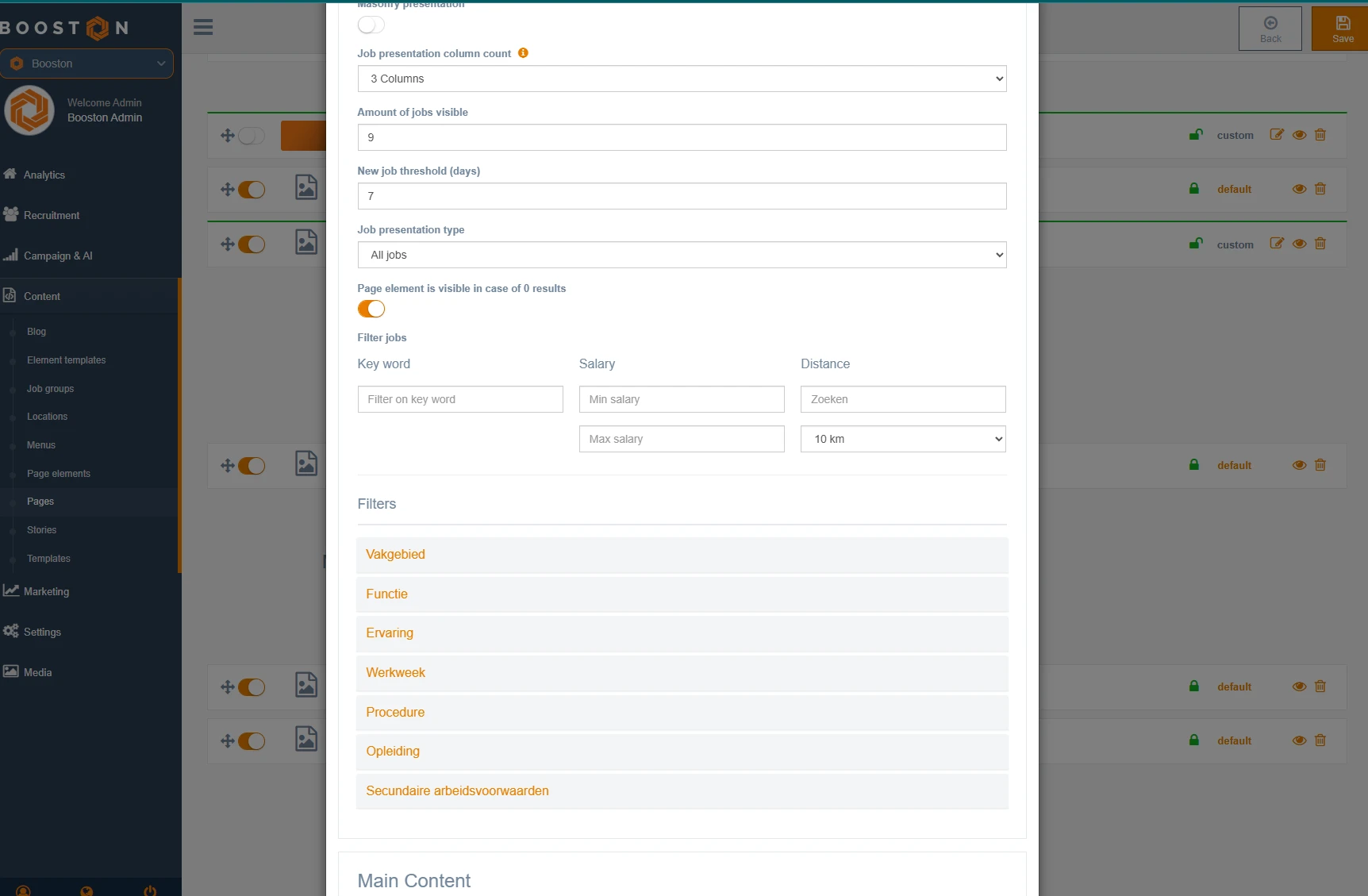
- Amount of jobs visible: how many vacancies sit on a page before the visitor clicks through.
- New job threshold (days): up to how many days after publication a vacancy carries the "new" label.
- Page element is visible in case of 0 results: whether the element stays when there is nothing to show. Switch it off and use the No jobs found element instead, and the visitor gets a proper message rather than an empty page.
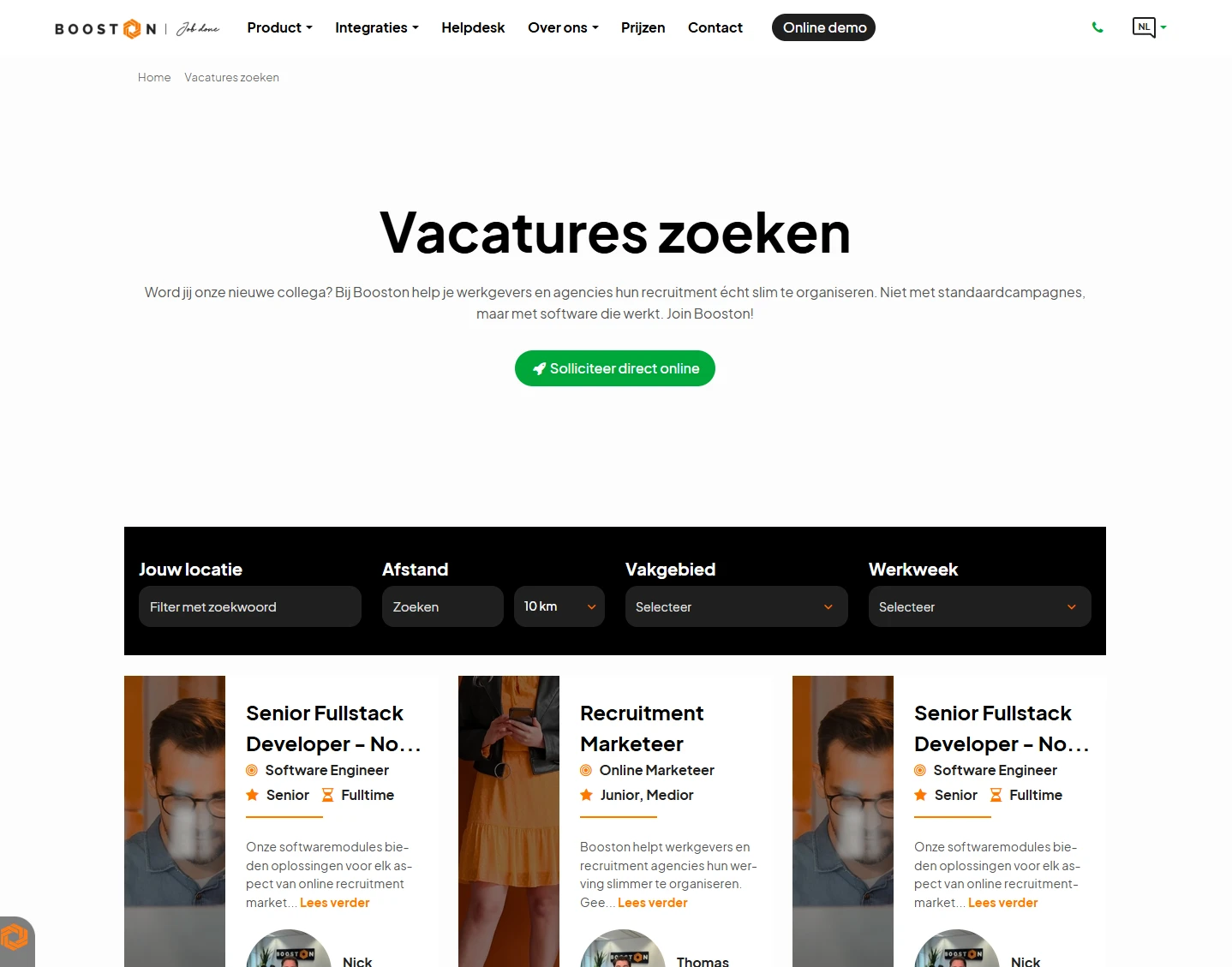
On a phone the vacancies are always in view straight away and the filters slide behind a button. The visitor taps it and gets the same panel, with the same numbers, laid over the page.
A page that shows only part of your vacancies
Under Filter jobs you fix a starting point on the element itself. Three fields sit side by side there: Key word, Salary with a minimum and a maximum, and Distance with a town and a radius. Directly below them sits Filters: per attribute a list you can open, where you tick the values that always apply.
Everything you put there is locked for the visitor: they see the filter, but cannot untick it. That is how you build a page with nothing but the vacancies in care, or a regional page, without having to maintain a second job list. Everything the visitor ticks afterwards is added on top of your fixed filter.
The search bar elsewhere on your site
Next to the big search element there are smaller search forms for your home page or a landing page: Default job search form and Hero with job search 1. They have three input fields, and per field you choose what it does:
- None: the field is not shown.
- Keyword Search: a free text field.
- Location Search: a town name with a dropdown for the distance.
- One of your Multiselect attributes: a dropdown with values to tick.
Below the form you set which page the search button goes to. That is the page with your Job advanced search, and the search the visitor filled in arrives there already applied.
What you switch on under Settings → General → Job
A few search building blocks are not per attribute, but on or off in one go for the whole site. You find them under Settings → General → Job, in the Advanced search block.
| Setting | What it does |
|---|---|
| Keyword Search | The master switch of the search bar. Switch it off and the text field disappears everywhere, and Text search per attribute no longer counts. |
| Location search | Searching by town name with a radius around it, and the map view. |
| Location search distance options | The distances in the dropdown, for example 10, 20 and 50 kilometres. Per row you set whether it is shown. |
| Salary Slider | The salary slider, with a minimum and a maximum you fill in underneath it. |
The texts in the search bar and above the filters are labels. You adjust those under Settings → General → Languages, per language, so "Search by keyword" reads exactly the way you want it.
Sharing search results and staying findable
Every choice a visitor makes ends up in the address bar. That has two pleasant consequences: their browser's back button behaves the way they expect, and they can copy a filtered list and pass it on. You can use that yourself as well: put a filtered link in an email, an ad or a QR code, and the recipient lands on exactly that list. Add a UTM code and Analytics shows you what that link brought in.
For Google it works the other way around, and that is deliberate. Every page on your site carries a canonical: a line in the page source saying which version of this page is the real one. On your jobs overview it always points at the page itself, without the filters from the address bar. So every combination of ticks refers back to one and the same overview page.
That heads off the problem job sites normally run into. With ten filters and a few values per filter there are thousands of valid addresses showing largely the same vacancies. Without a canonical Google would treat them all as separate pages with near-identical content, competing with each other. Now one overview page counts, and the attention goes to the pages that really have to rank: your job detail pages. Those carry their own canonical, with the full address including the domain name, and that is what a search engine indexes. If you get an SEO report flagging filtered search pages as duplicate content, this is the answer to it. How to read such a report is covered in Judging SEO advice.
What you cannot arrange yourself
- Creating a new attribute. Existing attributes you can switch on and off, rename and give values. A field that does not exist yet you request through the helpdesk.
- Filling in the canonical per page. It is set automatically and is not a field in the dashboard.
- Letting the visitor choose the order of the results. You set the sort order on the element and it applies to everyone.
Troubleshooting
A filter is missing on the site while Advanced search is on
Walk through the three conditions: the attribute is Select or Multiselect, it is set to Active, and attribute values have been filled in. If all of that checks out, look at whether there are any vacancies carrying one of those values. A filter where every value sits at zero is there, but it does not stand out.
The search bar never returns results
First check whether Keyword Search is on under Settings → General → Job. If it is, check whether there is at least one attribute with Text search on. Without that, the search bar has nothing to look in.
Two words return nothing, each word on its own does
The two words sit in different places: one in a text field, the other in a tick-box filter. Switch Text search on for the field holding the second word, the town for instance, or teach your visitors to use the filter by moving it up with Search rank.
The filters are greyed out and the visitor cannot untick them
Then that filter is locked on the element itself, under Filter jobs. That is intended behaviour for a page showing only part of your vacancies. Want it released, remove the value at Filter jobs on that element.
A vacancy cannot be found even though it exists
A vacancy only counts when it is active, not hidden, and the publication date has been reached without the end date having passed. Check those four in Recruitment → Jobs. On a multilingual site it applies per language: a vacancy without a German text cannot be found on the German page.
Frequently asked questions
Can I add a filter myself?
Yes, as long as the attribute already exists. Switch Advanced search on for that attribute and give it a Search rank. Within a minute it is on your site. If the field does not exist yet, you request it through the helpdesk.
Why is Advanced search greyed out on my description?
Because a filter needs values to tick, and a text field does not have any. Such a field can still take part in the search bar, through Text search.
Does the search bar also look in the job text itself?
Only if you have Text search on for the description. That returns a lot of hits, because a long text holds a lot of words. If that gets too noisy, switch it off and stick to title and town. Do watch your titles then: from that moment on they decide whether a vacancy gets found. See Job texts with AI for how to sharpen them.
Does the search work on mobile as well?
Yes. The filters slide behind a button there, so the vacancies are in view straight away. The results are the same as on desktop.
Can I use a filtered search as a link in a campaign?
Yes. Tick the filters the way you want them, copy the address from the address bar and use that. The visitor lands on exactly that list.
Coming soon
- The same search element on mobile and desktop. Searching and filtering does not yet behave identically on small screens and on desktop on every point. That is being brought in line.
- Language versions pointing at each other. On a multilingual site we will tell search engines automatically which pages are translations of each other, and every language version will point at itself instead of at the main language. That mainly helps the German and English version of your jobs overview.
- The full address in the canonical of the jobs overview. Today it holds the path without the domain name. That works, but the full variant is what search engines recommend, and it is already in place on the detail pages.
As soon as this is live, we will update this article.
Need help?
Stuck, or unsure which setting fits your situation? Email support@booston.io or call 085 0044 215 and mention:
- the name of your environment;
- what you want to achieve;
- the message you see, if there is an error.
Rather walk through the settings together? Book a free 30 minute online demo and we will go through it with you. Job Done!


