In the content template of Meta job ads you normally write one ad text for all your jobs. With job fields such as [[title]] and [[location]] that text adapts per job, but the sentences around them stay the same. A driver and a controller get the same structure, the same tone and the same reason to apply.
A second mode has been added to that. At the top of your content template you now see Content generation mode with two options: Templates and AI. In Templates mode nothing changes about the way you are used to working. In AI mode you no longer write a single sentence yourself: you set how the ad should sound and how long it may be, and AI writes its own text per job based on the whole job.
After reading this article you know when a template works better than AI, you have AI mode switched on for your ads, and you know how to steer the text per job without having to write it yourself.
You will find the switch in two places: under Campaigns & AI → Meta job ads → Content Template for all your jobs, and under Job group template for one group of jobs.
Before you start
- The AI module is an add-on. With AI switched off you still see the switch, but the AI mode cannot be selected.
- Status and Monthly AI Budget are filled in under Campaigns & AI → AI → Settings. Without a budget no AI action is carried out at all.
- Ad Content Generation is switched on in the Meta job ads card under Campaigns & AI → AI → Prompts.
- The data processing agreement has been approved. If your organisation is working with AI for the first time, Booston asks for that first through a red bar at the top of your dashboard. You arrange it under Settings → General → Subscriptions, see Subscription information.
- Your Meta connection is in place and your ads are already running. How you set that up is covered in Meta job ads.
- The labels in this article appear exactly as they do on your screen. The dashboard is in English, so you see Content generation mode, Tone and Length literally.
The difference between a template and an AI prompt
This is not a matter of old versus new. They are two routes to the same text, with a different kind of work up front.
With a template you write the ad yourself, once, and let job fields fill in the variable parts. You have full control over every word, and every ad reads the same.
With an AI prompt you do not write text but an assignment. You pick a tone, a length and optionally some extra instructions, and together with the job that is the recipe AI writes the ad from. You set the assignment once, the text is different per job.
| Templates | AI | |
|---|---|---|
| What you fill in | the ad copy, with job fields in it | a tone, a length and your own instructions |
| What the candidate reads | the same structure and tone for every job | a text of its own per job |
| Languages | you write a template per language yourself | AI writes in the language of the job |
| Cost | none | one AI action per ad written |
| Useful when | you have a short, fixed message you want exactly as it is | you have many different jobs and little time to write per job |
What is left of your template when you choose AI
AI writes the text, not the whole ad. The image or video, the ad format and the visible url stay exactly as you set them. Your lead form and your follow-up do not change either: you set those on the Form and Follow up tabs.
What does disappear from your content template the moment you switch to AI are the copy fields and the Media & format block. Whatever was in there is kept and still used.
Step 1: check that AI is ready for ads
- Switch Status on and enter the amount AI may cost per calendar month under Monthly AI Budget.
- Click Save.
- Go to the Prompts tab and find the Meta job ads card.
- Switch Ad Content Generation on.
- Click Save at the bottom of the page. That single button saves every card.
If About the Company on the General card is still empty, fill it in straight away. That text is the basis under the Based on company info tone you pick in the next step. Everything else the AI module lets you set is covered in Switching AI on, setting it up and tracking your costs.
If your organisation has not approved the data processing agreement yet, you see a red bar at the top of your dashboard asking you to do so. You will find the agreement under Settings → General → Subscriptions, on the Data Processing Agreement card. Arrange that first, because it is the agreement under which your data may be processed by AI. What it says and who is allowed to approve it is covered in Subscription information.
Step 2: put the content mode on AI
- Pick the language tab you are setting this for at the top of the screen.
- Set Content generation mode to AI. The AI ad content card appears.
- If Carousel Ads is switched on, choose under Ad Type whether this becomes a Single Ad or a Carousel Ad.
- Pick a Tone.
- Pick a Length: Small is around 60 words, Medium around 120 and Long around 200.
- Fill in Custom Instructions if you want, up to 1,000 characters.
- Click Save.
The tone decides how the ad sounds:
| Tone | What you get |
|---|---|
| Based on company info | the way you talk about yourselves, from About the Company. This is the default |
| Professional | businesslike and polished |
| Casual | light and approachable |
| Enthusiastic | energetic, with plenty of movement in the text |
| Urgent | pressing, aimed at responding now |
Custom Instructions is the field that bends the output towards your own style. Whatever you put here goes into the assignment for every job. Think of "always mention that we provide a company car", "address the reader informally", "no exclamation marks" or "start with the location".
Step 3: having the ad written and steering it
There is no button to press. Booston writes the ad at the moment it is needed, and does that once per job: when you open a job's content, or when you publish the job without having opened the content.
What happens then: AI reads the whole job, writes one version and saves it as that job's own content. Open the content again later and nothing is written anew. So looking costs you nothing, only the first time counts.
- Read the text under Ad text and the Title and Description fields under Media & format. The purple AI icon next to the label shows which fields AI wrote.
- Change whatever you want to read differently. These are ordinary text fields, nothing needs unlocking.
- Use the preview on the right to see how the ad appears on Facebook.
- If you want a completely different version, click Re-run with AI at the top right.
- Click Save & close.
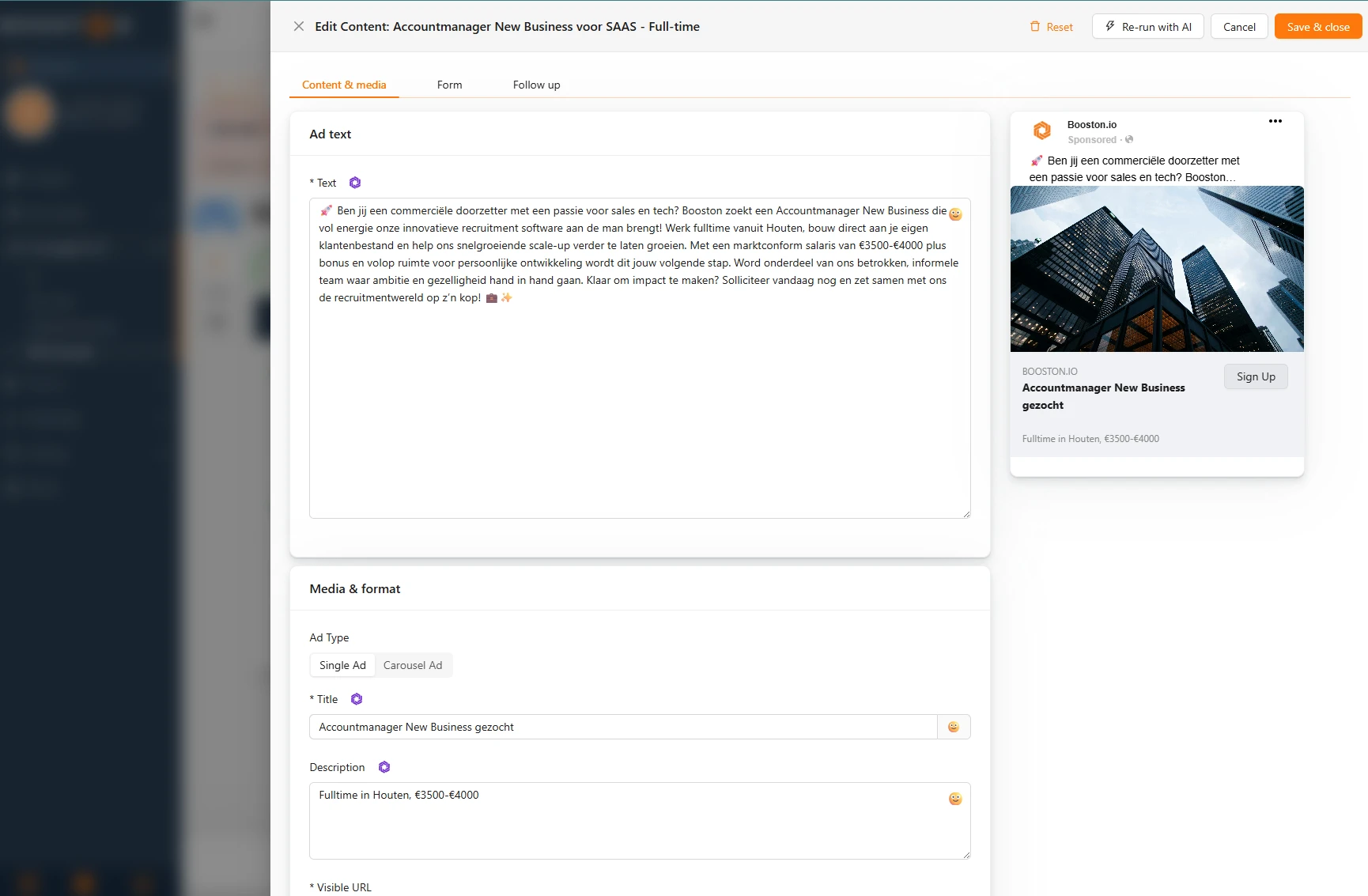
Re-run with AI has AI write a new version with the same settings. It does that without asking: the copy fields are overwritten, so anything you changed yourself is gone afterwards. Every run is also a new AI action with its own cost.
Next to Re-run with AI sits Reset. That throws away this job's own content entirely, so the job follows your content template or your job group again. If that is on AI, AI writes a new ad the next time the content is opened, and that costs again.
Step 4: a different mode for a group of jobs
Meta job ads works with three levels: the template for everything, the job group for a group of jobs and the job itself. The most specific level wins. You choose between Templates and AI on the first two levels, not per job.
- Pick the job attribute you want to group on under Job groups based on, for example the discipline.
- Click the icon under Customized Content in the row of a group.
- Set Content generation mode to AI or to Templates and fill in the settings.
- Click Save.
That way you can run your fixed, high-volume roles on a template you decided word for word, and have AI write all the other jobs.
What AI takes in and what it produces
AI gets to read the whole job, not just the title. Included are: the job title, the location, the salary, the job's attribute values and the full job text. On top of that come your About the Company, plus the tone, the length and the instructions you set in Step 2: put the content mode on AI.
What comes out depends on the format:
- Single Ad: the ad copy, a Title of up to 40 characters and a Description of up to 30 characters.
- Carousel Ad: the text above the carousel, plus a headline and a short description per card. AI gives each card a different selling point. The visuals per card stay yours.
Emojis are part of it. AI puts them in the text where they fit, the way you are used to seeing on Facebook and Instagram.
What it costs
Every ad written is one AI action. It is booked as Ad Copy Generation, on the job it belongs to.
- Under Campaigns & AI → AI → Cost & Performance the AI Cost per Job table shows how much was spent per job and how often Ad Copy Generation ran. How that screen relates to your other cost dashboards is covered in Analytics.
- Under Settings → General → Subscriptions you see what Ad Copy Generation cost in total last month.
- A long job costs more than a short one, because more text is processed.
- Every Re-run with AI costs again, and so does a Reset followed by opening the content again.
Once your Monthly AI Budget is used up, nothing more is written. Ads that are already live keep running; only new copy stops arriving until you raise the budget or the new month starts.
What you cannot arrange yourself
- The AI model and the rate per action. Booston picks and manages both. You steer costs through your Monthly AI Budget and your settings, not through the rate.
- The mode per individual job. You choose Templates or AI on your content template and per job group. On the job itself you steer with Re-run with AI or by hand.
- The language AI writes in. That is always the language of the job.
- The number of versions. AI delivers one ad, not a list of variants to pick from.
Email support@booston.io if you want any of this changed.
Troubleshooting
The AI mode is greyed out and cannot be clicked
Then a switch is off. An orange message appears under the choice with a link to your AI settings. There are two to check: Status under AI → Settings and Ad Content Generation on the Meta job ads card under AI → Prompts. If both are on and the writing still fails, look at your Monthly AI Budget. That is only checked at the moment something is written.
I switched AI on, but an ad still has the old copy
Jobs that already have their own content keep it. That goes for content you changed yourself and for content created earlier. Open that job's content, click Reset and open it again: AI then writes new copy.
Publishing fails and there is a message about AI content
The ad still had to be written at publishing time and that went wrong. Open the ad's activity, the reason is in there. Usually the budget has been reached. Publish again once that is sorted.
The copy is in the wrong language
AI writes in the language of the job. If the job is in English, you get an English ad, even if you were in another language tab when you switched the mode on. Check the language of the job itself.
The copy is good but far too long or too short
Adjust Length in your content template and click Save. Existing ads do not change because of that: they use the copy that is already there. Click Re-run with AI on the jobs you want rewritten.
Frequently asked questions
Does my image or video stay in place when I switch to AI?
Yes. AI only writes text. The image in your content template is used, and per job you simply adjust the image in the ad itself.
Can I go back to templates?
Yes, set Content generation mode back to Templates and save. The settings on the AI ad content card are then cleared. Jobs that already have AI-written copy keep it until you reset them.
Does AI also write my application form and my thank-you text?
No. You set those yourself on the Form and Follow up tabs. AI only touches the ad copy.
Do my job fields still work, such as `[[title]]`?
You do not need them in AI mode. Job fields exist to fill in a fixed text per job, and AI already writes the text per job. In Templates mode they work exactly as you are used to.
Does it cost anything if I only take a look?
The first time a job's content is opened the ad is written, and that is one AI action. After that, looking costs nothing.
Can AI publish my ad itself?
No. AI drafts, publishing stays a manual action.
Coming soon
Work on this feature continues. As soon as it is live, we will update this article.
- The audience analysis as context. If a Candidate audience analysis exists for a job, it goes into the assignment automatically, so the ad is written for that audience from the start. You can also choose to have the analysis run first if there is none yet, or not to use it at all. The ad then shows that the copy is based on that analysis, with a button to view the analysis without leaving the screen.
- More grip on the length. Next to Small, Medium and Long there will be a maximum number of words you set yourself, and a mode without a limit where AI does not have to leave anything out of the job.
- A clearer way back after generating. A button to rewrite with your current settings, a warning before your own edits are overwritten, and a confirmation when you switch back to a template.
- The ad preview closer to Facebook. The display next to your copy will look exactly like the ad appears in the feed.
- AI as a campaign type of its own. AI arrives as a third block next to Meta job ads and the jobboard network on a job's Boost page, and becomes visible in your jobs overview.
Need help?
Cannot work it out, or unsure whether AI is the better choice than a template for your jobs? Email support@booston.io or call 085 0044 215 and mention:
- the name of your environment;
- what you want to achieve;
- the message you see, if there is an error message.
Would you rather go through the settings together? Book a free 30-minute online demo, then we will walk through it with you. Job Done!


