Ein Kandidat bewirbt sich und erhält eine Bestätigung. Jemand füllt das Kontaktformular aus und der Recruiter bekommt eine Benachrichtigung. Ein Besucher abonniert einen Jobalert und erhält jede Woche die neuen Stellenanzeigen. Eine neue Kollegin bekommt eine Einladung zum Anmelden. Diese E-Mails gehen automatisch raus, Tag und Nacht, ohne dass jemand draufschaut — und genau deshalb ist es ärgerlich, wenn etwas darin nicht stimmt oder zwei Bestätigungen gleichzeitig rausgehen, weil dein ATS auch schon eine schickt.
All diese Nachrichten kommen aus E-Mail-Vorlagen. Pro Vorlage legst du fest, ob sie versendet wird, was darin steht, in welcher Sprache und an wen sie geht. Dafür brauchst du keinen Entwickler und musst nichts beantragen.
Das Ziel: jede automatische E-Mail, die eure Organisation verlässt, ist inhaltlich korrekt, klingt nach euch, erreicht die richtige Person und geht nur einmal raus.
Nach diesem Artikel weißt du, wie du den Absender einstellst, wie ein einziger DNS-Eintrag deine E-Mails aus dem Spam-Ordner hält, wie du pro Vorlage Text, Sprachen, Variablen und Empfänger anpasst, wie du eine Vorlage ausschaltest, wenn dein ATS diese E-Mail schon versendet, und wie die Anmelde- und Passwort-E-Mails für deine eigenen Kolleginnen und Kollegen funktionieren.
Bevor du beginnst
- Das Modul heißt Email templates und liegt unter Settings. Siehst du es nicht im Menü, hat deine Rolle keine Rechte darauf; eine Kollegin mit der Rolle Manager schaltet das unter Users: Zugang geben, Rollen wählen und über euer ATS anmelden frei.
- Lege fest, von welcher E-Mail-Adresse eure automatischen E-Mails versendet werden sollen. Diese Adresse stellst du als Absender ein und verwendest sie in deinem SPF-Eintrag. Ohne diesen Eintrag landen E-Mails häufiger im Spam-Ordner.
- Versendet dein ATS bestimmte E-Mails schon selbst? Finde zuerst heraus, welche das sind. Sonst bekommt ein Kandidat dieselbe Nachricht zweimal.
- Läuft eure Website in mehr als einer Sprache? Halte die Texte in allen aktiven Sprachen bereit, denn du füllst sie pro Sprache aus.
Was eine E-Mail-Vorlage macht
Jede automatische E-Mail, die Booston versendet, gehört zu genau einer Vorlage. In dieser Vorlage legst du drei Dinge fest:
- Ob die E-Mail überhaupt versendet wird. Steht der Status auf aus, passiert nichts — keine Mail und auch keine Fehlermeldung.
- Was darin steht. Betreff und Inhalt, pro Sprache, mit Variablen wie dem Namen des Kandidaten oder dem Titel der Stellenanzeige.
- An wen sie geht. Der Hauptempfänger (To), dazu optional Cc und Bcc.
Booston liefert vierzehn Standardvorlagen, verteilt auf vier Kategorien. Du kannst sie anpassen und ein- oder ausschalten, aber du kannst keine neuen anlegen und keine bestehenden löschen. Das ist Absicht: Jede Vorlage hängt an einem Moment im System, in dem sie ausgelöst wird.
Was du damit gewinnst:
- Deine eigene Tonalität. Du schreibst die Bestätigungen selbst, in euren Worten und eurem Stil.
- Keine doppelten Mails. Versendet dein ATS die Bewerbungsbestätigung schon? Dann schaltest du die von Booston aus.
- Mehrsprachig. Pro aktiver Sprache ein eigener Betreff und Inhalt, automatisch gewählt anhand der Sprache, in der sich der Kandidat beworben hat.
- Kontrolle über die Empfänger. Du bestimmst, ob eine Benachrichtigung an den verknüpften Recruiter geht, an die allgemeine E-Mail-Adresse oder an eine feste Adresse, die du selbst einträgst.
Zuerst den Absender einstellen
Bevor du dich an die Texte machst, stellst du den Absender richtig ein. Sonst landet auch eine perfekt geschriebene E-Mail im Spam-Ordner.
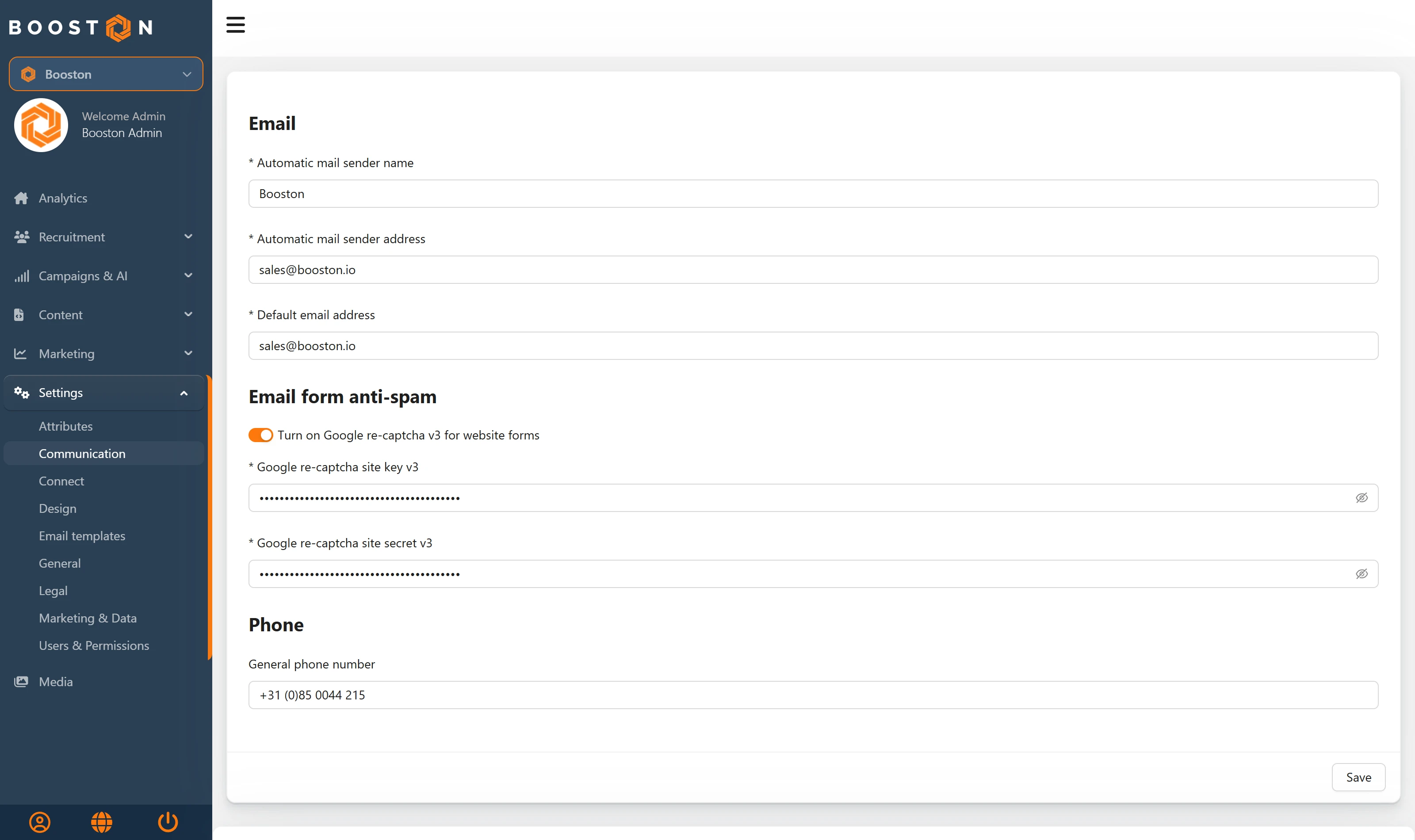
Gehe zu Settings → Communication. Unter der Überschrift Email stehen drei Felder:
- Automatic mail sender name — der Name, den der Empfänger in seinem Posteingang sieht, zum Beispiel
Karriere bei Beispiel. - Automatic mail sender address — die E-Mail-Adresse, von der alle automatischen E-Mails versendet werden, zum Beispiel
jobs@deinedomain.de. - Default email address — die allgemeine E-Mail-Adresse eurer Organisation. Booston nutzt sie als Rückfalloption, wenn keine Recruiterin mit einer Stellenanzeige verknüpft ist, und sie ist der Wert hinter der Variablen
[[default_email]].
Klicke auf Save. Diese drei Felder gelten für alle Vorlagen gleichzeitig: Du stellst den Absender also einmal ein, nicht pro E-Mail.
Damit deine E-Mail ankommt: der SPF-Eintrag
Das ist ein Zusatzservice. Booston unterstützt hierfür standardmäßig nur SPF — kein DKIM und kein DMARC. Sollen die automatischen E-Mails zuverlässig ankommen und nicht als Spam markiert werden, fügst du deiner Domain einen DNS-Eintrag hinzu.
Füge bei deinem Domain-Anbieter oder über deine IT-Abteilung diesen TXT-Eintrag hinzu:
| Name | Typ | Wert |
|---|---|---|
| deinedomain.de | TXT | v=spf1 a mx include:_spf.smtprelay.snel.com ~all |
Ersetze deinedomain.de durch eure eigene Domain.
Drei praktische Punkte:
- Hast du bereits einen SPF-Eintrag? Lege dann keinen zweiten an — eine Domain darf nur einen haben. Füge nur den Teil
include:_spf.smtprelay.snel.comzum bestehenden Eintrag hinzu, vor dem abschließenden~all. - Vorlaufzeit. Eine DNS-Änderung ist meist innerhalb einer Stunde aktiv, kann aber bis zu 24 Stunden dauern.
- Kommst du mit deinem Domain-Administrator nicht weiter? Schreibe an support@booston.io; wir prüfen, ob der Eintrag korrekt erkannt wird.
Die Übersicht der Vorlagen
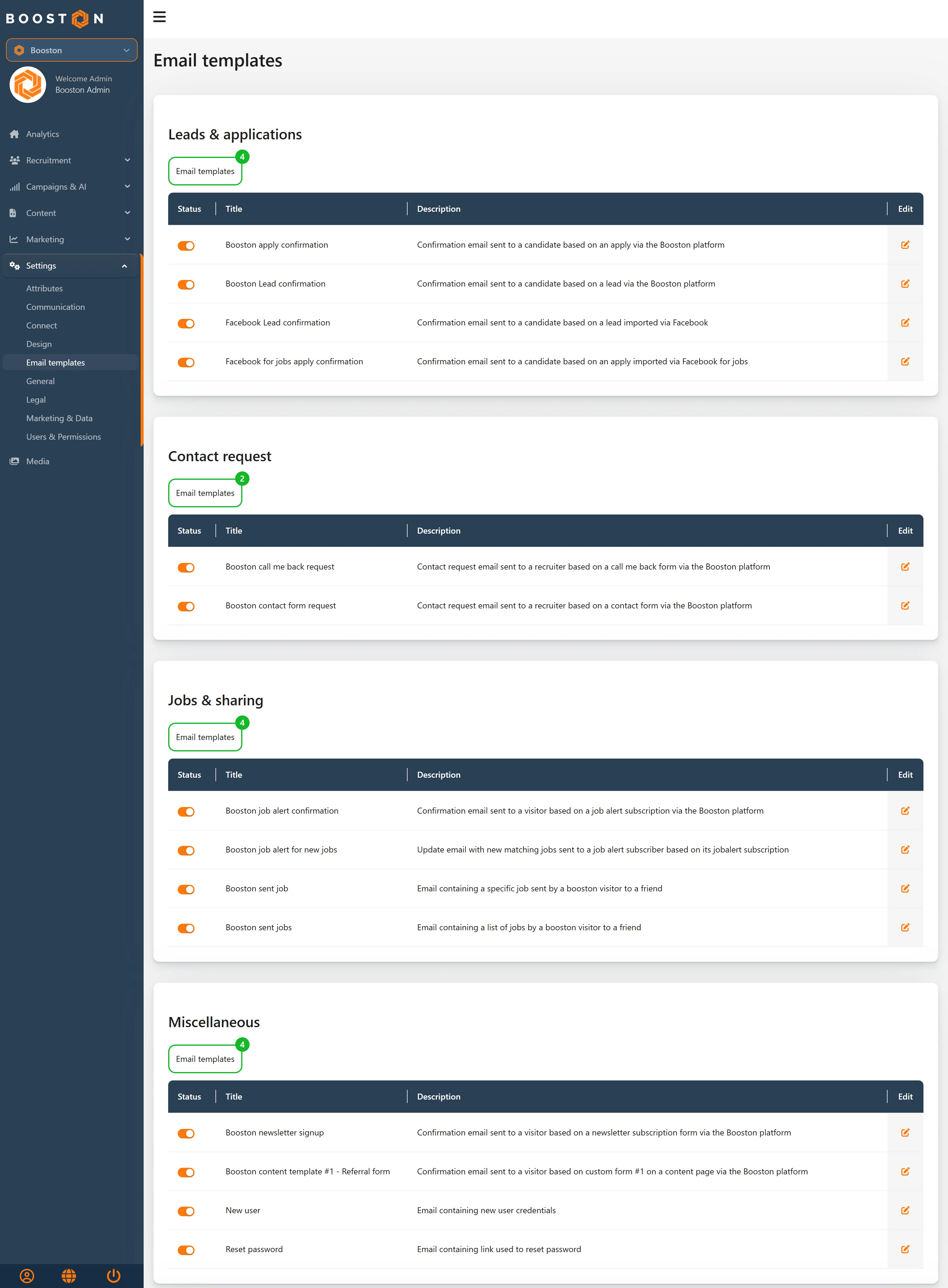
Gehe zu Settings → Email templates. Du siehst die Vorlagen in vier Blöcken gruppiert, mit einer Tabelle pro Block. Jede Zeile hat vier Spalten:
- Status — der Schalter, mit dem du die Vorlage ein- oder ausschaltest.
- Title — der Name der Vorlage.
- Description — eine Zeile zu dem Moment, in dem diese E-Mail versendet wird.
- Edit — der Stift, mit dem du die Vorlage öffnest.
Welche Vorlagen gibt es?
Leads & applications
| Vorlage | Wann wird sie versendet? |
|---|---|
| Booston apply confirmation | Bestätigung an den Kandidaten nach einer Bewerbung über eure Booston-Website |
| Booston Lead confirmation | Bestätigung an den Kandidaten nach einem Lead über die Booston-Plattform |
| Facebook Lead confirmation | Bestätigung an den Kandidaten nach einem Lead, der über Facebook hereinkommt |
| Facebook for jobs apply confirmation | Bestätigung an den Kandidaten nach einer Bewerbung über Facebook for Jobs |
Contact request
| Vorlage | Wann wird sie versendet? |
|---|---|
| Booston call me back request | Benachrichtigung an die Recruiterin bei einem "Rückruf"-Formular |
| Booston contact form request | Benachrichtigung an die Recruiterin bei einem Kontaktformular |
Jobs & sharing
| Vorlage | Wann wird sie versendet? |
|---|---|
| Booston job alert confirmation | Bestätigung an eine Besucherin, die einen Jobalert abonniert |
| Booston job alert for new jobs | Update mit neuen passenden Stellenanzeigen an Jobalert-Abonnenten |
| Booston sent job | Wenn ein Besucher eine Stellenanzeige an jemanden weiterleitet |
| Booston sent jobs | Wenn ein Besucher mehrere Stellenanzeigen weiterleitet |
Miscellaneous
| Vorlage | Wann wird sie versendet? |
|---|---|
| Booston newsletter signup | Bestätigung nach einer Newsletter-Anmeldung |
| Booston content template #1 – Referral form | Bestätigung nach einem Referral- oder Tell-a-friend-Formular auf einer Contentseite |
| New user | Einladung mit einem Link, über den eine neue Kollegin ihr Passwort festlegt |
| Reset password | Wiederherstellungslink für eine Kollegin, die ihr Passwort vergessen hat |
Eine Vorlage ein- oder ausschalten
Stelle den Schalter in der Spalte Status auf ein oder aus. Die Änderung wird sofort gespeichert — du bekommst die Meldung Your adjustments have been stored. Einen separaten Speichern-Button gibt es nicht.
Steht eine Vorlage auf aus, wird diese E-Mail nicht mehr versendet. Der Rest des Prozesses läuft normal weiter: Die Bewerbung wird gespeichert, der Kandidat erscheint in eurem Dashboard und geht weiter an euer ATS. Nur die E-Mail entfällt.
Wann schaltest du eine Vorlage aus?
- Dein ATS versendet die Bestätigung schon. Das ist mit Abstand der häufigste Grund. Viele ATS versenden selbst eine Eingangsbestätigung. Ohne Anpassung bekommt der Kandidat zwei. Schalte in dem Fall Booston apply confirmation aus und, wenn ihr mit Leads arbeitet, auch Booston Lead confirmation.
- Ihr nutzt die Funktion nicht. Habt ihr keinen Jobalert oder keinen Newsletter auf eurer Seite, dürfen diese Vorlagen aus bleiben.
- Die Benachrichtigungen laufen woanders. Läuft alles schon über ein gemeinsames Postfach oder ein Ticketsystem, kannst du die Kontaktbenachrichtigungen ausschalten.
Eine Vorlage anpassen
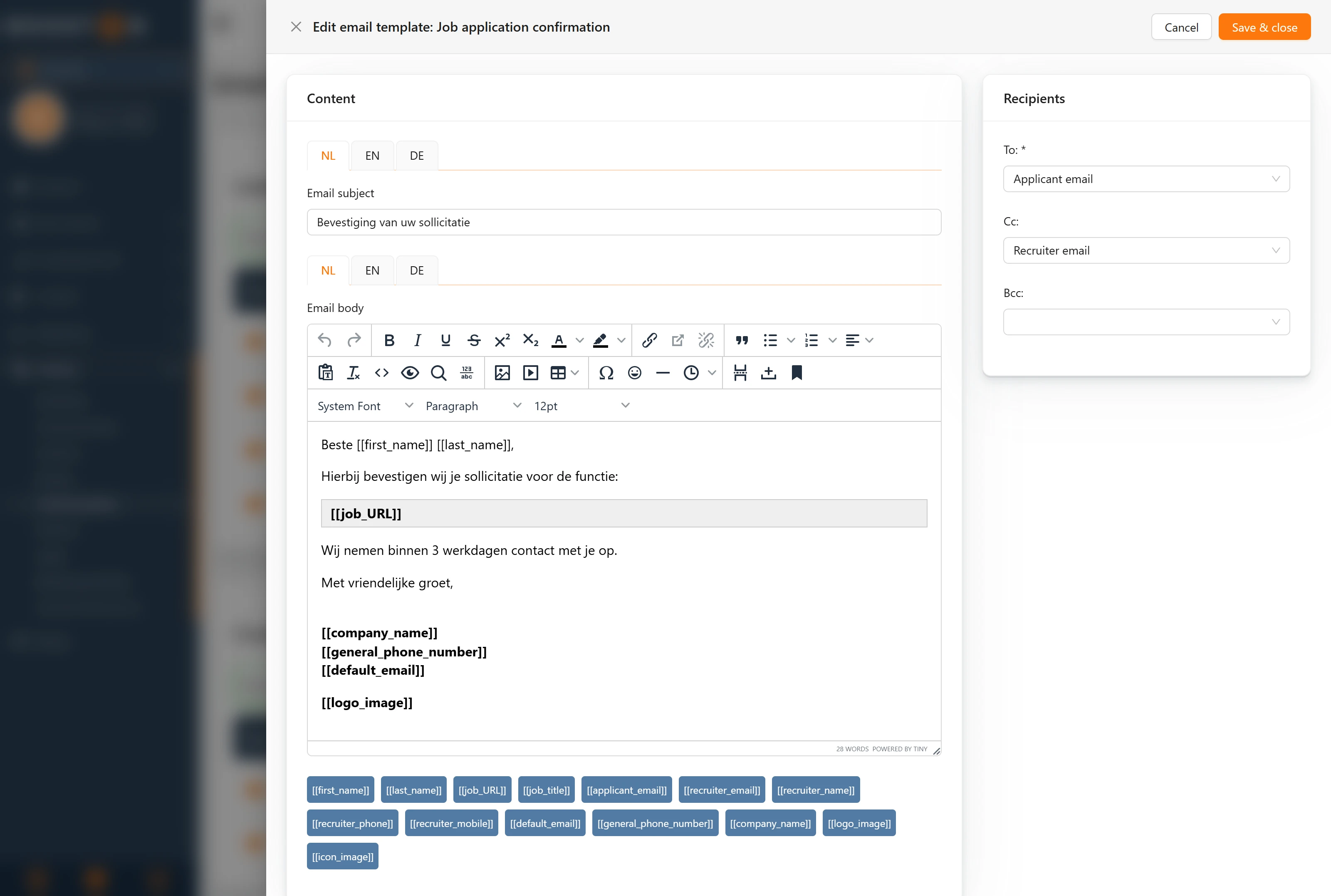
Klicke auf den Stift hinter der Vorlage, die du ändern willst. Rechts öffnet sich ein Panel mit dem Titel Edit email template.
Dieses Panel besteht aus zwei Teilen:
- Links der Block Content — Betreff und Inhalt der E-Mail.
- Rechts der Block Recipients — an wen die E-Mail geht.
Oben rechts stehen Cancel und Save & close. Deine Änderungen werden erst gespeichert, wenn du auf Save & close klickst; schließt du das Panel mit Cancel, geht alles verloren. Nach dem Speichern siehst du die Meldung Email template updated.
Betreff und Inhalt
Email subject ist der Betreff, den der Empfänger in seinem Posteingang sieht. Dieses Feld ist Pflicht und darf höchstens 100 Zeichen lang sein.
Email body ist der Inhalt. Du bearbeitest ihn in einem Editor, in dem du formatieren kannst: fett, kursiv, Aufzählungen, Links, Überschriften und Bilder. Auch dieses Feld ist Pflicht.
Drei Dinge, die eine Bestätigungsmail besser machen:
- Halte sie kurz. Eine Nachricht, die auf einen Bildschirm passt, wird gelesen. Zwei Seiten nicht.
- Nenne eine Erwartung. "Wir melden uns innerhalb von zwei Werktagen bei dir" erspart dir viele Anrufe.
- Schließe mit Kontaktdaten aus Variablen ab. Dann bleibt die Signatur automatisch aktuell, auch wenn sich die Telefonnummer ändert. Siehe Variablen im Text.
Mehrere Sprachen in einer Vorlage
Hat eure Website mehr als eine aktive Sprache, stehen über Betreff und Inhalt kleine Tabs mit den Sprachcodes: NL, EN, DE und so weiter. Jede Sprache hat einen eigenen Betreff und einen eigenen Inhalt.
Booston wählt die richtige Sprache selbst: Bewirbt sich jemand über die englische Version eurer Website, bekommt er die englische Bestätigung. Ist nur eine Sprache aktiv, siehst du keine Tabs.
Variablen im Text
Unter dem Inhaltsfeld steht eine Reihe grauer Labels wie [[first_name]] und [[job_title]]. Das sind Variablen: Platzhalter, die im Moment des Versendens durch den echten Wert ersetzt werden.
So verwendest du sie:
- Klicke auf das Label, das du verwenden willst. Die Variable wird ans Ende des Inhaltsfelds gesetzt.
- Schneide sie dort aus und füge sie an der gewünschten Stelle ein.
Du kannst eine Variable auch selbst eintippen, inklusive der doppelten eckigen Klammern. Achte dann auf die genaue Schreibweise: Ein Tippfehler führt dazu, dass die Variable wörtlich in der E-Mail landet. Variablen funktionieren sowohl im Betreff als auch im Inhalt.
Welche Variablen verfügbar sind, unterscheidet sich pro Vorlage. Bei einer Bewerbungsbestätigung bekommst du Daten des Kandidaten und der Stellenanzeige, bei einem Kontaktformular die Daten aus diesem Formular. Die Reihe unter dem Inhaltsfeld zeigt, was für diese Vorlage bereitsteht.
Die meistgenutzten Variablen:
| Variable | Was dabei herauskommt |
|---|---|
[[first_name]] / [[last_name]] |
Vor- und Nachname des Kandidaten |
[[job_title]] |
Der Titel der Stellenanzeige |
[[job_URL]] |
Ein anklickbarer Link zur Stellenanzeige |
[[applicant_email]] |
Die E-Mail-Adresse des Kandidaten |
[[recruiter_name]] |
Name der Recruiterin, die mit der Stellenanzeige verknüpft ist |
[[recruiter_email]] |
E-Mail-Adresse dieser Recruiterin |
[[recruiter_phone]] / [[recruiter_mobile]] |
Fest- und Mobilnummer dieser Recruiterin |
[[company_name]] |
Der Firmenname |
[[general_phone_number]] |
Die allgemeine Telefonnummer |
[[default_email]] |
Die allgemeine E-Mail-Adresse |
[[logo_image]] |
Euer Logo, automatisch als Bild eingefügt |
[[icon_image]] |
Euer Favicon, als kleines Icon |
[[user_name]] / [[user_email]] / [[user_phone]] |
Daten der Besucherin, die ein Formular ausgefüllt hat |
[[user_question]] |
Die Frage oder Nachricht aus einem Kontaktformular |
[[unsubscribe]] |
Abmeldelink, nur in den Jobalert-Mails |
Woher diese Werte kommen:
[[general_phone_number]]und[[default_email]]kommen aus Settings → Communication,[[company_name]]aus Settings → General. Änderst du sie dort, ändern sie sich in allen Vorlagen gleichzeitig.[[logo_image]]und[[icon_image]]kommen aus Settings → Design: euer Logo und euer Favicon.- Die
[[recruiter_...]]-Variablen kommen von der Recruiterin, die mit der jeweiligen Stellenanzeige verknüpft ist. Ist keine verknüpft, fällt Booston auf die Default email address zurück.
Empfänger: To, Cc und Bcc
Rechts im Panel, unter Recipients, stehen drei Auswahllisten. To ist Pflicht: Das ist der Hauptempfänger. Cc und Bcc sind optional; lässt du sie leer, geht keine Kopie raus.
In jeder Liste wählst du aus festen Optionen. Welche du siehst, hängt von der Vorlage ab:
| Option | An wen geht die E-Mail dann? |
|---|---|
| Applicant email | Die E-Mail-Adresse, die der Kandidat bei seiner Bewerbung eingetragen hat |
| Default email | Die allgemeine E-Mail-Adresse aus Settings → Communication |
| Recruiter email | Die mit der Stellenanzeige verknüpfte Recruiterin; gibt es keine, die allgemeine Adresse |
| User email | Die E-Mail-Adresse, die die Besucherin im Formular eingetragen hat |
| User email from / User email to | Beim Weiterleiten von Stellenanzeigen: Absender und Empfänger |
| Your email / Friend email | Beim Referral-Formular: die Adresse der ausfüllenden Person und die des empfohlenen Kandidaten |
| Custom | Eine feste E-Mail-Adresse, die du selbst eintippst |
Wählst du Custom, erscheint direkt unter der Auswahlliste ein zusätzliches Feld. Trage dort eine gültige E-Mail-Adresse ein; Booston prüft beim Speichern, ob sie stimmt.
Drei Einrichtungen, die häufig genutzt werden:
- Bewerbungsbestätigung. To auf Applicant email, Cc auf Recruiter email. Der Kandidat bekommt die Bestätigung, die Recruiterin eine Kopie.
- Kontaktformular. To auf Default email. Alle Kontaktanfragen laufen dann an einer zentralen Stelle ein.
- Geschäftsführung oder Zentrale liest mit. Bcc auf Custom mit der gewünschten Adresse. Die anderen Empfänger sehen nicht, dass jemand mitliest.
Die E-Mails für deine eigenen Kollegen
Zwei der vierzehn Vorlagen betreffen nicht Kandidaten, sondern euer eigenes Team: New user und Reset password, beide in der Kategorie Miscellaneous. Zusammen sind sie die Grundlage der Anmeldung bei Booston. Gut zu wissen, wie sie funktionieren, denn in neun von zehn Fällen, in denen jemand nicht hineinkommt, liegt die Antwort hier.
Eine neue Kollegin bekommt eine Einladung
- Gehe zu Settings → Users & Permissions.
- Klicke rechts über der Tabelle auf Create User.
- Trage Name, E-Mail-Adresse und Rolle ein.
- Achte darauf, dass der User auf aktiv steht, oder schalte im Block Access den Schalter Email reset password link ein.
- Speichere.
Die neue Kollegin bekommt jetzt automatisch die E-Mail aus der Vorlage New user, mit einem Link, über den sie selbst ein Passwort festlegt. Booston versendet also nie ein Passwort: Der Benutzer wählt selbst eines. Das ist sicherer, und es bedeutet, dass du als Administrator nie jemandes Passwort kennst oder weitergeben musst.
Passwort vergessen
Eine Kollegin, die nicht mehr hineinkommt, löst das selbst:
- Gehe zur Anmeldeseite des Dashboards.
- Klicke unter dem Anmeldeformular auf Forgot password?
- Trage die E-Mail-Adresse ein, mit der das Konto angelegt wurde, und sende ab.
- Öffne die E-Mail von
noreply@booston.io— das ist die Vorlage Reset password — und klicke auf den Link. - Wähle ein neues Passwort mit mindestens 8 Zeichen und tippe es zur Bestätigung noch einmal.
- Melde dich mit dem neuen Passwort an.
Nach dem Festlegen eines neuen Passworts werden alle bestehenden Sitzungen beendet. Deine Kollegin muss sich also überall neu anmelden, auch auf dem Telefon.
Vier Dinge, die oft schiefgehen:
- Die E-Mail-Adresse muss exakt stimmen. Existiert die Adresse nicht in Booston, meldet der Bildschirm, dass die eingegebene E-Mail-Adresse nicht korrekt ist. Meist ist es ein Tippfehler oder eine zweite dienstliche Adresse.
- Ein deaktivierter User kann keinen Wiederherstellungslink anfordern. Das ist Absicht: So verschafft sich ein ehemaliger Mitarbeiter nicht erneut Zugang. Eine Managerin setzt das Konto erst wieder auf aktiv.
- Schon angemeldet? Dann funktioniert der Wiederherstellungslink nicht. Erst abmelden, dann erneut versuchen.
- Zu oft versucht? Booston begrenzt die Anzahl der Anfragen pro Minute, um Missbrauch zu verhindern. Bekommst du die Meldung, dass du es zu oft versucht hast, warte eine Minute.
Kann oder will deine Kollegin es nicht selbst tun, kann eine Managerin den Link erneut versenden: Öffne das Konto über Settings → Users & Permissions und schalte im Block Access den Schalter Email reset password link ein, bevor du speicherst. Setzt du einen User, der auf inaktiv stand, wieder auf aktiv, geht diese E-Mail automatisch mit raus.
Was du mit diesen beiden Vorlagen tun und lassen solltest
- Schalte sie nie aus. Steht New user oder Reset password auf inaktiv, versendet Booston sie nicht mehr. Neue Kolleginnen und Kollegen können sich dann nicht anmelden und niemand kann mehr selbst ein Passwort wiederherstellen. Siehst du in der Übersicht, dass eine der beiden aus ist, schalte sie wieder ein.
- Den Text darfst du anpassen. Betreff, Anrede und Grußformel änderst du wie bei jeder anderen Vorlage.
- Lasse `[[link]]` stehen. Ohne diese Variable enthält die E-Mail keinen Link und der Empfänger kann nichts tun.
- Füge kein `[[password]]` hinzu. Booston versendet keine Passwörter mehr, diese Variable wird also nicht ersetzt und steht wörtlich in der E-Mail.
Was du nicht selbst regeln kannst
- Mail from ATS — damit überspringt Booston die Bewerbungs- und Lead-Bestätigung plattformweit, unabhängig davon, was pro Vorlage eingestellt ist. Praktisch, wenn euer ATS diese Bestätigungen schon versendet und ihr sie nicht einzeln ausschalten wollt. Diese Einstellung liegt nicht in eurem eigenen Dashboard; fordere sie über support@booston.io an.
- Neue Vorlagen — die Anzahl der Vorlagen liegt fest, weil jede Vorlage an einem Moment im System hängt. Fehlt dir eine E-Mail, die Booston versenden sollte, sag uns Bescheid; dann prüfen wir, ob wir sie bauen können.
- DKIM und DMARC — für diese E-Mails unterstützt Booston ausschließlich SPF.
Probleme lösen
Es kommt überhaupt keine E-Mail an
Prüfe diese Punkte in dieser Reihenfolge:
- Steht der Schalter Status der Vorlage auf ein?
- Liegt die E-Mail im Spam- oder Junk-Ordner des Empfängers?
- Stimmt der SPF-Eintrag? Siehe Damit deine E-Mail ankommt: der SPF-Eintrag. Ohne korrekten Eintrag filtern viele Mailserver die E-Mail weg.
- Stimmt die Einstellung bei To? Steht sie auf Recruiter email, während keine Recruiterin mit der Stellenanzeige verknüpft ist, geht die E-Mail an die allgemeine Adresse.
- Habt ihr eine ATS-Anbindung und steht Mail from ATS auf ein? Dann überspringt Booston die Bewerbungs- und Lead-Bestätigung bewusst.
Die E-Mail ist leer oder nur halb ausgefüllt
Wahrscheinlich wurde nicht jede Sprache ausgefüllt. Öffne die Vorlage und gehe alle Sprach-Tabs durch, siehe Mehrere Sprachen in einer Vorlage.
In der E-Mail steht wörtlich `[[first_name]]`
Die Variable ist falsch geschrieben oder existiert für diese Vorlage nicht. Entferne sie und klicke das richtige Label aus der Reihe unter dem Inhaltsfeld an.
Der Kandidat bekommt zwei Bestätigungen
Euer ATS versendet ebenfalls eine. Schalte die Booston-Vorlage aus, siehe Eine Vorlage ein- oder ausschalten, oder fordere Mail from ATS über support@booston.io an.
Der Absendername oder die Absenderadresse stimmt nicht
Das passt du über Settings → Communication an, nicht in der Vorlage selbst. Die Änderung gilt sofort für alle E-Mails.
Ich kann die Vorlage nicht speichern
Betreff und Inhalt sind Pflicht, für jede aktive Sprache. Wählst du bei To, Cc oder Bcc die Option Custom, muss die eingetragene Adresse eine gültige E-Mail-Adresse sein. Das Panel zeigt, welches Feld noch Aufmerksamkeit braucht.
Eine Kollegin kann sich nicht anmelden
Prüfe der Reihe nach: Steht das Konto auf aktiv, sind die Vorlagen New user und Reset password eingeschaltet, und ist der Link nicht älter als 24 Stunden und noch nicht benutzt? Siehe Die E-Mails für deine eigenen Kollegen.
Häufig gestellte Fragen
Kann ich eine Testmail an mich selbst schicken?
Nein, im Bildschirm gibt es keinen Test-Button. Teste eine Vorlage, indem du die Handlung selbst ausführst: Bewirb dich auf eine Stellenanzeige auf eurer eigenen Website oder fülle euer Kontaktformular mit deiner eigenen E-Mail-Adresse aus.
Kann ich einen Anhang mitschicken, zum Beispiel ein PDF?
Nicht aus der Vorlage heraus. Setze stattdessen einen Link zum Dokument auf eurer Website in den Text; das kommt außerdem besser durch Spamfilter.
Was passiert mit E-Mails, die schon unterwegs waren, wenn ich eine Vorlage anpasse?
Nichts. Booston stellt die E-Mail im Moment des Versendens zusammen. Was schon versendet ist, ändert sich nicht; alles danach nutzt den neuen Text.
Kann ich sehen, welche E-Mails versendet wurden?
Im Dashboard gibt es kein Versandprotokoll. Setze Bcc auf Custom mit einer eigenen Adresse, wenn du mitlesen willst, oder bitte support@booston.io, in einem konkreten Fall nachzusehen.
Wir haben mehrere Marken in einer Umgebung. Kann der Absender pro Marke unterschiedlich sein?
Nein, der Absender ist pro Umgebung in Settings → Communication eingestellt und gilt für alle Vorlagen. Braucht ihr wirklich getrennte Absender, ist eine eigene Umgebung der Weg; besprich das über support@booston.io.
Brauchst du Hilfe?
Kommst du nicht weiter oder weißt du nicht, welche Einstellung zu eurer Situation passt? Schreibe an support@booston.io oder rufe 085 0044 215 an und nenne:
- den Namen eurer Umgebung;
- um welche Vorlage es geht und, wenn möglich, die E-Mail-Adresse des Empfängers;
- die Meldung, die du siehst, falls es eine Fehlermeldung gibt.
Willst du lieber gemeinsam durch die Einstellungen gehen? Buche eine kostenlose Online-Demo von 30 Minuten — dann gehen wir es zusammen durch. Job Done!


