Not every channel comes built into Booston. Think of a niche job board in your industry, a client's careers page, a trade association, a municipal employment centre, a school or a partner organisation. Such parties almost always want the same thing: one fixed link where they can collect your current jobs themselves. Supplying, updating and removing jobs by hand quickly becomes a full-time chore — and it goes wrong the moment someone forgets.
That is what the Job feed module is for. You set up once which jobs may go to which channel, and Booston puts a link (an XML feed) on it. From that moment the receiving party reads your jobs from that link themselves. A new job? It appears automatically. A job expired or set to inactive? It disappears from the feed automatically.
The end goal: reduce every manual connection with a job board, website or partner to one link that you hand over once and never have to touch again.
By the end of this article you will be able to set up a feed on your own, decide exactly which jobs go into it, collect and share the link, check that everything is correct, and see what the feed delivers in applications.
What exactly is a Job feed?
A Job feed is a web address that returns an always-current, machine-readable overview of your jobs. Technically that is an XML file; in practice it is simply a link you pass on.
This is how it works from start to finish:
- You create a campaign in Booston. A campaign is nothing more than a set of rules: which jobs, in which languages, with which destination and which tracking.
- Booston gives you a Job feed url for that campaign.
- You pass that link to the job board, the partner or the web developer.
- That party collects the link periodically — usually a few times a day — and updates the jobs on their side with it.
Three things that are important to understand:
- The feed is built live. Nothing is prepared in advance: the moment the receiving party requests the link, Booston looks at which jobs match at that moment. So whatever you save today is in the feed immediately.
- Only genuinely published jobs go in. A job must be active, the publication date must have started, the end date must not have passed, and the language version concerned must not be hidden. Booston automatically leaves out everything else — so you never have to clean up by hand.
- You can have several campaigns side by side. You create a separate campaign for each receiving party. That way one job board can receive only your technical jobs and another party only those from one region, without getting in each other's way.
When do you use this? For every party that wants to collect jobs themselves and is not built into Booston: niche job boards, clients, trade associations, municipalities, schools, partnerships, an external website or a job widget built by a developer.
When not? For the channels Booston already arranges for you. If you want to advertise across the broad network of job boards, use Jobboard network. If you want to advertise on social media, use Meta job ads. Those modules buy advertising space and optimise on cost per application; a Job feed does not — it only supplies your jobs.
Before you start: access and signing in
Before you can set anything up you need to get in, and the module has to be available to you. This chapter is deliberately complete, so you need nothing else alongside it.
You need a Booston user
A user is a personal login account for the Booston dashboard, with its own email address and password. Shared accounts are not supported: sessions, password links and logging are personal. New colleagues are created by someone with the Manager role, via Users & Permissions → Create User — see Users: giving access, choosing roles and signing in from your ATS.
What your role determines
| Role | What you can do in Job feed |
|---|---|
| Manager | Everything: view, create, edit, pause and delete campaigns, and collect the Job feed url. |
| Recruiter | You can view the overview and the figures. The pencil icon for editing a campaign is not visible. Changes therefore go through a colleague with the Manager role. |
For Booston feeds (see The module at a glance) some fields are locked as well, also for Managers. Those feeds are set up by Booston.
The module has to be visible and active
Visibility and availability of modules are tied to your role, not to you as a person. A Manager sets this at Users & Permissions → Roles & Permissions.
- Do you not see "Job Feed" in the menu at all? Then the module is set to invisible for your role. Ask a Manager to switch it on.
- Do you see the page greyed out, with a red message above it, and can you not click anything? Then the module is visible but not active for your role. A Manager switches that on too.
Signing in
Go to the login page of your Booston dashboard and sign in with your email address and password.
If you use Booston from within your ATS, you do not have to sign in separately. Booston supports single sign-on from, among others, Carerix (Booston opens as a tab inside Carerix) and ForceFlow (you click through and are signed in immediately).
Forgot your password — what to do?
This is the most common reason someone cannot reach the module. You can solve it yourself:
- Go to the login page of the dashboard.
- Click Forgot password? below the login form.
- Enter your email address and submit the form.
- Open the email from noreply@booston.io and click the link.
- Enter a new password twice (at least 8 characters) and save.
- Sign in with the new password.
Good to know: the link is valid for 24 hours and works once. After setting a new password all your existing sessions are ended — so you have to sign in again everywhere.
Is it quicker through a colleague? A Manager opens your user via the pencil icon at Users & Permissions, switches on Email reset password link in the Access block and clicks Save & close. You then receive a new link straight away.
If signing in still does not work
| Situation | What you see | Solution |
|---|---|---|
| Your account is set to inactive | User has been paused. Please contact a Booston manager. | Ask a Manager to set your user back to active at Users & Permissions. Activating automatically sends out a new password link. |
| No email received | — | Check your spam folder and confirm that the email address in the overview is correct. Have noreply@booston.io added to the allowlist by your IT department if needed. |
| The link no longer works | The url is not correct or has expired | Request a new link via Forgot password? The previous link expires after 24 hours or after a single use. |
| You are already signed in | You are already signed in | Sign out first and then use the link. Or change your password in your own profile via Users & Permissions. |
| Tried too often in a row | Message that too many attempts have been made | Wait a minute and try again. This is a protection against abuse. |
| Email address unknown | The email address entered is not correct | Check the address at Users & Permissions. Does the account no longer exist? Have a new user created or email support@booston.io. |
The module at a glance
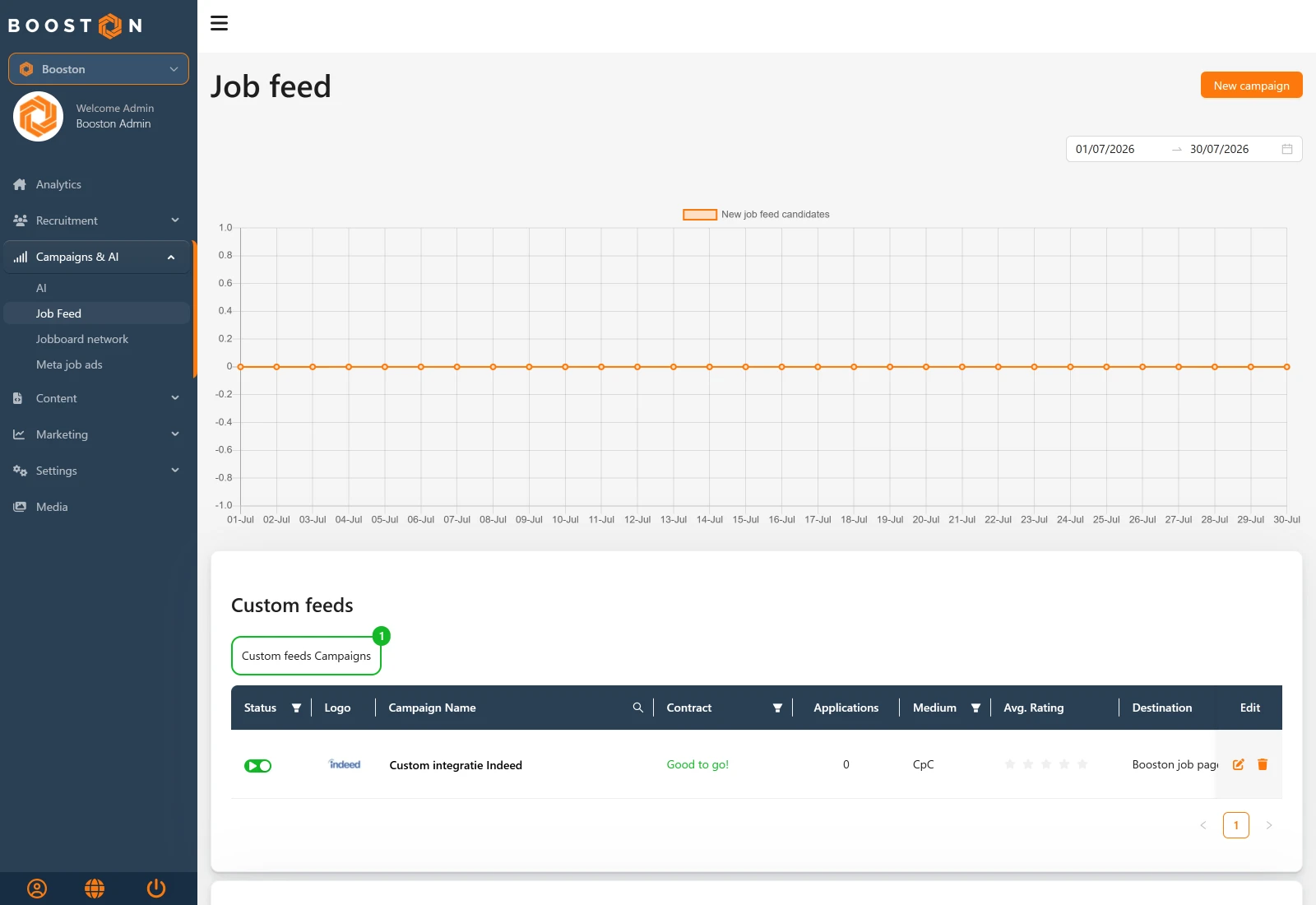
In the menu, go to Campaigns & AI → Job Feed. You arrive at the Job feed page. From top to bottom you see:
- The New campaign button at the top right — this starts a new feed.
- Below it a date picker. It defaults to the past 30 days (up to yesterday) and determines the period of the chart and of the Applications column.
- A chart with the applications that came in through your feeds in the chosen period.
- Two tables with campaigns:
| Table | What it contains |
|---|---|
| Custom feeds | The feeds you manage yourself. Here you create and manage everything you agree with your own parties, job boards and websites. This is the table you normally work in. |
| Booston feeds | Feeds Booston has set up for you, for example for a channel that runs centrally through Booston. You can view them and see the figures, but the settings that determine the connection are locked. |
Above each table there is a green counter with the number of campaigns, plus a summary of your active filters. If a table does not contain a single campaign yet, you only see that counter and no table — that is normal.
Step 1: ask the receiving party what they need
This is the step most often skipped and the one that saves the most back-and-forth. Before you begin, ask the party that is going to collect the feed three things:
- Which format do they want? Booston can deliver three formats: Indeed, Custom and Booston. Most job boards ask for the Indeed format, because it is a widely supported standard. Does the party not know? Start with Indeed.
- Where should the applicant land? On your own Booston job page, on a shortened lead page, or on the job page of your own website or the client's?
- How often do they collect the feed? That determines how quickly a change becomes visible on their side. For most parties that is one to a few times a day.
Useful to think through in advance: which jobs may actually go in here? Everything, or only a certain region, industry, contract type, education level or one recruiter? You can filter on that very precisely (see Step 3: choose which jobs take part), but it helps to go in with an answer.
Step 2: create a new campaign
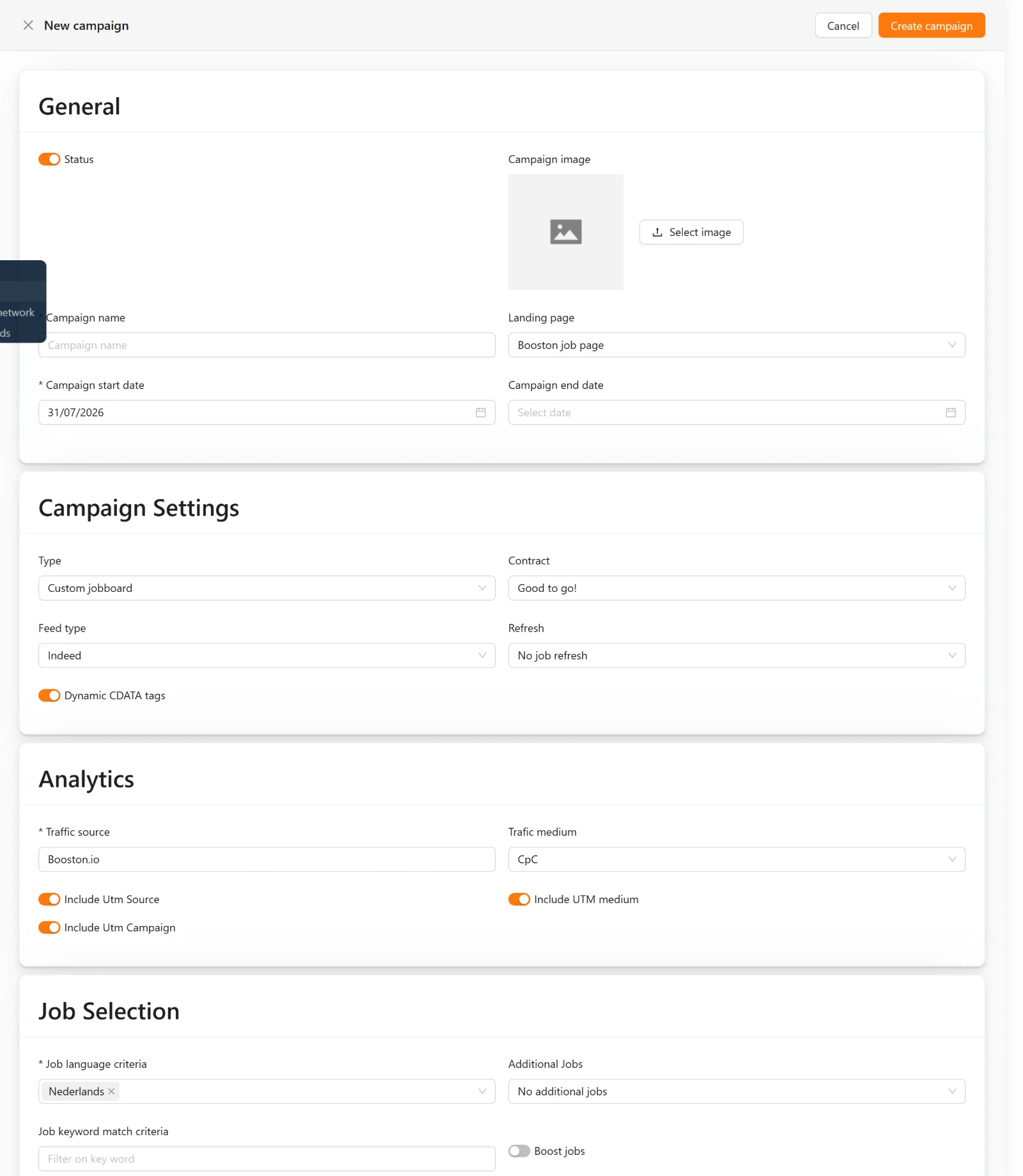
On the Job feed page, click New campaign at the top right. A panel slides open with five blocks. The first three are covered below; the last two decide which jobs take part and are covered in Step 3: choose which jobs take part. You do not have to fill in everything — the required fields are marked with an asterisk, exactly as in the dashboard.
Block 1 — General
| Field | Explanation |
|---|---|
| Status | On by default. This switches the campaign on or off. |
| Campaign image | A logo or image by which you recognise the campaign in the overview. Choose an existing file or upload a new image — see Images and files. |
| * Campaign name | Required. Name it after the receiving party, for example "Care job board NL" or "Website client X". This name also appears in your UTM tracking, so keep it short and recognisable. |
| Landing page | Where the applicant lands when they click the job. See the table below. |
| * Campaign start date | Required. From when the campaign runs. Defaults to today. |
| Campaign end date | Optional. Leave empty if the feed should run indefinitely. This is the usual choice for a permanent connection. |
The three options at Landing page:
| Option | Where the applicant lands |
|---|---|
| Booston job page | The normal job page on your own Booston website. In most cases the right choice. |
| Booston job lead page | A shortened variant of the job page, aimed at applying as quickly as possible. Choose this if you want as few barriers as possible. |
| Client job page URL | The job page on another website — for example that of a client. Booston then forwards to that domain and passes along the reference of the job, so the other website knows which job is meant. Please note: this requires that forwarding domain to be known in your general settings. Not sure whether it is? Email support@booston.io and we will check. |
Block 2 — Campaign Settings
| Field | Explanation |
|---|---|
| Type | Custom jobboard or Booston jobboard. For your own connections you always choose Custom jobboard. After saving, the type can no longer be changed. |
| Contract | An administrative status with which you track where you stand with this party: Good to go!, Contract needed or Support needed. This has no effect on the feed itself — you can filter on it in the overview, which is handy when you have several processes running at once. |
| Feed type | The format of the XML: Indeed, Custom or Booston. Check this with the receiving party (see Step 1: ask the receiving party what they need). In doubt? Choose Indeed. |
| Refresh | No job refresh or Weekly refresh. See the explanation below. |
| Dynamic CDATA tags | Leave this on, unless the receiving party explicitly asks for something else. This setting makes sure that fields with punctuation, quotation marks or formatting are placed in the XML safely, so nothing breaks when it is read. |
What does Weekly refresh do? Some job boards place new jobs higher or show them more prominently, and let older jobs sink. If you switch on Weekly refresh, every job in this feed is given a new reference once a week. To the receiving job board the job therefore looks like a fresh posting, even though it has been open on your side for longer. That can extend your reach.
Two things to weigh up: some parties explicitly do not want this (they see it as duplicate postings), and your statistics on that job board's side start again every week. So do ask. Not sure? Leave No job refresh as it is.
Block 3 — Analytics
This lets you see in your reports and in Google Analytics exactly which applications come from which feed. Always fill this in — without tracking you will not know later what a connection delivers.
| Field | Explanation |
|---|---|
| * Traffic source | Required. The name of the source, for example the name of the job board. Booston puts this in the link as booston.io-<your input>. |
| Trafic medium | The type of traffic: Organic (you pay nothing per click), CpC (cost per click), CpM (cost per thousand impressions), CpL (cost per lead) or [medium]. Choose [medium] only if the receiving party wants to fill this in themselves; they then replace that value when forwarding. |
| Include Utm Source | Puts utm_source in the link. Leave on. |
| Include UTM medium | Puts utm_medium in the link. Leave on. |
| Include Utm Campaign | Puts utm_campaign in the link, with the name of your campaign in it. Leave on. |
Step 3: choose which jobs take part
This is the heart of the module. Everything you set here determines which jobs end up in the feed. At the bottom of the panel you see the result immediately, so you can simply try things out.
Block 4 — Job Selection
| Field | Explanation |
|---|---|
| * Job language criteria | Required, and multiple choices are possible. Which language versions of your jobs may take part? If you choose Dutch and English, both versions go into the feed. If you supply a Dutch job board, choose Dutch only — otherwise the visitor there may be shown the English variant. |
| Additional Jobs | Send along extra variants of the same job: No additional jobs, Add additional job titles to the campaign, Add additional job cities to the campaign, or Add additional job titles and cities to the campaign. See the explanation below. |
| Job keyword match criteria | Filter on a keyword. Only jobs whose title or one of whose attribute values contains this word take part. Handy for a quick selection, but less precise than filtering on attributes. |
| Boost jobs | Switch this on to include only jobs marked as boost jobs in Booston. Handy if you deliberately want to give a party only your priority jobs. |
| Min Salary / Max Salary | Filter on salary range. You only see these fields if the salary setting is switched on for your environment. |
| Job distance match criteria | Search for a place and filter on jobs within a radius of it. You only see this field if postcode filtering is switched on for your environment. |
| Max Distance | The radius belonging to the chosen place, for example 25 km. |
What are Additional Jobs? Many candidates search using a different title than the one you use internally, or in a neighbouring town. In Booston you can record extra titles and extra places per job. If you switch this on here, that same job goes into the feed several times: once per extra title or place. That way you are found on search terms you would otherwise miss.
Booston marks those variants in the tracking, so you can see later whether they work. Do be sparing with it for a party that invoices per click, and check whether the party allows duplicate postings.
Block 5 — Job Attribute Match Criteria
This is where you filter most precisely: on your own job attributes. You see two columns with expandable blocks — one block per attribute (for example Region, Industry, Contract type, Education level) with the number of attribute values in brackets. At the bottom there is the extra block Recruiters.
This is how you use it:
- Expand an attribute and switch on the toggle for every attribute value that may take part. Only jobs with a value switched on go into the feed.
- If you switch nothing on within an attribute, that attribute does not filter. All jobs then pass on that point. So you do not have to switch everything on by hand to get "everything".
- At Recruiters you choose in the same way whose jobs may take part. Handy if one recruiter has their own arrangement with a party.
- Behind every attribute value there is a text field: Alternate attribute value for …. With it you translate your own wording into the wording the receiving party expects. Do you call a contract type "Vast" while the job board wants "Permanent"? Then enter "Permanent" in that field. Booston then puts that value in the XML, while you do not have to change anything internally. If you leave it empty, your own wording goes along.
That last point is exactly why a manual connection is normally so much work: every party uses different terms. Here you solve that once.
Check immediately what your selection delivers
Below the blocks there is the list Matching jobs for this campaign, with a green counter in front of it. That list works live with your settings: every time you adjust a filter, you see immediately which jobs now match. Per job you see the Language, Title, Location, Publication Date, ID, the Recruiter, the Main image and the ATS ID.
Use this as your check. Does the number roughly match what you expect? Are there jobs in it that do not belong, or is one missing? This is the moment to see it, not after the job board complains.
In the Language column, click the language code to open the exact page an applicant from this feed lands on, including tracking. That way you check in one click whether your Landing page choice works out.
Saving
Click Create campaign at the top right of the panel. You get the confirmation Campaign created successfully and the campaign opens again immediately, so you can continue.
Forgot required fields? Then you see one of these messages:
- Campaign name cannot be empty — fill in Campaign name.
- Campaign start date is required — fill in Campaign start date.
- At least one language is required — choose at least one language at Job language criteria.
- Campaign end date can't be before Campaign start date — the end date is before the start date.
Step 4: copy the Job feed url and pass it on
The feed link only exists after you have saved the campaign. So you do not see it yet while creating — that is normal.
- Go back to the Job feed overview.
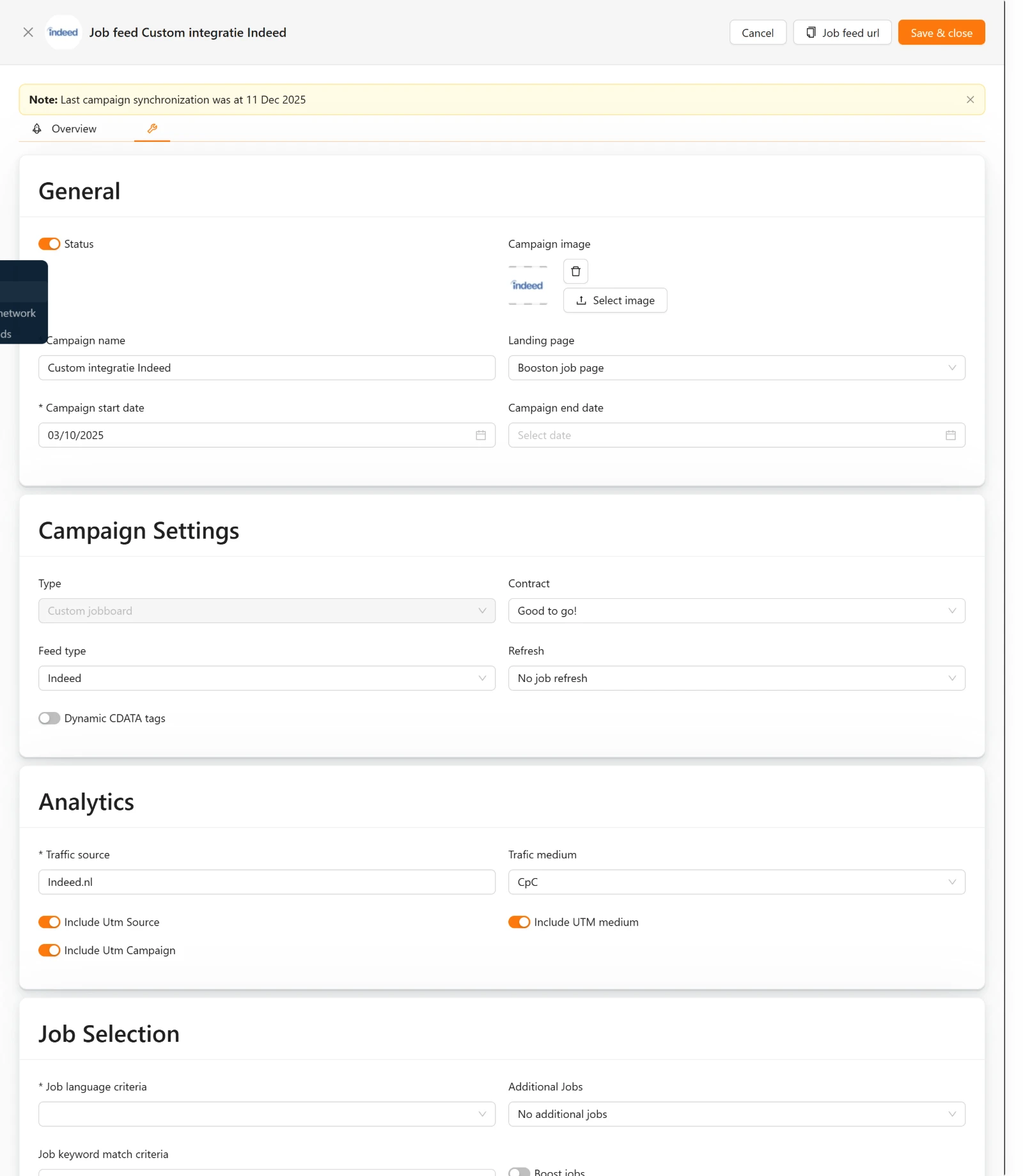
- In the Custom feeds table, click the name of your campaign, or the pencil icon behind the row. The panel opens, with the title Job feed <name of your campaign> at the top.
- Go to the second tab, with the tools icon. That is the tab with all the settings.
- At the top right of the panel there is the Job feed url button. Click it; you get the message Job feed url copied to clipboard!
- Paste the link into your email to the receiving party.
The link has this form:
https://<your-domain>/campaigns/index/<campaign-number>Want to take a look yourself? Paste the link into your browser. You then see the XML: one block per job, containing among other things the title, the description, the location, the company name, the logo, the reference and the link to the job.
What else do you include in your email? Tell the party which format you deliver (your choice at Feed type) and that the link always gives the current state, so they can simply collect it periodically. That often saves a round of questions.
Do you also see a Channel feed url button? That belongs to feeds that run centrally through Booston and is only visible to Booston administrators. For your own connections you always use Job feed url.
Step 5: check that the feed is correct
Run through this list once before you send the link out. It takes two minutes and prevents most questions afterwards.
- Does it contain the right number of jobs? Compare the counter at Matching jobs for this campaign with what you expect.
- Are the right languages in it? Check the Language column in that list.
- Is the landing page correct? In the Language column, click the language code. Do you land on the page you intended, and do you see the tracking in the address bar?
- Does the link itself open? Paste the Job feed url into your browser. If you see XML with your jobs, it works.
- Is the campaign on and within its run time? Check the toggle in the Status column and the Activation date column in the overview.
At the top of the panel there is another yellow message: Note: Last campaign synchronization was at …. That date belongs to the synchronisation of feeds that run centrally through Booston. For your own Job feed url you do not have to wait for it — that one is built live the moment it is requested.
Step 6: maintenance — pausing, changing and deleting
Changing a campaign
Click the campaign name or the pencil icon, go to the tab with the tools icon, make your changes and click Save & close. You get the message Campaign updated successfully. Because the feed is built live, your change takes effect immediately; how quickly the receiving party sees it depends on how often they collect.
Do you not want to save your changes after all? Then use Cancel.
Pausing a campaign
In the overview, switch off the toggle in the Status column. You get the message Campaign status updated successfully. In the panel you then see the campaign set to Inactive.
Two things to know:
- The toggle is not clickable if the start date has not been reached or the end date has already passed. The campaign is then not active anyway. If you do want to switch it back on, first adjust the dates in the settings.
- If you really want to stop a connection immediately, also ask the receiving party to stop collecting the feed, or delete the campaign (see Deleting a campaign). As long as a party keeps requesting the link, that link keeps giving an answer.
Deleting a campaign
In the overview, click the bin icon behind the row. You get the question Are you sure you want to remove this campaign? with This action cannot be undone below it. Click Yes to confirm.
Deleting cannot be undone: your settings, filters and the associated feed link are gone. If you are not sure, set the campaign to inactive instead. That has the same effect for the receiving party, but you can go back.
Campaigns in the Booston feeds table cannot be deleted by you; those are managed by us.
The Overview tab: what does the feed deliver?
As soon as a campaign is active and within its run time, the first tab Overview is available in the panel. If the campaign is paused or its run time has passed, this tab is not clickable and you go straight to the settings — that is intentional, because there is nothing to report then.
On Overview you see:
- A chart with the number of jobs that took part in this campaign, over the chosen period. That way you see at a glance whether your selection is stable or has unexpectedly collapsed.
- Four cards: Campaign name, Status (Active or Inactive), Campaign date (start and end date, with a red marking if the start date has not been reached or the end date has already passed) and Review score.
- Below that the jobs currently in the campaign, with the same columns as when creating.
What the feed delivers in applications you read in the overview in the Applications column — that number belongs to the period you chose at the top of the page. Set that period to the past three months once and compare your campaigns with each other. A connection that runs for months and delivers zero applications is worth a conversation with that party.
Reading and filtering the overview
Per row in Custom feeds and Booston feeds you see:
| Column | Explanation |
|---|---|
| Status | A toggle: on = the campaign runs, off = paused. Filterable on Active and Inactive. |
| Logo | The image from Campaign image. |
| Campaign Name | The name. Click it to open the campaign. Searchable. |
| Contract | Good to go!, Contract needed or Support needed. Filterable. |
| Applications | The number of applications through this campaign in the period you chose at the top. |
| Medium | The choice at Trafic medium. Filterable. |
| Avg. Rating | The average rating in stars. Hover over it for the number of reviews. |
| Destination | The choice at Landing page. Filterable. |
| Activation date | The run time of the campaign. |
| Edit | The pencil icon for editing and the bin icon for deleting. Recruiters do not see the pencil. |
Above the table there is a counter. If you filter, it changes into "X out of Y", so you see how many of your campaigns fall within your filter. With Clear filters you reset everything in one click. Your filters stay in the page link, so you can simply share a filtered overview with a colleague.
Messages you may come across
| Message | What it means |
|---|---|
| Campaign created successfully | The campaign has been created. The feed link is now available on the settings tab. |
| Campaign updated successfully | Your changes have been saved and take effect immediately. |
| Campaign status updated successfully | The campaign has been switched on or off. |
| Job feed url copied to clipboard! | The feed link is on your clipboard. You can paste it straight away. |
| Are you sure you want to remove this campaign? / This action cannot be undone | Confirmation for deleting. Choose Yes only if you are sure the connection may go. |
| Note: Last campaign synchronization was at … | Informative. Belongs to feeds that run centrally through Booston; your own Job feed url is always current. |
| Campaign name cannot be empty | Campaign name is required. |
| Campaign start date is required | Campaign start date is required. |
| At least one language is required | Choose at least one language at Job language criteria. |
| Campaign end date can't be before Campaign start date | The end date is before the start date. |
| Failed to create campaign / Failed to update campaign | Something went wrong while saving. Try again; if it keeps happening, email support@booston.io with the name of the campaign. |
| Campaign not found | The campaign no longer exists, for example because a colleague deleted it. Refresh the page. |
| Only admins can create booston-type campaigns | You chose Booston jobboard at Type. Choose Custom jobboard; the other type is set up by Booston. |
| You do not have permission to delete this campaign | This is a campaign from Booston feeds. Email support@booston.io if it has to go. |
What you cannot arrange yourself
| What you want | Why you cannot do it yourself | What you do |
|---|---|---|
| Change or delete a campaign in Booston feeds | Those feeds are set up by Booston for a central channel | Email support@booston.io with the campaign name and what has to change |
| Choose Booston jobboard at Type | This type is set up by Booston | Choose Custom jobboard for your own connections |
| Change the Type of an existing campaign | The type determines the whole set-up of the feed | Create a new campaign with the right type |
| Your own XML format or extra fields in the feed | The three formats are fixed | Email support@booston.io with the requirements of the receiving party, and we will see what is possible |
| Set the forwarding domain for Client job page URL | This is a setting at account level | Email support@booston.io with the domain |
| Put the feed behind a password | Not supported | Use a separate campaign per party, so you can stop one connection without affecting the others |
| Restore a deleted campaign | Deleting is final | Create a new campaign. If in doubt next time, set it to inactive instead of deleting |
| Make a module visible or active for a role | This belongs to permission management | A colleague with the Manager role arranges this at Users & Permissions → Roles & Permissions |
Troubleshooting
| Problem | Most likely cause | What you do |
|---|---|---|
| The list Matching jobs for this campaign is empty | The filters exclude everything, or the chosen language does not exist for your jobs. | Switch the filters at Job Attribute Match Criteria off one by one (nothing switched on = no filter). Then check Job language criteria, Job keyword match criteria and Boost jobs. |
| A specific job is not in the feed | The job is not published, or the language version is hidden. | Check with the job: is it active, has the publication date started, has the end date not yet passed and is the language version not hidden? Only genuinely published jobs go along. If all of that is correct, look at your filters. |
| The job board sees jobs that no longer exist | They have not collected the feed again yet. | Your feed is current; the delay is on their side. Ask how often they collect and whether they can do a manual refresh. |
| The job board does not see new jobs | Same cause, or the job falls outside your filters. | First check the list Matching jobs for this campaign yourself. If the job is in there, it is a matter of waiting for their next collection round. |
| The feed link gives an error or keeps loading | With a very large job database, building the feed can still take too long at the moment. | Try again; if it does not work, email support@booston.io with the campaign name. We are speeding this up, see Coming soon. In the meantime you can limit the campaign to one language or one region. |
| The feed link gives a 404 | The campaign has been deleted, or the link was not copied completely. | Copy the link again via the Job feed url button. If the campaign no longer exists, create a new one and pass on the new link. |
| The job board complains about wrong values | Your wording differs from what they expect. | Fill in the field Alternate attribute value for … per attribute value with their wording (see Step 3: choose which jobs take part). |
| I do not see a New campaign button or a pencil | You have the Recruiter role, or the module is not active for your role. | Ask a colleague with the Manager role to create the campaign, or to switch on the module at Roles & Permissions. |
| I cannot switch the Status toggle | The start date has not been reached or the end date has passed. | Adjust the dates in the settings; after that the toggle can be used again. |
| The Overview tab is not clickable | The campaign is inactive or no longer running. | Switch the campaign on and check the run time. |
| The applicant lands on the wrong page | Wrong choice at Landing page, or the forwarding domain is missing. | In the job list, click the language code to see where you end up. Do you want to use Client job page URL and does that not work? Then email support@booston.io — we will check the forwarding domain. |
| Applications do not come through properly in my reporting | Tracking is off or Traffic source is empty. | Switch on Include Utm Source, Include UTM medium and Include Utm Campaign and fill Traffic source with a recognisable name. |
| The job board sees duplicate jobs | Additional Jobs is on, or several languages have been chosen. | Set Additional Jobs to No additional jobs and limit Job language criteria to the language they need. |
| The page is greyed out with a red message | The module is not active for your role. | Have a Manager switch on the module at Roles & Permissions. |
Frequently asked questions
How quickly does the receiving party see my change? Your side is up to date immediately: the feed is built live. How quickly it is visible on their side depends on how often they collect the link — for most parties one to a few times a day.
Do I have to do anything when a new job is added? No. If the job fits within your filters and is published, it is in the feed automatically. That is exactly the advantage over supplying by hand.
Can I use one campaign for several job boards? Technically you can, but do not do it. With a separate campaign per party you can filter per party, track per party and pause one connection without affecting the others.
What is the difference with Jobboard network? A Job feed supplies your jobs to a party; you do not buy advertising space with it. Jobboard network buys advertising space programmatically across the entire network of job boards and optimises on cost per application. If you want to buy reach, use Jobboard network. If you want to connect with a party that asks for it themselves, use a Job feed.
Which Feed type should I choose? Whatever the receiving party asks for. Do they not know? Start with Indeed; that is the most widely supported standard.
I have several languages on my site. What do I choose? Only the language or languages the receiving party needs. If you choose more languages, each language version goes into the feed as a separate job.
Do I have to fill in an end date? Not for a permanent connection — leave Campaign end date empty then. If you do fill in an end date, the campaign stops on that date and you can no longer use the Status toggle until you adjust the date.
Can I see which applications come from which feed? Yes, provided you have the tracking in the Analytics block switched on. In the overview you see the number of applications per campaign in the Applications column, for the period you choose at the top.
I deliberately do not want one job in a feed. Is that possible? Yes, through the filters. Make sure that job has an attribute value you have not switched on in this campaign — for example by working with your own attribute that you use only for this purpose. If you cannot work it out, email support@booston.io with the job and the campaign.
What does Avg. Rating mean in the overview? The average rating in stars belonging to the jobs of this campaign. Hover over the stars for the number of reviews.
Coming soon
The feed becomes faster and more reliable. For customers with very many jobs, building a feed could take so long that the collecting party dropped out with a time-out — with the result that their job overview was not updated that round. We are working on that now: we collect the data in large blocks instead of per job, build several jobs simultaneously, and from now on continuously measure how long generating a feed takes so that we see it before you notice it. For you nothing changes about the content of your feed — that stays exactly the same — it only comes back faster and more reliably.
We are also bringing the screens of the Job feed module into line with the rest of Booston step by step, so that headings, tabs and buttons look and work the same as with jobs, candidates and the other campaign modules. As soon as that is live, we will update this article.
Need help?
Are you stuck, or do you not know which setting suits your channel? Email support@booston.io or call 085 0044 215 and mention:
- the name of your environment and of the campaign;
- which party is going to collect the feed and which format they ask for;
- what you want to achieve;
- the message you see, if there is an error message.
Would you rather go through the settings together? Book a free 30-minute online demo — then we will set up your first connection together. Job Done!


