Buying single placements on one job board, then on the next, a separate contract and a separate login everywhere — and afterwards just hoping you picked the right one. You rarely know in advance which job board is going to fill this vacancy, and you only find out once the budget has gone.
Jobboard network works the other way around. One connection puts your jobs on dozens of job boards at once, such as Indeed, Jobbird, Nationale Vacaturebank and Adzuna. You decide which jobs take part and with which budget; the network measures per job board what a click costs and what that click delivers, and shifts your budget to the sources that perform best at that moment. The end goal: as many relevant applicants as possible at the lowest possible cost per application.
After reading this article you will know how to structure, set up and publish campaigns, how to add individual jobs and how to read the numbers to see where to steer. You will find the screen via Menu → Campaigns → Jobboard network.
Before you start
- The Jobboard network module is switched on for your environment and your account is connected. Booston sets that up at the start.
- Your account has the status Enabled and a Monthly campaign budget. Booston configures those two for you.
- You have jobs that are active and published. Only those can go to the job boards.
- Your user role has access to Campaigns and Cost & Performance.
How the network spreads your budget
A campaign in the Jobboard network is not a placement on one job board. It is a budget with a set of rules, spread across several job boards at the same time. Per job board it measures what a click costs, how many of those clicks lead to an application, and therefore what an application effectively costs there. The budget moves accordingly: job boards that convert cheaply get more, job boards that lag behind get less.
That gives you four things:
- Reach — automatic, smart buying on virtually every relevant platform, without separate contracts.
- Time saved — no separate uploads, no double entry, no individual logins per job board.
- Control — campaigns are flexible to set up, pause and adjust.
- Data — results per campaign and per job visible straight away in your dashboard.
The mechanism does need something to choose from. Set up a campaign with one or two job boards and there is nothing to compare, so you simply pay the price of that single channel — exactly the situation you already had with individual placements. From around six job boards, the network gets enough room to genuinely steer, and you consistently get the best-performing clicks.
How to structure your campaigns
You decide how to structure your campaigns. There are three approaches, and you can combine them.
| Approach | How jobs come in | When to choose it |
|---|---|---|
| Everything in one campaign | All jobs flow automatically into a single campaign. | You want simplicity and steer on one total budget. |
| Manually via Boost | You decide per job whether it takes part, from Booston or from your ATS. | You only boost the roles that are genuinely urgent. |
| Smart rules | Jobs are assigned automatically based on job data. For example: if the field is Marketing, the job goes into the Marketing campaign. | You want separate budget and separate job boards per audience or region. |
For the second approach you set the campaign to Manual job add, for the first and third to Programmatic job add. You choose that when creating the campaign.
Step 1: check your account status and account budget
At account level there are two settings that apply to all your campaigns at once. You can view them, but not change them — why that is, you can read under What you cannot change yourself.
- Go to Jobboard network → Settings.
- Check under Status whether your account is set to Enabled. If it says Disabled, published campaigns are not visible on the job boards.
- Look at Monthly campaign budget for the maximum amount you may spend per month across the whole network.
That account budget is your safety net. If the monthly budgets of all your active campaigns add up to more than this amount, you will see a warning about it.
Step 2: see which job boards are available
Under Jobboard network → Publishers you will find the complete network you can draw on. This overview is read-only too; it shows what is available for your account. Per job board you see:
| Column | What it means |
|---|---|
| Publ. Status | Whether the job board is available for your account: Active or Paused. |
| Publisher Logo and Publisher Name | Which job board it is. |
| Countries | In which countries this job board is active, for example NL-BE-DE-FR-AT. |
| Bid Type | How buying takes place. |
You can filter on status and on name. A job board set to Paused here cannot be chosen in any campaign — changing that goes through the helpdesk. The selection that matters day to day is the one you make yourself, per campaign.
Step 3: create a campaign
A campaign bundles a budget, a set of jobs and a set of job boards. Go to Jobboard network → Campaigns and click New Campaign at the top right. You go through four steps: Settings, Budget & Rules, Jobs and Publishers.
Settings: what kind of campaign is this
| Field | What it does |
|---|---|
| Campaign name | The name in your overview. Pick something recognisable, for example "Marketing vacatures". |
| Select priority | A number from 1 to 10. If a job fits several campaigns, this decides which campaign picks it up. |
| Set campaign type to manual job add | Off means Programmatic job add: jobs flow in automatically as soon as they match your filters. On means Manual job add: you add them yourself. |
| Relocation Campaign | Switch on for relocation roles. Then choose the Target Country. |
At the bottom, under Campaign Logo, you pick an image that makes the campaign recognisable in the overview.
Budget & Rules: what it may cost
- Enter the maximum amount this campaign may spend per month under Maximum monthly budget. This field is required.
- Optionally enter a Weekly budget limit. Useful to stop the monthly budget being used up in the first week.
- Set under Stop Exporting Job Rules when a job is automatically pulled from the network.
There are two kinds of stop rules:
- Runaway Job Rules — removes a job as soon as it passes a threshold, for example Greater than 50 Lifetime Total Clicks. Choose a value under Greater than, a Period (Lifetime or Monthly) and a Metric, then click Add. You can set up to three.
- Poor Performer Rule — removes a job that costs a lot and delivers little, for example Greater than €100 Lifetime Spend and fewer than 2 Total Applies. Fill in all four fields, or leave all four empty.
Jobs: which jobs take part
What you see here depends on the campaign type you chose under Settings.
- In a Programmatic job add campaign you set filter criteria, spread across General Filters, Location Filters, Recruiter Filters and Miscellaneous Filters. General Filters also contains your own job attributes, such as education level, contract type and industry. Every job that matches the criteria flows into the campaign automatically — including new jobs added later.
- In a Manual job add campaign you pick the jobs yourself from the list.
Publishers: which job boards it goes to
In the last step you open Publisher Management: the list of available job boards, with a switch per job board. Job boards that are switched on appear at the top; you can filter on Status and on Countries, and per job board you see the name, the countries and the Bid Type.
- Switch on the job boards you want to use in this campaign. Stick to the rule of thumb from How the network spreads your budget: at least six.
- Click Finish. Your changes go to the network in one go.
Step 4: publish and manage the campaign
Your new campaign now appears in the overview under Campaigns, with the status Ready for publication. Click in the Publish column to take it live; the status then becomes Published. Want to stop temporarily? Set it back to Unpublished.
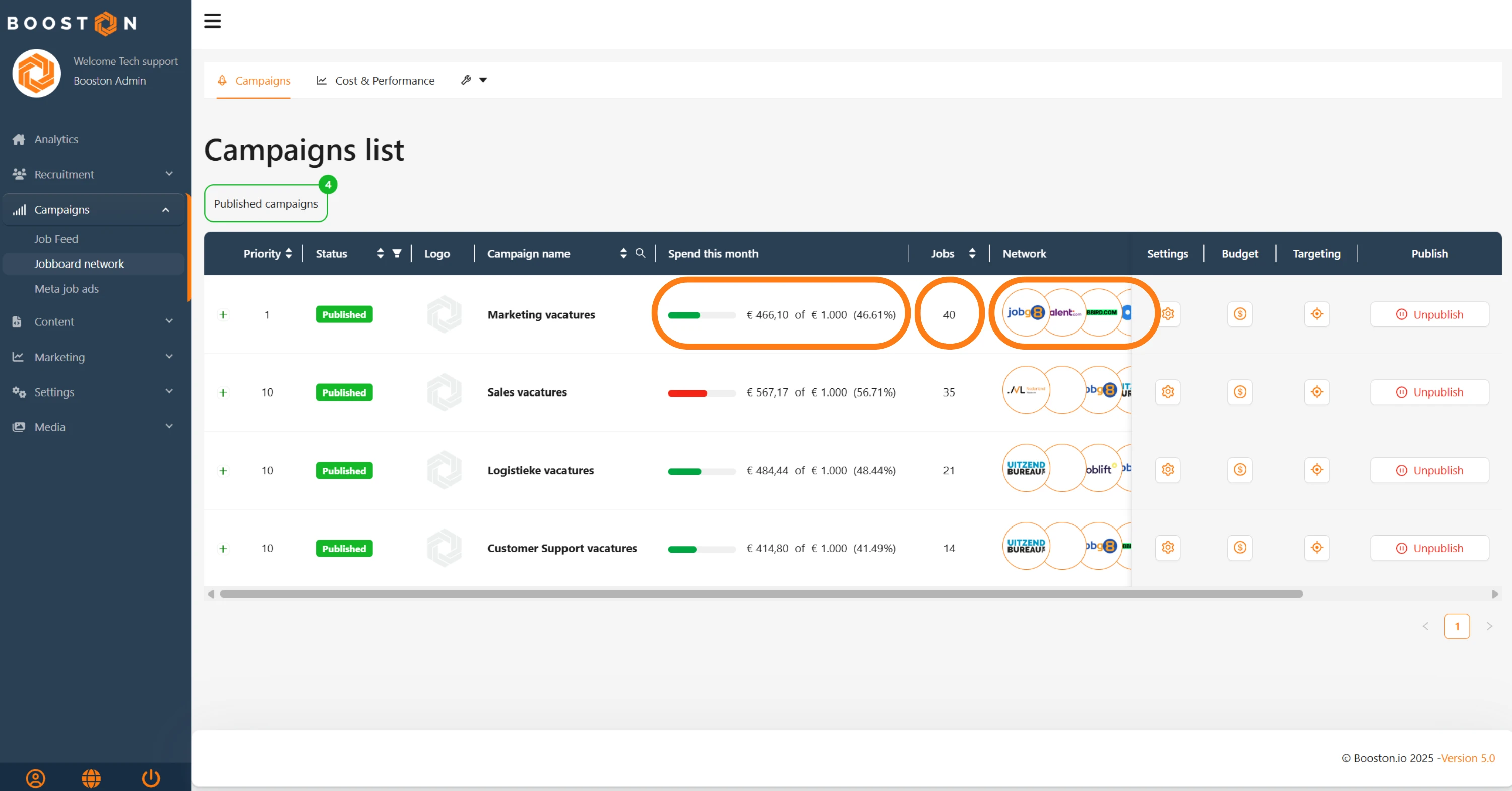
Each row tells you how the campaign is doing:
| Column | What it means |
|---|---|
| Spend this month | A bar with the amount spent against the campaign budget. The colour shows whether you are on track for this month. |
| Jobs | How many jobs are in the campaign: first the number that passes your filters, then the number actually exported to the job boards. |
| Network | The logos of the job boards where budget has been spent. |
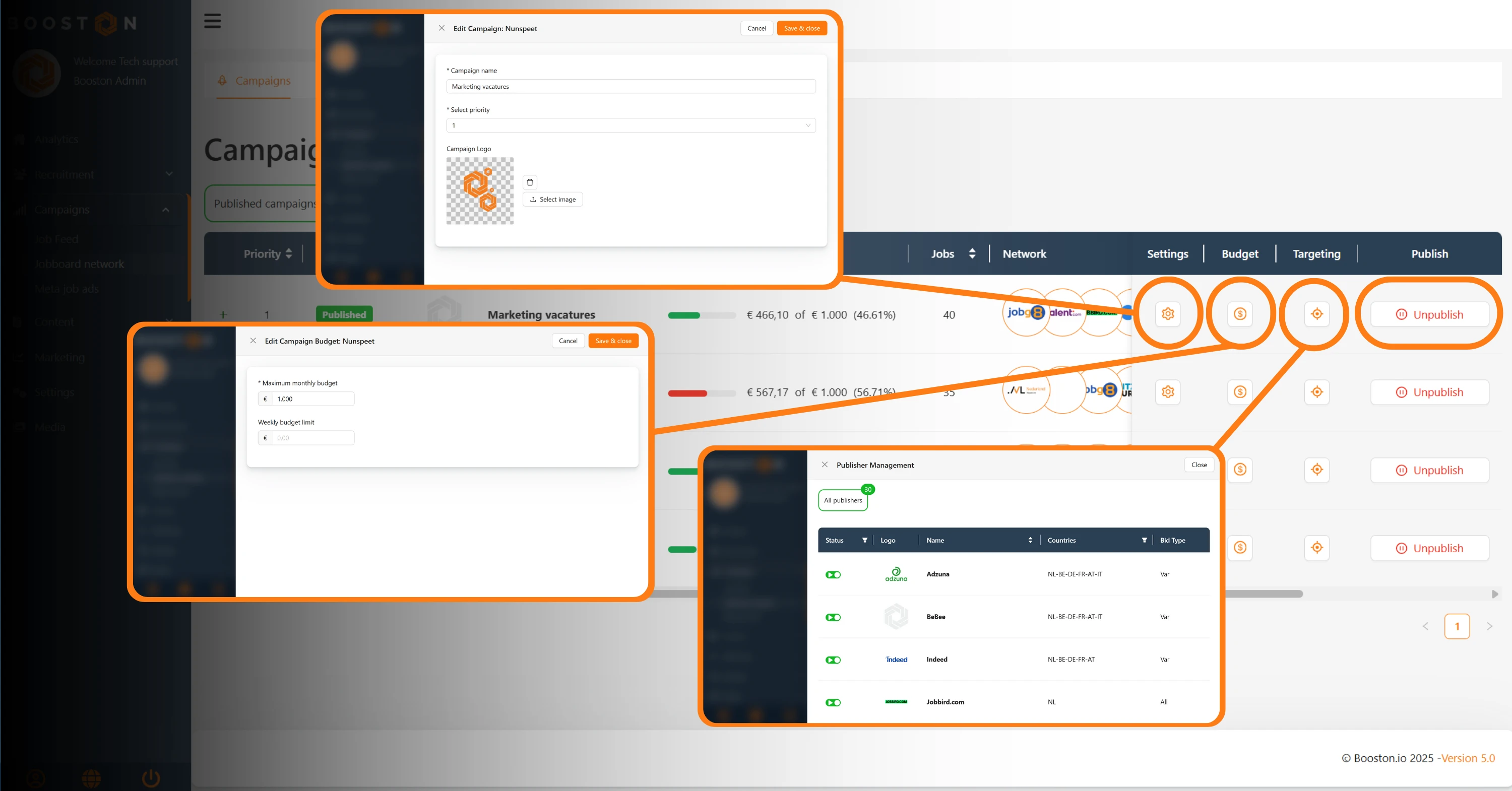
On the right of the row are four buttons to adjust everything later, without a marketer or external agency:
- Settings — campaign name, priority and logo.
- Budget — the monthly budget and the optional weekly limit.
- Jobs — your filter criteria, or the manually added jobs.
- Targeting — switching job boards on or off for this campaign.
Step 5: put a single job on the network
If you want to give one specific job extra attention, you do not have to go to the campaign page. You can do it from Booston, and with a connected ATS also straight from your own system using the boost button on the job.
- Open the job and go to the Boost step.
- Scroll to the Jobboard network card. It lists every campaign this job fits, with the type (Manual or Programmatic), the Priority and that campaign's budget bar.
- Look at the row per language version below the campaign: the Language, the Status — Added if the job takes part, Available if it still can — and the title.
- Click the button in the Action column to add or remove the job. You will get the confirmation Job added to campaign.
The All campaigns link at the bottom of the card takes you to the full campaign overview.
Step 6: measure what it delivers
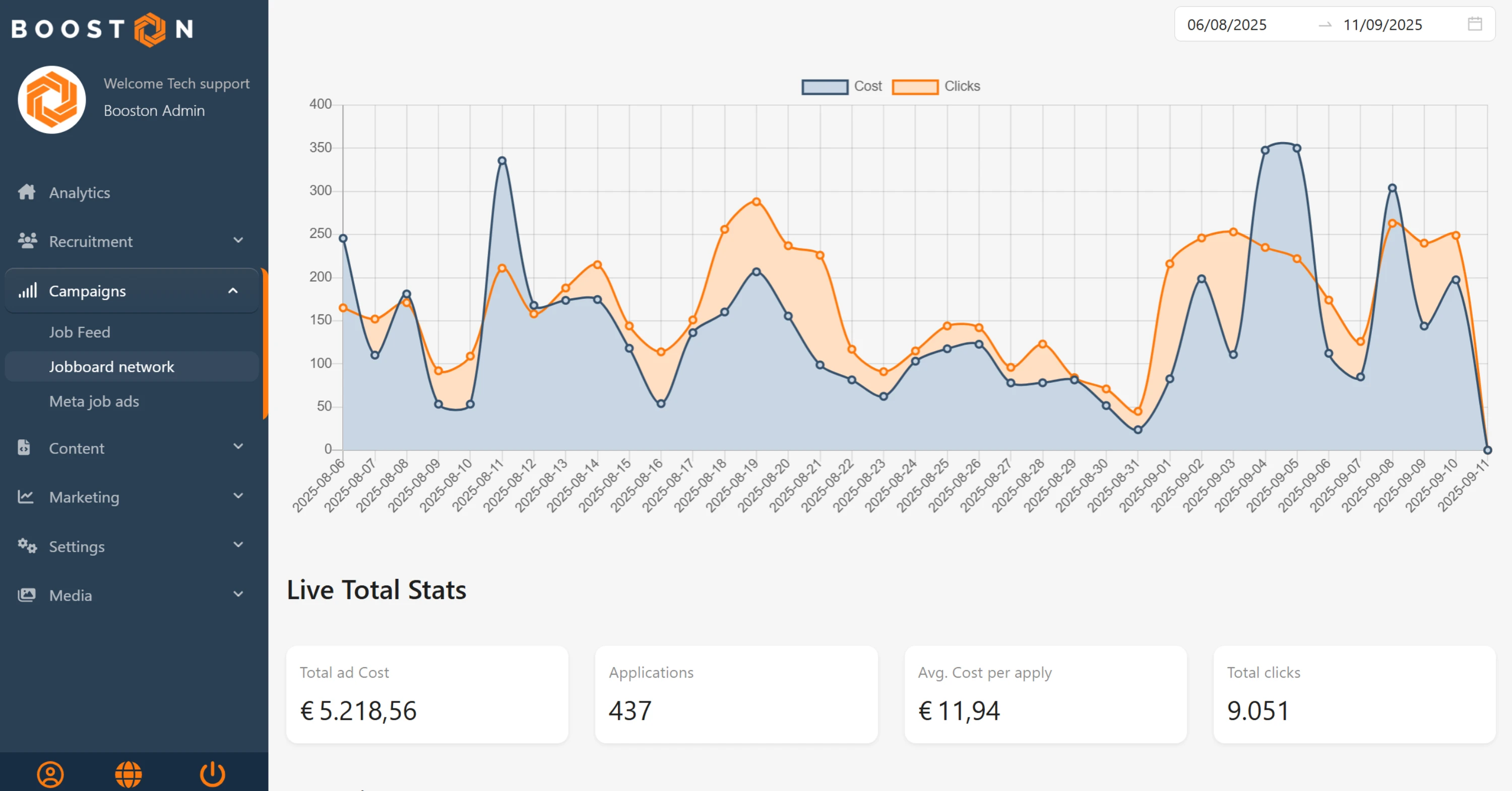
Under Jobboard network → Cost & Performance you see what the network is doing. Choose a period at the top; everything on this page uses that date range.
At the top is a chart with Cost and Clicks across the whole period, and below it the Live Total Stats: your total ad cost, the number of applications, the average cost per application and the total number of clicks.
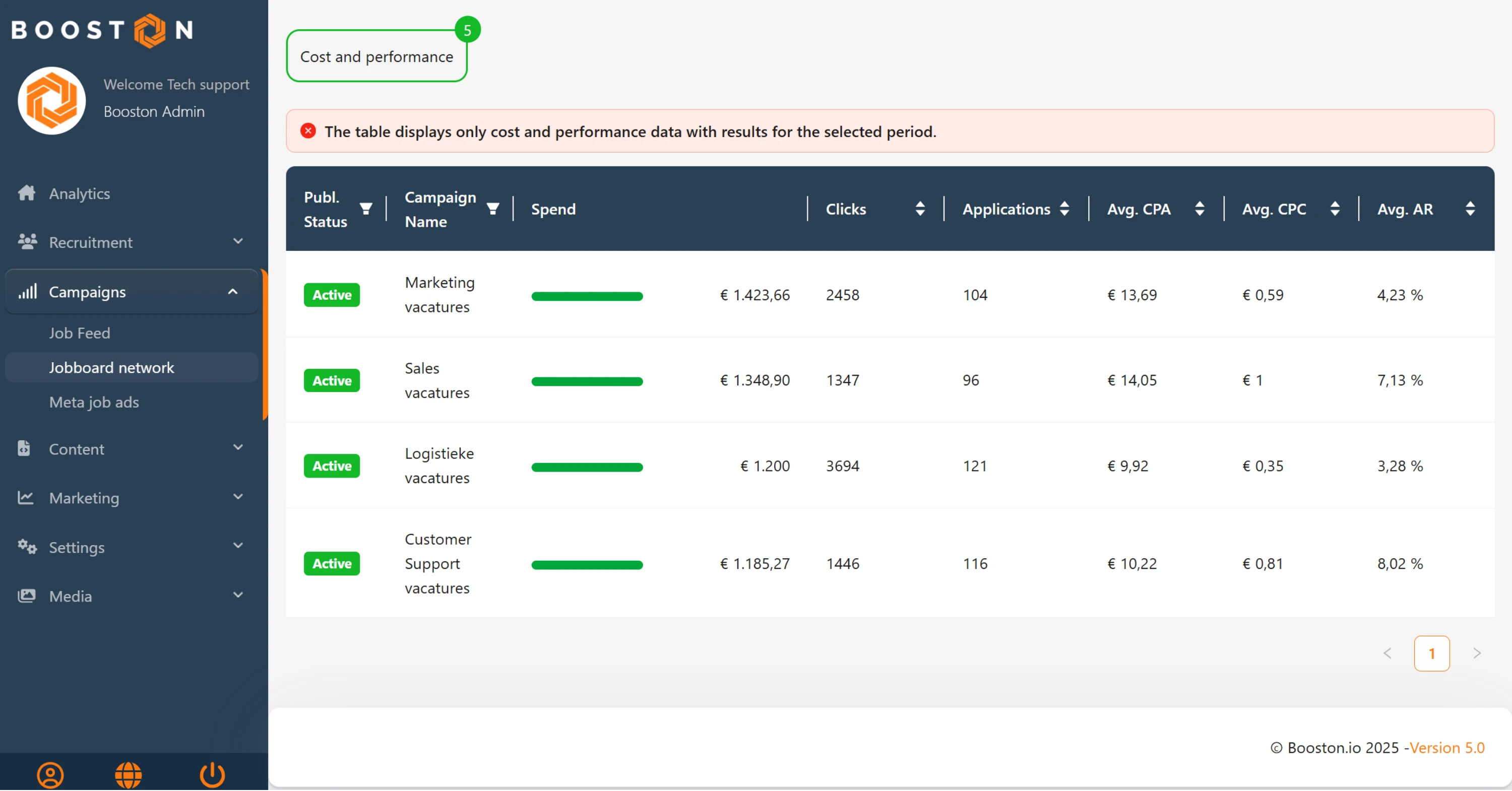
Below that you switch between two tabs: Campaigns for the figures per campaign, and Jobs for the same figures per job. That shows you straight away which role fills easily and which needs attention.
| Column | What it means |
|---|---|
| Spend | What has been spent in the chosen period. |
| Clicks and Applications | How many clicks it produced, and how many of those led to an application. |
| Avg. CPA | The average cost per application. This is your most important steering figure. |
| Avg. CPC and Avg. AR | The average cost per click, and the share of clicks that leads to an application. A hundred clicks with one application is an AR of 1%. |
The Campaigns tab also has a Rating column: the average star rating recruiters have given to the candidates who came in. It tells you something the CPA does not — namely whether your cheap applications are also good applications.
Optimising your campaigns
A good setup is the beginning; the gain is in what you do afterwards. Go through these five points every month.
- Watch for high CPAs. A campaign with a high average cost per application deserves attention first. Check whether the job texts are distinctive enough and contain the right search terms.
- Improve job quality. Sharper titles, clearer texts and more concrete terms of employment raise conversion. The CPA often drops as a result, without spending a euro more.
- Use the star ratings. Do your recruiters rate the candidates who come in? Then put more budget on campaigns with high scores and less on campaigns with low ones. That way you steer on quality instead of volume.
- Steer on platform selection. If a job board performs structurally badly — many clicks, few applications — switch it off via Targeting and raise the budget on the channels that do deliver. Stay above six job boards while doing so.
- Compare month over month. Put the same period of last month next to this month. If the CPA is rising, that is the moment to adjust texts, filters or budgets — not once the budget has gone.
What you cannot change yourself
Everything at campaign level is yours to set: budgets, stop rules, filters, job boards and publishing. The settings at account level are deliberately protected. You can see them, but they are greyed out and cannot be changed.
- Status (Enabled or Disabled) under Settings — determines whether all your published campaigns actually appear on the job boards.
- Monthly campaign budget under Settings — the ceiling all your campaigns together have to stay within.
- Publ. Status of a job board under Publishers — determines whether a job board can be chosen in campaigns at all.
- The connection itself under Connect.
These settings apply to your whole account, not to one campaign. A single typo — a 10,000 where 1,000 was meant — hits every running campaign at once and can burn through a monthly budget in days. Because the change goes through the helpdesk, someone always checks it before it goes live.
Meta job ads works exactly the same way: there too the account status and the main budget sit with Booston, while you do control things yourself per campaign or per ad.
Solving problems
"Important: the account is currently not active. Published campaigns aren't visible on the jobboards until status is set to 'active'."
Your account is set to Disabled, which has stopped your campaigns. That status sits with Booston: report it to the helpdesk and we will switch it over.
"Warning: The combined monthly budgets of all active campaigns exceed the configured monthly account budget."
The monthly budgets of your active campaigns add up to more than the account budget. Lower a campaign budget yourself, or ask the helpdesk to raise the account budget.
"This job is not eligible for any Jobboard network campaign."
This job does not pass any campaign filter. Widen the filters of an existing campaign, or add the job manually to a Manual job add campaign.
"The table displays only cost and performance data with results for the selected period."
This is a note, not an error: campaigns without results in the chosen period are not listed. If a campaign is missing, widen the date range at the top.
"Jobboard Network is not connected."
The connection to the network is missing. Contact the helpdesk.
Frequently asked questions
Do I pay the full monthly budget, even if it is not used up?
No. The monthly budget is a ceiling; only what has actually been spent is billed. Setting a generous budget therefore costs you nothing extra, but it does give the network more room.
Why is my campaign Published but I do not see any clicks yet?
New jobs first have to be collected and processed by the network, which does not happen instantly. Also check the Jobs column to see whether any jobs were actually exported — if it says 0, no job is passing your filters.
Can I put one job on a specific job board?
No. You choose job boards per campaign, not per job. If you want a job on a different set of job boards, create a separate campaign with those job boards and add the job to it manually.
What happens when my campaign budget runs out?
The campaign stops advertising until the next month. The jobs stay on your own website; only the paid placement on the job boards falls away.
Does the budget of a paused campaign count?
No, only active campaigns count towards the account budget warning.
Coming soon
- A boost indicator in the jobs overview. The Boost column will get a clickable element with a ring showing how hard a job is running, the logos of the channels active at that moment, and a pop-over with the status and spend of the last 30 days per campaign. One click takes you to that job's Boost step.
- AI as a third campaign type on the Boost page. AI actions will be presented in the same layout as Meta job ads and Jobboard network, so statuses and buttons line up across all channels. As soon as that is live, we will update this article.
Need help?
Are you stuck, or unsure which setting suits your situation? Email support@booston.io or call 085 0044 215 and mention:
- the name of your environment;
- what you want to achieve;
- the message you see, if there is an error message.
Would you rather go through the settings together? Book a free 30-minute online demo — then we will walk through it together. Job Done!


