A job is more than a title and a body text. Hours per week, education level, contract type, region, salary indication: those are the fields a visitor filters on, the fields a job alert fires on, and the fields Google uses to recognise a vacancy. The same goes for candidates: which fields appear on your application form, which are mandatory, and which travel to your ATS?
In Booston those fields are called attributes, and the values you can pick inside them are called attribute values. You set them up once, and from then on the whole system uses them: the job page, the search filters, the job alert mail, the job feeds and your campaigns. The end goal of this article: a job and candidate form that contains exactly the fields you need, with your own labels in every language — and that stays correct even when your ATS supplies the data.
After this article you will know what every switch does, which fields you can change yourself and which you cannot, and exactly what happens to your settings the moment your ATS runs an import. You will find the screen under Settings → Attributes.
Before you start
- You need the Attributes module. If you cannot see the menu item, the module is switched off or your role has no rights to it.
- You need a role with edit rights. With read-only rights you can see the screens, but the switches and buttons are disabled.
- Which attributes exist is set up by Booston. You can switch existing attributes on and off, rename them, translate them and give them values — adding a completely new attribute goes through the helpdesk.
- Working with an ATS connection? Then you see one extra column and one extra block in the edit screen. Without a connection they are not visible.
How attributes are built up
Before you change anything, it helps to know which layers an attribute consists of. Almost every helpdesk question comes down to the difference between these four.
| Layer | What it is | Where the visitor sees it |
|---|---|---|
| Attribute | The field itself, for example "Contract type". It has a fixed technical place in the system. | Nowhere — this is the carrier. |
| Custom name | The internal name of the field. Handy for finding it back in the overview. | Nowhere — dashboard only. |
| Label | The name your visitor reads, filled in per language. | Above the field on the job page and in the filter. |
| Attribute value | One choice, for example "Full-time". Only on choice fields. Has a Label per language of its own. | In the dropdown, in the filter and on the job page. |
Two things follow from this, and they are a common source of confusion:
- Custom name and Label are not the same thing. You may call the internal field "Hours" and show "Hours per week" on the site. Renaming the internal field changes nothing for the visitor.
- Only choice fields have attribute values. A text field has none: there the recruiter types something themselves.
The types you will run into
The type determines what a field can do. You cannot change the type yourself — it is fixed, because the rest of the system relies on it.
| Type | What it does | Has attribute values |
|---|---|---|
| Input | One line of text. | No |
| Textarea | Multiple lines of text, for example a job description. | No |
| Number | A number, for example a salary amount. | No |
| Select | One choice from a list. | Yes |
| Multiselect | Multiple choices from a list. | Yes |
| Boolean | On or off. | No |
| Image | An image. | No |
The overview: Job Attributes and Candidate Attributes
The tabs sit at the top of the screen. Which ones you see depends on your rights.
- Job Attributes — the fields of a job.
- Candidate Attributes — the fields of a candidate and of the application form.
- Recruiter Attributes — the fields of a recruiter profile.
- Blog Attributes — the categories of your blog.
This article covers the first two. Job attributes are grouped into blocks: Title And Description, General, Salary, Location, Media and Other. Each block is its own table with its own filter, so you can search inside Salary without searching everything else.
The columns in the table
| Column | What it means |
|---|---|
| Status | Is the field on? Off means: nowhere visible, not in the job form and not on the site. |
| Field title | The fixed system name of the field. You can search on this. |
| Label | The label in your main language — what the visitor reads. |
| Type | Input, Textarea, Select, Multiselect, Boolean, Image or Number. |
| Sync with ATS | Only visible with an ATS connection: is this field filled by your ATS? |
| Required | Does the recruiter have to fill this field before the job can be saved? |
On the right are two buttons: a list icon to open the attribute values (only on Select and Multiselect) and a pencil to edit the attribute itself.
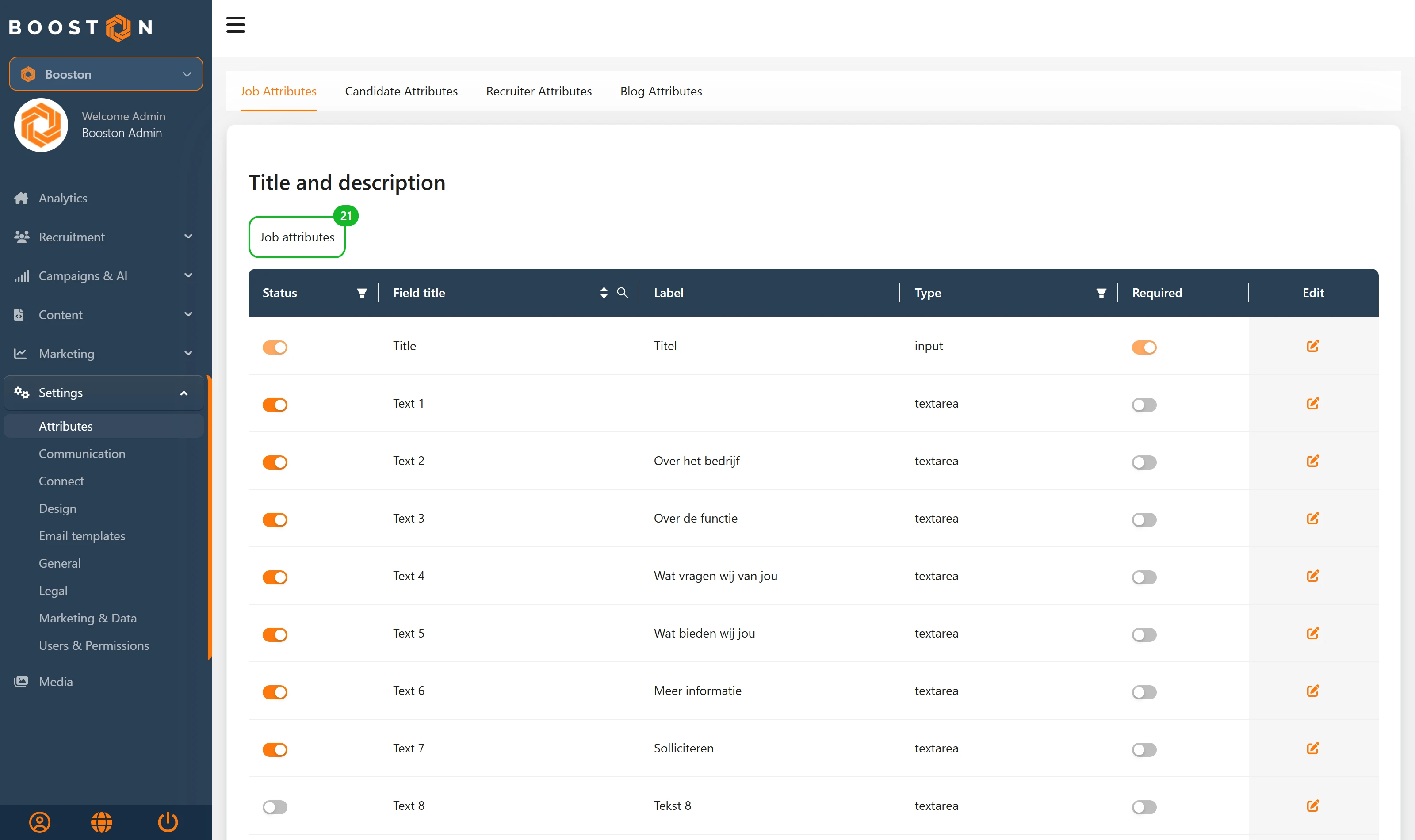
Above each table sits a green counter reading "Job attributes found for: …". As soon as you filter, that sentence reads back what you filtered on, and a red Clear filters button appears. You can filter on Status (Active/Inactive), on Type and with the search function on Field title. Your filters stay in the url, so you can send a filtered view straight to a colleague.
The title field is fixed
On the title attribute, Status, Required and Sync with ATS are greyed out. A job without a title does not exist, so that field can never be off or optional.
Setting up a job attribute
Click the pencil. A screen slides open headed Edit Attribute: …. The settings sit in blocks. If you close the screen with the cross while you have changed something, it is saved anyway — if you do not want that, click Cancel.
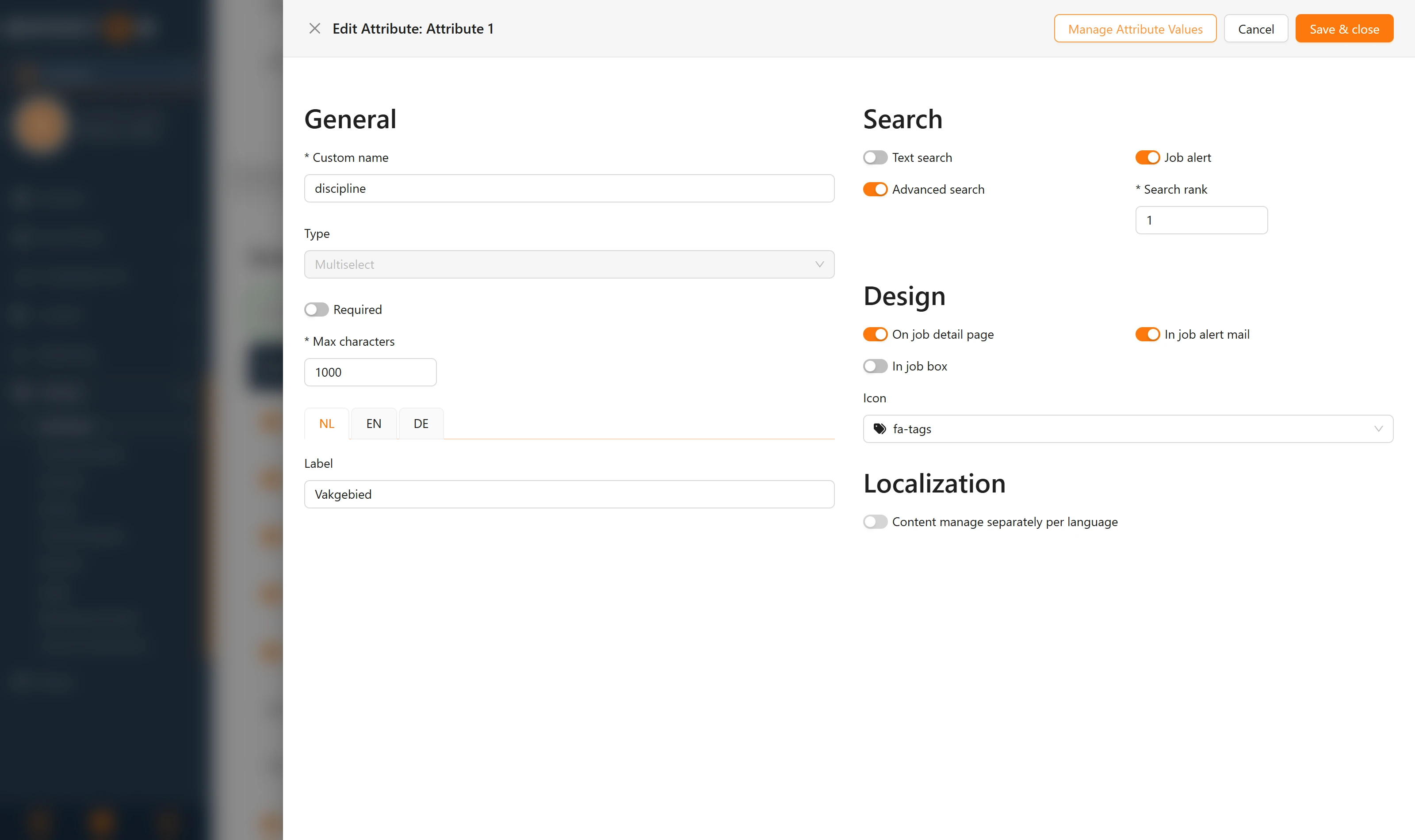
General
- Custom name — the internal name. Required.
- Type — fixed, for information only.
- Required — makes the field mandatory in the job form.
- Max characters — the maximum number of characters. Required, and more useful than it looks: it is your brake on over-long USPs or job titles that break your layout.
- Label — the name the visitor reads. If you have more than one language, tabs per language appear above the field.
Search
This block determines how visitors can use this field to find jobs.
- Text search — the content of this field counts in the regular search bar.
- Advanced search — the field appears as a filter next to the search results. Only possible on Select and Multiselect; on other types the switch is disabled.
- Job alert — visitors can set a job alert on this field.
- Search rank — the weight of this field in the search results. The lower the number, the higher the field counts in the order. Required.
Design
- On job detail page — show the field on the job page itself.
- In job box — show the field in the card in the job overview.
- In job alert mail — include the field in the job alert mail.
- Icon — the icon for this field. Leaving it empty is fine; the cross clears a chosen icon again.
Localization
This block only appears when more than one language is active.
Content manage separately per language determines whether you fill in the content of this field per language. Switched off, one value applies to every language. On choice fields, yes/no fields and on the fields for salary, address, postcode and city the switch is disabled: that content is either language-independent by definition, or you handle the translation through the labels of the attribute values.
ATS
This block only appears with an ATS connection and holds a single switch: Autopopulate by ATS — the same switch as the Sync with ATS column in the overview. What it does exactly is covered in What happens when your ATS fills the attributes.
On the redirect attribute, Create a virtual client job page URL appears underneath, but only when Autopopulate by ATS is off. With it you send the job to a url of your own instead of to the job page in Booston.
Managing attribute values for jobs
Select and Multiselect come with a list of choices. You open it with the list icon in the overview, or with the Manage Attribute Values button in the edit screen. The screen is headed Edit attribute values for: ….
Each value is a collapsible block with these fields:
- Label — what the visitor reads, per language. Required.
- Slug — the technical code of the value. This is what ends up in the url and what links the value to your ATS. Only change it if you know what you are doing.
- Google for Jobs Attribute and Google for Jobs Value — with these you translate your own value into the standard value Google expects. Pick the Google attribute first; the matching list of values appears after that, or a text field if Google allows free input there.
- Image — an image for this value, for example an office photo on a region.
You set the order of the values by dragging the blocks. That order is exactly the order the visitor sees in the dropdown. Add new value adds an empty value at the bottom; the bin icon removes one.
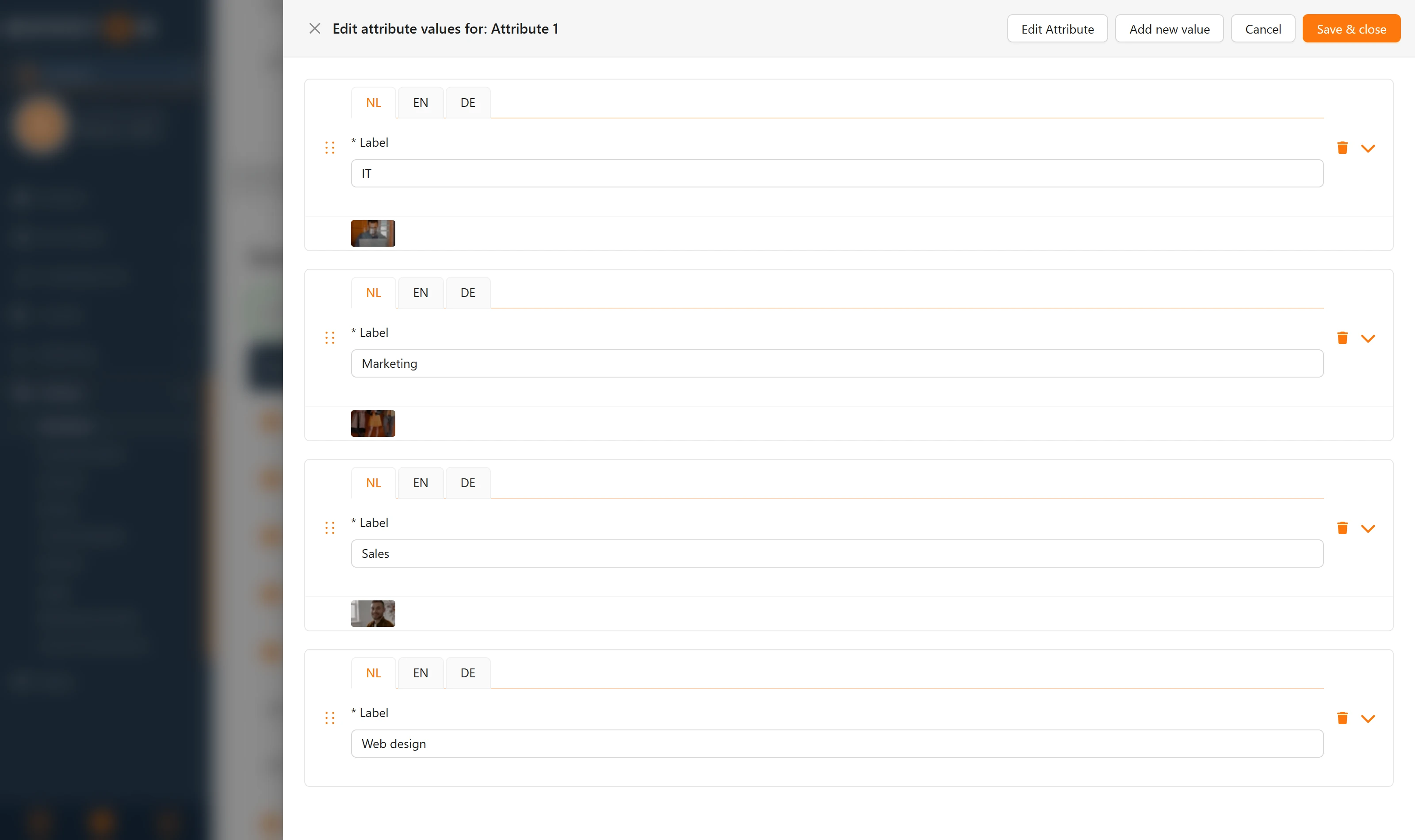
Done? Save & close. Edit Attribute jumps you back to the settings of the attribute itself.
Setting up a candidate attribute
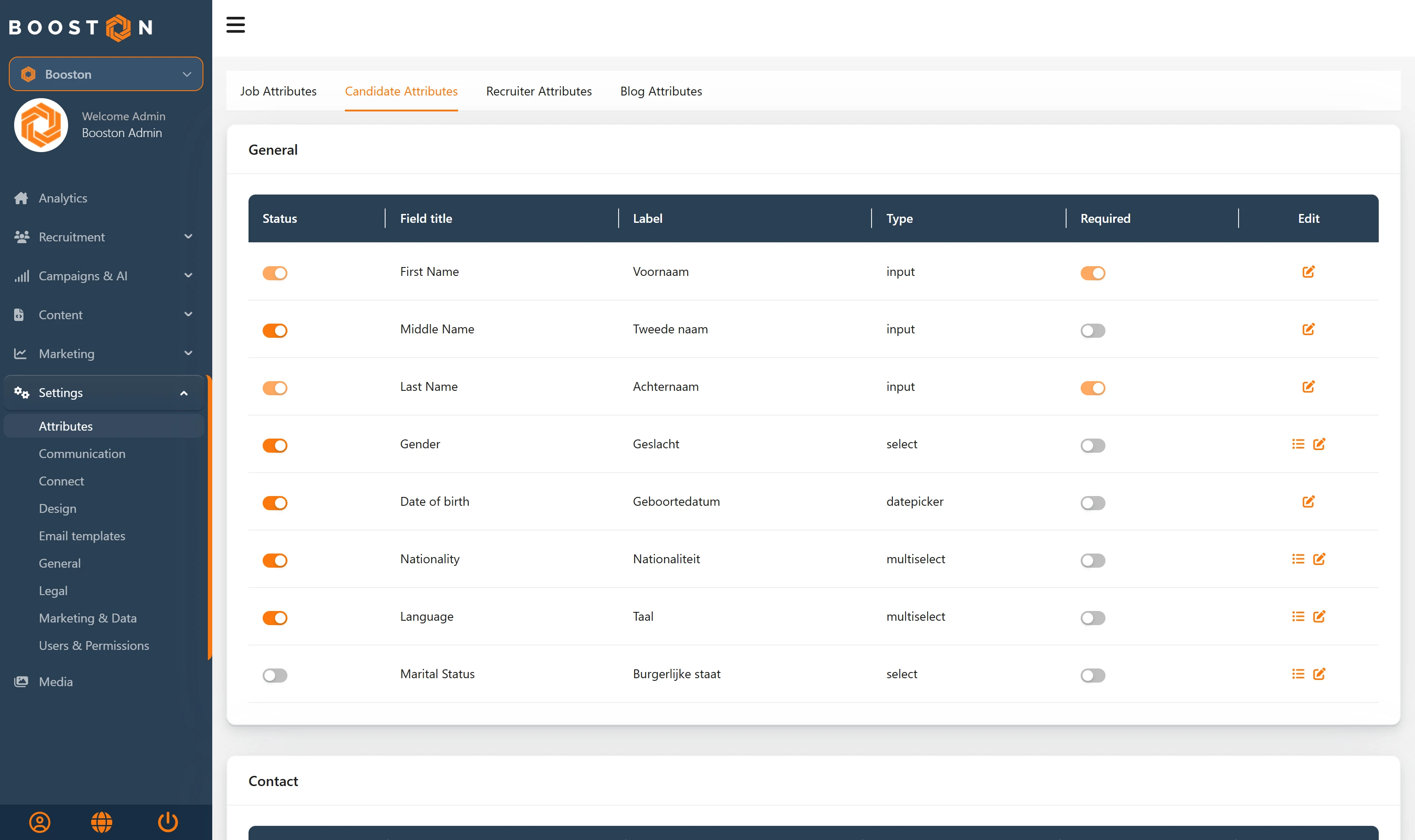
Go to the Candidate Attributes tab. Here too the fields are grouped into blocks, with a table per block. The columns are the same as for jobs, with one difference: there is no search and filter bar, because the list is shorter.
What you set here determines three things at once: which fields a recruiter sees on a candidate profile, which questions appear on your application form, and which data travels to your ATS.
Some fields are protected. You recognise them like this:
- If Status is greyed out, the field cannot be switched off. First name, last name and email address are fields like that.
- If the pencil is missing, the field cannot be edited at all.
- If Required is greyed out, the requirement is fixed. Phone and mobile are the exception: those you may make mandatory or not.
The fields in the edit screen
General
- Active — the field on or off.
- Is Required — mandatory when applying.
- Label — what the candidate reads, per language. Required.
- Placeholder Label — the grey example text inside the input field, per language. Required.
- Default Value — on choice fields: the value that is pre-selected.
- Favourite Values — the values that appear at the top of the list. Handy on long lists such as countries or languages, where you want three at the top and the rest below.
Design
- Icon — the icon for this field.
- Description — a short explanation per language. That text helps the candidate understand what you mean; use it for fields where people otherwise fill in the wrong thing.
ATS (only with a connection)
- ATS — switch this on and Booston imports this field's choice lists from your ATS, and exports what the candidate fills in back to your ATS.
- Ats identifier — the technical code of this field on your ATS side. On some choice lists this is a search field where you look up the right list, on others a text field.
Managing attribute values for candidates
Here too you open the value list with the list icon or with Manage Attribute Values. The list works slightly differently from jobs:
- On the left of each value sits a pause button. Paused means: still exists, but can no longer be chosen. This is the clean way to phase a value out without losing the history. The default value and the values of yes/no fields cannot be paused.
- Label per language, required.
- On the country field there is an ISO column next to it, with the official country code. That code is used for phone numbers and for connections; leave it as it is.
- If a value comes from your ATS, a blue tag with the name of your ATS sits behind it. Those values were created by the connection, not by hand.
Deleting works with the bin icon, with the same warning as on jobs. Pausing is almost always the better answer.
What happens when your ATS fills the attributes
This is the part that generates the most questions. With an ATS connection your ATS supplies the data and Booston fills the attributes automatically. The Sync with ATS switch — Autopopulate by ATS in the edit screen — determines per attribute whether that happens.
Which attributes take part
An attribute takes part in the import when it meets two conditions: Status is on and Sync with ATS is on. If either one is off, the import does not touch that field.
Which field from your ATS belongs to which Booston attribute is fixed in a mapping table that Booston sets up when your ATS is connected. You cannot adjust that table yourself; if you want a different field mapped, that goes through the helpdesk.
What happens on each import
An import runs automatically, by default every ten minutes, plus one full import each night. Per job, Booston then does this:
- For every mapped attribute, Booston looks at the value your ATS sends.
- Booston checks whether that value already exists. If your ATS supplies an id of its own, the match is made on that; otherwise on the slug of the value.
- If the value already exists it is reused. If it does not exist yet, Booston creates it — including the label exactly as your ATS supplies it.
- The job is linked to those values.
- Links the import no longer sends are removed — but only on attributes where Sync with ATS is on.
That last rule is the most important one in this chapter. What you fill in by hand on an attribute with Sync with ATS off stays put. An import does not touch it, not even the full nightly import.
What is not overwritten
Three things stay yours, even with the connection switched on:
- The Label of the attribute itself and the Custom name. An import only writes values, never the name of the field.
- The Label of an existing attribute value. The connection sets the label only when it creates a value. Rewrite it afterwards and your text survives every following import.
- The page title and meta description of a job. Booston only fills those while they are empty. As soon as you fill them in yourself, the import leaves them alone. The url of the job also stays unchanged on an update, so links in mails and campaigns keep working.
Candidate attributes and the connection
On candidates the switch works both ways. Switching it on means: this field's choice lists are pulled from your ATS, and what a candidate fills in is exported to your ATS.
Switch it on for a choice field and Booston immediately starts a synchronisation of the values for that field. So you do not have to wait for the nightly run: refresh the values screen and the list from your ATS is there.
Rewriting ATS values for your website and SEO
An ATS is set up for your recruiters, not for Google. "FT 32-40" is fine in your ATS and worthless on a job page. Because the connection does not overwrite the label of an existing value, you can simply put that right — without breaking the connection.
How to do it:
- Go to Settings → Attributes → Job Attributes and look up the attribute.
- Open the attribute values with the list icon.
- Expand the value and rewrite the Label into the text your visitor should read. Do that per language.
- Leave the Slug alone. That is the hook the connection uses to find this value back.
- Click Save & close.
From then on your visitor sees your text, your ATS keeps sending its own text, and the two stay tied together.
What else the same logic lets you do:
- Set the order. Drag the values into the order that makes sense for your audience, instead of the alphabetical order of your ATS.
- Translate for Google. Fill in Google for Jobs Attribute and Google for Jobs Value, and Google reads your own wording as the standard value behind it.
- Write the page title and meta description yourself. Fill them in on the job; the import leaves filled fields alone.
- Adjust the label of the field. The Label of the attribute is independent of anything your ATS sends. "Working hours" in your ATS may simply read "Hours per week" on the site.
What you cannot arrange yourself
- Creating new attributes. The number of fields is fixed. Need a field that is not there? Ask the helpdesk and we will make a free field available for you.
- Changing the type of an attribute. Text field to choice list is not a setting but a conversion, including the question of what happens to existing jobs.
- The mapping between an ATS field and a Booston attribute. We set up that table.
- Setting attribute values inactive on jobs. Pausing only exists on candidate values; on jobs you can only rename or delete. If you want a value out of the dropdown without losing it, report it to the helpdesk.
- Recruiter Attributes and Blog Attributes. Those tabs lead to separate screens with their own rules; this article does not cover them.
Troubleshooting
The field is on, but I do not see it on the job page
Status on is not enough. Check in the edit screen under Design whether On job detail page is on. If that is right, check whether the job itself has a value in this field — an empty field is not shown.
The field is not among the filters
Filters come from Advanced search, and that switch only works on Select and Multiselect. If your field is a text field it can count in the search bar through Text search, but it will not become a filter.
I see no language tabs on the Label
Those only appear when more than one language is active on your environment. With one language you fill in one label.
The Manage Attribute Values button is missing
That button only exists on Select and Multiselect. On a text field, number, yes/no field or image there are no fixed values to manage.
A value appears twice in the list
That was a known issue on ATS imports and it has been fixed. Existing duplicates do not disappear by themselves: report your environment to the helpdesk and we will run a full import that cleans the list up.
A value keeps disappearing after an import
Then Sync with ATS is on for that attribute and your ATS no longer sends that value. If you want to manage it yourself, switch the toggle off; from that point your input stays put.
My rewritten label is back in ATS wording
The value was created again, usually because the id or the slug changed on the ATS side. Rewrite the label and report it to the helpdesk.
A candidate field cannot be edited or switched off
That is a protected field. First name, last name and email address cannot be switched off; on other fields the pencil is missing when the field is fully fixed.
A candidate's number field comes back empty
This happens on phone and mobile in combination with a country code that is set to inactive. We are working on a fix; report it to the helpdesk with the name of the candidate and we will put it right.
Frequently asked questions
Can I safely switch an attribute off?
Yes. Switching off hides the field everywhere but throws nothing away. Switch it back on later and the values are still there. This is always safer than deleting.
What is the difference between Field title, Custom name and Label?
Field title is the fixed system name and never changes. Custom name is your own internal name. Label is what the visitor reads, per language. Only the last one is visible to the outside world.
Why can I not change the type?
Because the whole system relies on it: the search index, the filters, the feeds and the connection. If you want to switch the type of a field, report it to the helpdesk and we will look at what should happen to the existing data.
Do inactive attribute values still count?
On candidates you pause a value and it can no longer be chosen. Existing data stays put. In a few places paused values are still shown today; we are working on that.
Do I have to wait for an import after a change?
No. Labels, order and visibility take effect straight away. Only switching Sync with ATS on for a candidate choice field starts a synchronisation, and that is usually done within a few minutes.
I need an extra field that does not exist. What now?
Mail the helpdesk with what you want to record, whether it should be a text field or a choice list, and whether it has to come from your ATS. We will make the field available; setting it up and translating it is then yours to do.
Coming soon
- An AI marker on fields filled in by AI. Have Booston complete a job and the filled fields get an AI label that stays visible after reloading the page. AI only fills empty fields and never overwrites what you typed yourself.
- Resume parsing fills more candidate attributes. The automatic analysis of a resume will start covering the new candidate fields, so you retype less by hand.
- More candidate attributes in the Easyflex connection. Alongside the standard fields, the fields for motivation and documents will travel too.
- Inactive attribute values really stop counting. Set a value to inactive and it disappears everywhere — including from existing data that still refers to it.
As soon as this is live, we will update this article.
Need help?
Not getting there, or unsure which setting fits your situation? Mail support@booston.io or call 085 0044 215 and mention:
- the name of your environment;
- which attribute it concerns and whether it is a job or a candidate attribute;
- what you want to achieve;
- the message you see, if there is an error message.
Prefer to walk through the settings together? Book a free 30-minute online demo — and we will go through it with you. Job Done!


