Passive job seekers often do not have an up-to-date CV. They usually do not have one readily available on their phone either. As a result, an extensive application process can create an unnecessary barrier.
It is therefore important to establish contact as quickly and easily as possible after an application. This allows you, as a recruiter, to immediately determine whether a candidate is relevant and which next steps are appropriate.
With Booston's new WhatsApp functionality, candidates can click directly through to a WhatsApp conversation with your organization after completing a Meta application form. You decide which WhatsApp number the candidate is directed to and can prepare a pre-filled message.
Set up WhatsApp for a single advertisement
Would you like to configure the WhatsApp redirect for one specific advertisement? Follow these steps:
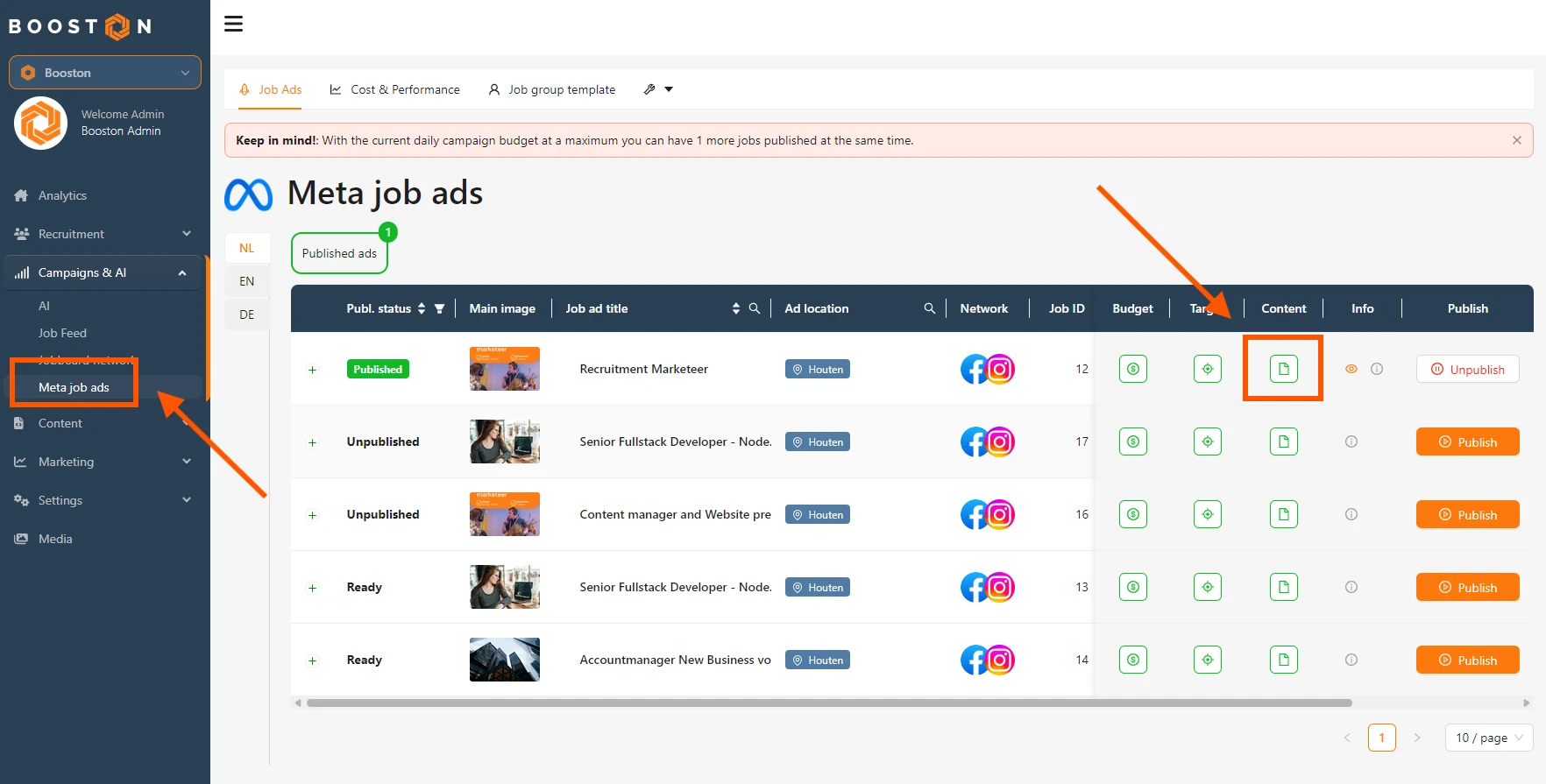
- Go to Campaigns & AI in the menu.
- Open Meta job ads.
- Find the relevant advertisement and click Edit to modify its content.
- Open the Follow up tab.
- If necessary, adjust the settings and text of the follow-up messages.
- Scroll down to the Thank you button link dropdown.
- Select WhatsApp as the destination.
- Enter the WhatsApp number the candidate should contact.
- Optionally, add a pre-filled message that the candidate can send directly via WhatsApp.
- Save your changes.
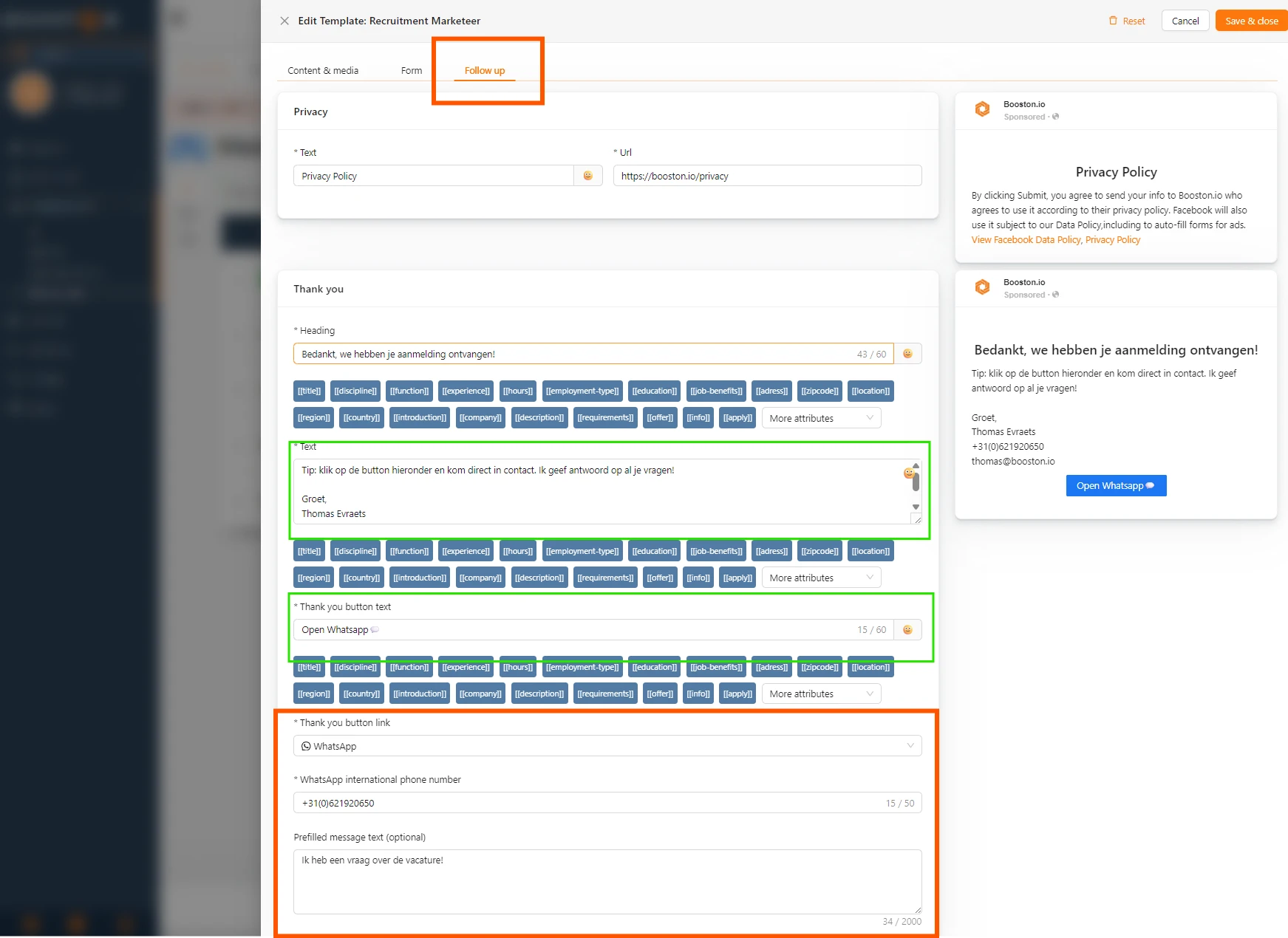
After submitting the Meta application form, the candidate will see a thank-you page. Using the button on this page, the candidate can immediately start a WhatsApp conversation.
Set up WhatsApp as the default for all new advertisements
Would you like to apply this setting to your Meta advertisements by default? Update the general content template:
- Go to Campaigns & AI in the menu.
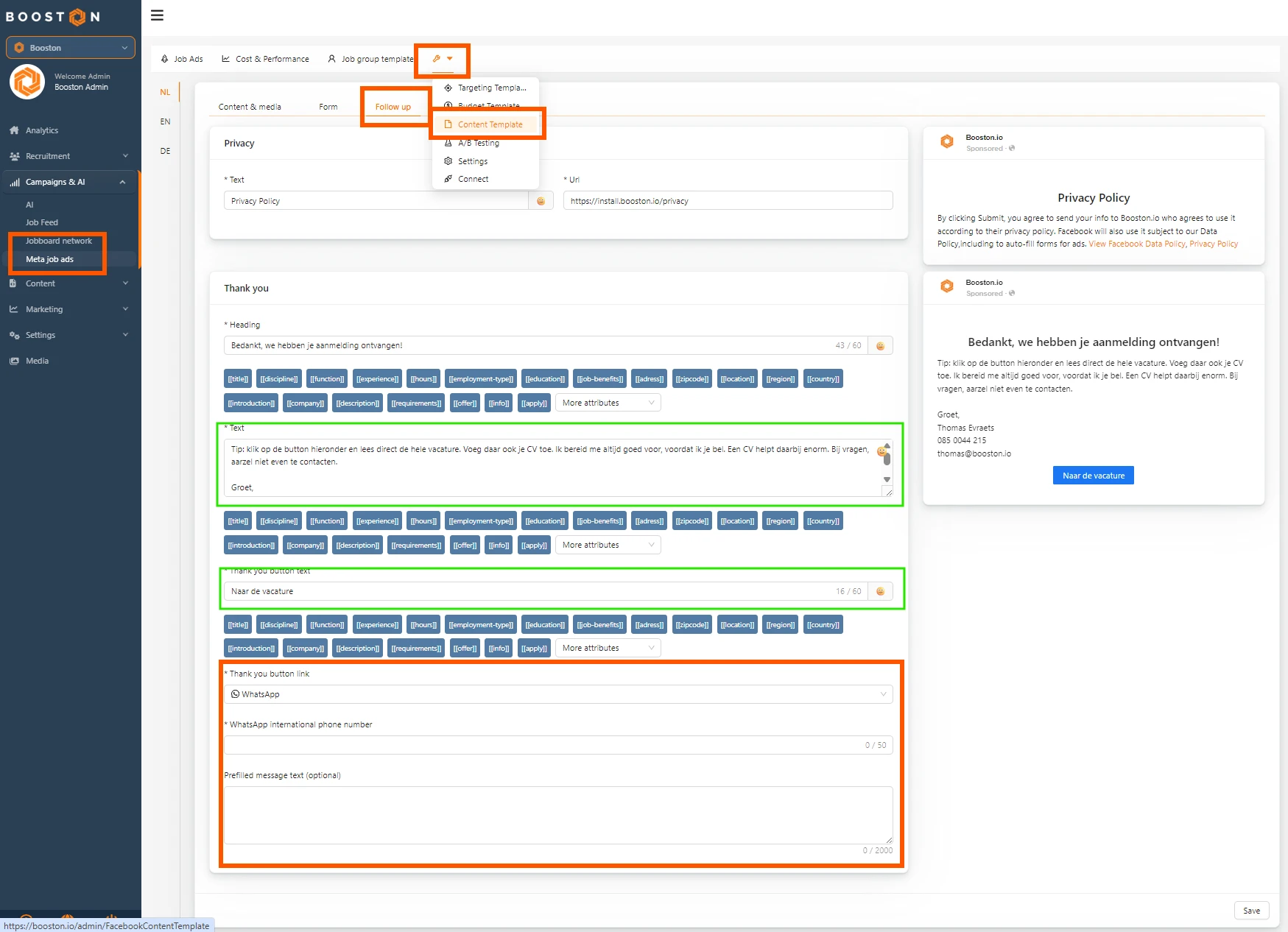
- Open Meta job ads.
- Click Settings, indicated by the wrench icon.
- Open Content Template.
- Go to the Follow up tab.
- If necessary, adjust the settings and text of the follow-up messages.
- Scroll down to the Thank you button link dropdown.
- Select WhatsApp.
- Enter the desired WhatsApp number.
- Optionally, add a pre-filled message that candidates can send directly.
- Save your changes.
Please note for existing advertisements
The settings from the content template are not applied automatically when:
- the advertisement has already been published;
- the advertisement content has previously been edited manually;
- the content button for the advertisement is green.
In these cases, you must manually add the WhatsApp settings to the relevant advertisement through the Follow up tab.
Practical tips for the pre-filled message
- Keep the pre-filled WhatsApp message short and recognizable.
- Preferably use a WhatsApp number that is actively managed by the recruitment team.
- Make sure it is clear who is responsible for following up, so candidates receive a quick response.
- Fewer barriers, faster personal contact.
The WhatsApp redirect reduces the gap between applying and establishing personal contact. Candidates do not need to search for additional contact details or start a new conversation themselves. With one click, they are connected directly to the appropriate recruiter.
This allows you to assess a potential match more quickly, while candidates can make contact in an accessible and familiar way.


