ForceFlow ATS integration with Booston
The integration between ForceFlow and Booston makes it easy to publish jobs and automatically send applications back to ForceFlow. In this article, we explain step by step how the integration works, how to configure it and what you can do with it.
New: the ForceFlow integration now supports webhooks. This means job changes are processed almost immediately, instead of only through periodic synchronization. Setting up the webhook is part of activating the integration.
Contents
- Features and specifications
- How does the integration work?
- Step 1: Request and share the API key
- Step 2: Configure the integration in Booston
- Step 3: Activate webhooks
- Step 4: Configure publication texts
- Step 5: Configure other job attributes
- Publishing jobs from ForceFlow
- Receiving candidates in Booston
- Synchronizing review scores
- Need help?
Features and specifications
Integration features
- Import jobs, job attributes and recruiters from ForceFlow
- Export applicants including CV and motivation letter to ForceFlow
- Synchronize candidate statuses
- Synchronize review scores from 1 to 5 stars
- Support for unlimited multilingual jobs
Job update frequency
- With the webhook active, job changes are processed almost immediately
- Without the webhook, synchronization runs periodically
- Without the webhook: immediately to a maximum of 20 minutes
- The webhook receives a notification when a job changes
Job attribute mapping
The ForceFlow integration supports standard mappings for jobs, job attributes, recruiters, candidates, candidate statuses and review scores. Custom settings can be managed in Booston through the attribute settings. Preferably enable Apply default attribute settings for this ATS during activation, so all standard attributes are configured correctly right away.
ForceFlow API key
A personal ForceFlow API key is required for the integration. This API key is included in the ForceFlow subscription. No additional costs apply.
Webhook for real-time updates
The webhook ensures that Booston receives a notification when a job is changed. Booston then retrieves the full, current job record through the ForceFlow API.
How does the integration work?
The integration automatically exchanges jobs and candidates between ForceFlow and Booston:
- Create jobs: you create a job in the ForceFlow ATS.
- Import to Booston: the job is sent to Booston.
- Website and campaigns: Booston publishes the job on your website and can launch campaigns on job boards and social media.
- Feedback: applications received through these channels are sent back to ForceFlow through Booston.
Step 1: Request and share the API key
- Request your personal ForceFlow API key through the ForceFlow documentation or your account manager.
- Share this API key with your Booston contact person. Booston uses the key to configure the integration.
The API key is included in your ForceFlow subscription. No additional costs apply.
More information about creating a ForceFlow API key.
Step 2: Configure the integration in Booston
- Go to Settings > Integrations in Booston.
- Enable the checkbox Use Booston.io for the Booston.io key.
Booston then takes over the time-consuming work and increases the visibility of your jobs on the channels that matter to you.
In the Functionality step of the wizard, enable the desired data flows. The options below determine which data is exchanged between ForceFlow and Booston:
| Option | Available for ForceFlow |
| Job, job attribute and recruiter import | Yes |
| Skip job import on zero results | Yes |
| Candidate export | Yes |
| Candidate export retry | Yes |
| Candidate review score and status import | Yes |
| Postback job URL export | Yes |
| Job boost import | Legacy v1 |
In the final wizard step, Activation, you will find the option Apply default attribute settings for this ATS. Preferably enable this option. This activates, labels and prepares all standard attribute settings for ForceFlow correctly. You can then adjust individual attributes as needed.
Step 3: Activate webhooks
When activating the integration, configure the webhook so changes are sent directly to Booston.
- Click the webhook icon on the right side of the Booston.io integration row to edit the integration further.
- Enter your Booston domain name in Webhook URL and add
/webhook/process. - Example:
https://forceflow.booston.io/webhook/process - Leave Language set to Automatic.
- Click Test. If configured correctly, Status 200 appears at the bottom.
- Click Update to save.
What the webhook does: Booston receives a notification through HTTP POST for every job change. This can be a change to the publication status or a change to the content of a published job.
Technical explanation: the webhook only sends the ID of the changed job. Booston then retrieves the complete current record through the ForceFlow API.
Step 4: Configure publication texts
Go to Settings > Attributes. Configure the job text as desired in the title and description attributes section.
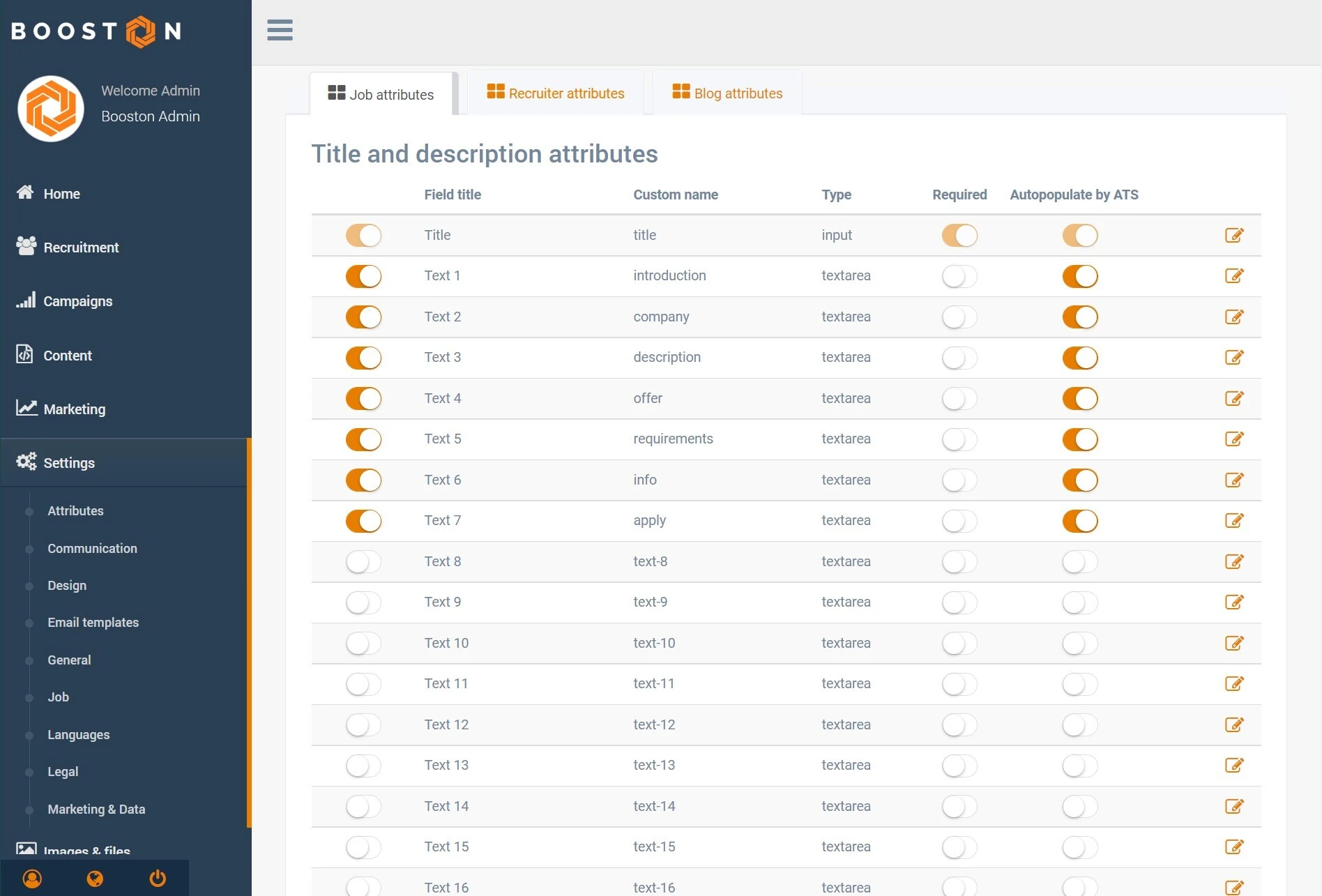
Each text field is linked to a ForceFlow text field:
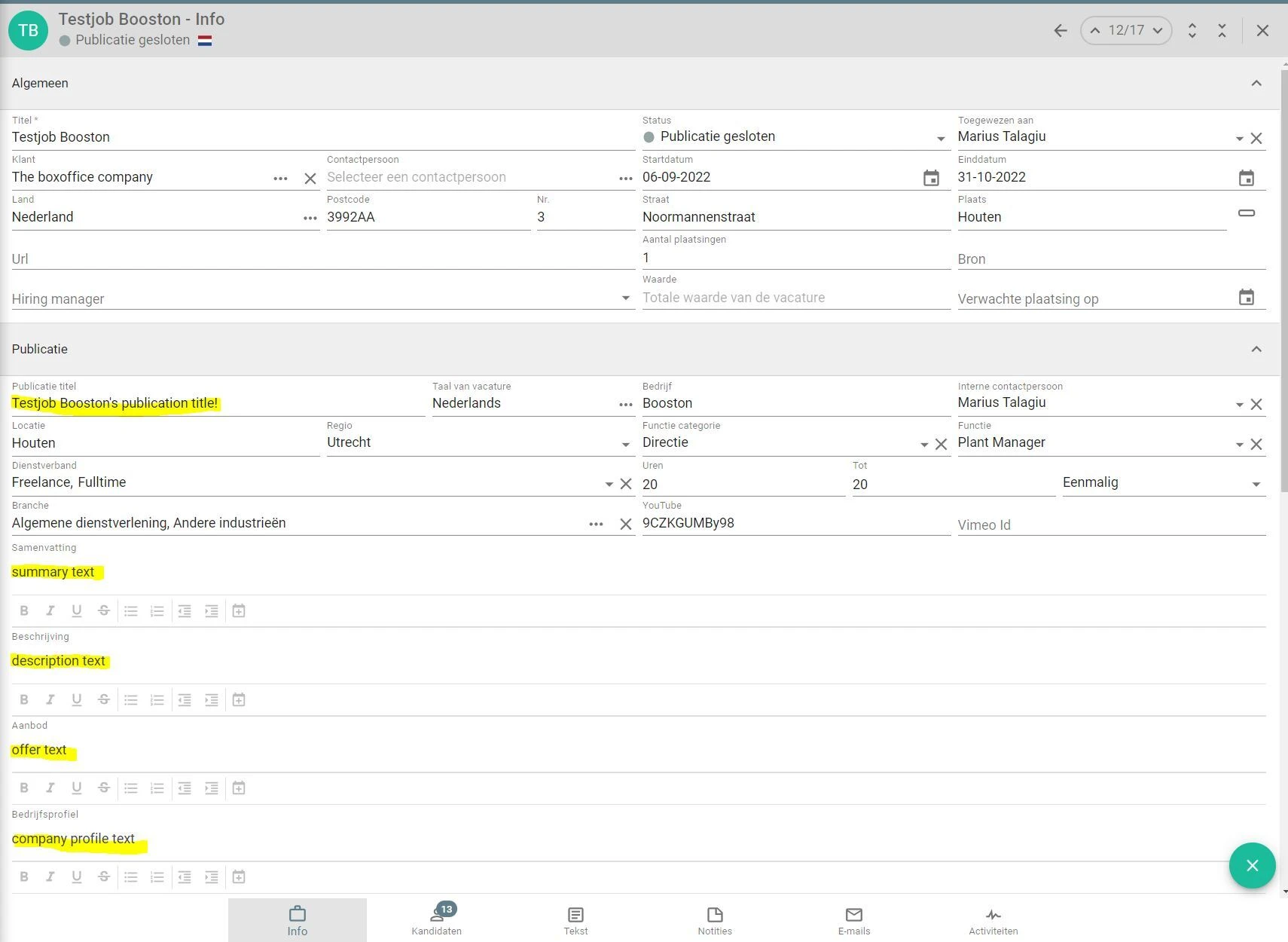
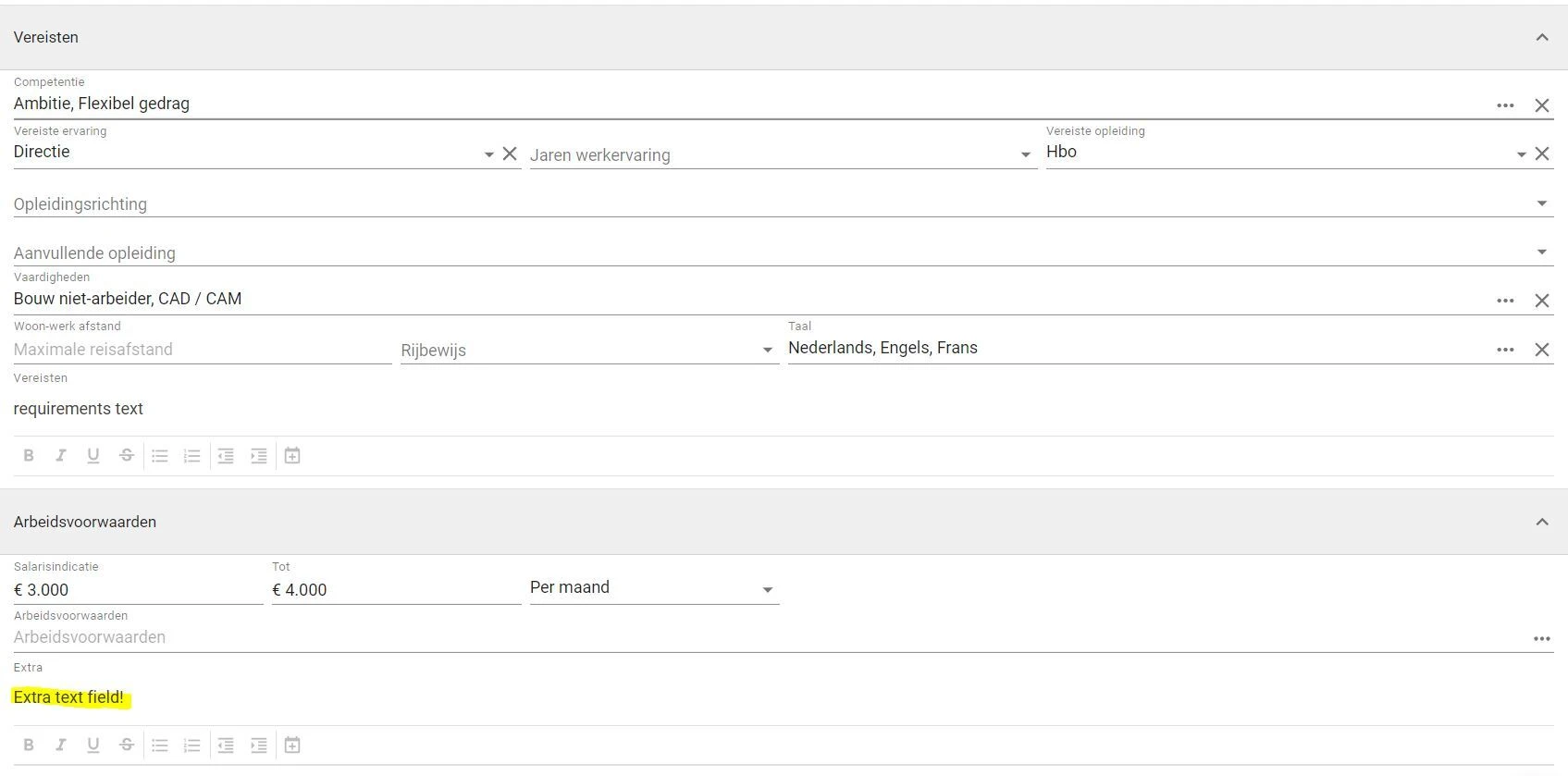
On the Booston side, you can optimize the text attributes:
- If you deactivate an attribute, the linked text field will not be imported from ForceFlow.
- If you want ForceFlow to fill the information, enable Automatically filled by ATS.
- If the attribute is active, but Automatically filled by ATS is disabled, you can manually add content in Booston at any time.
Edit the attribute:
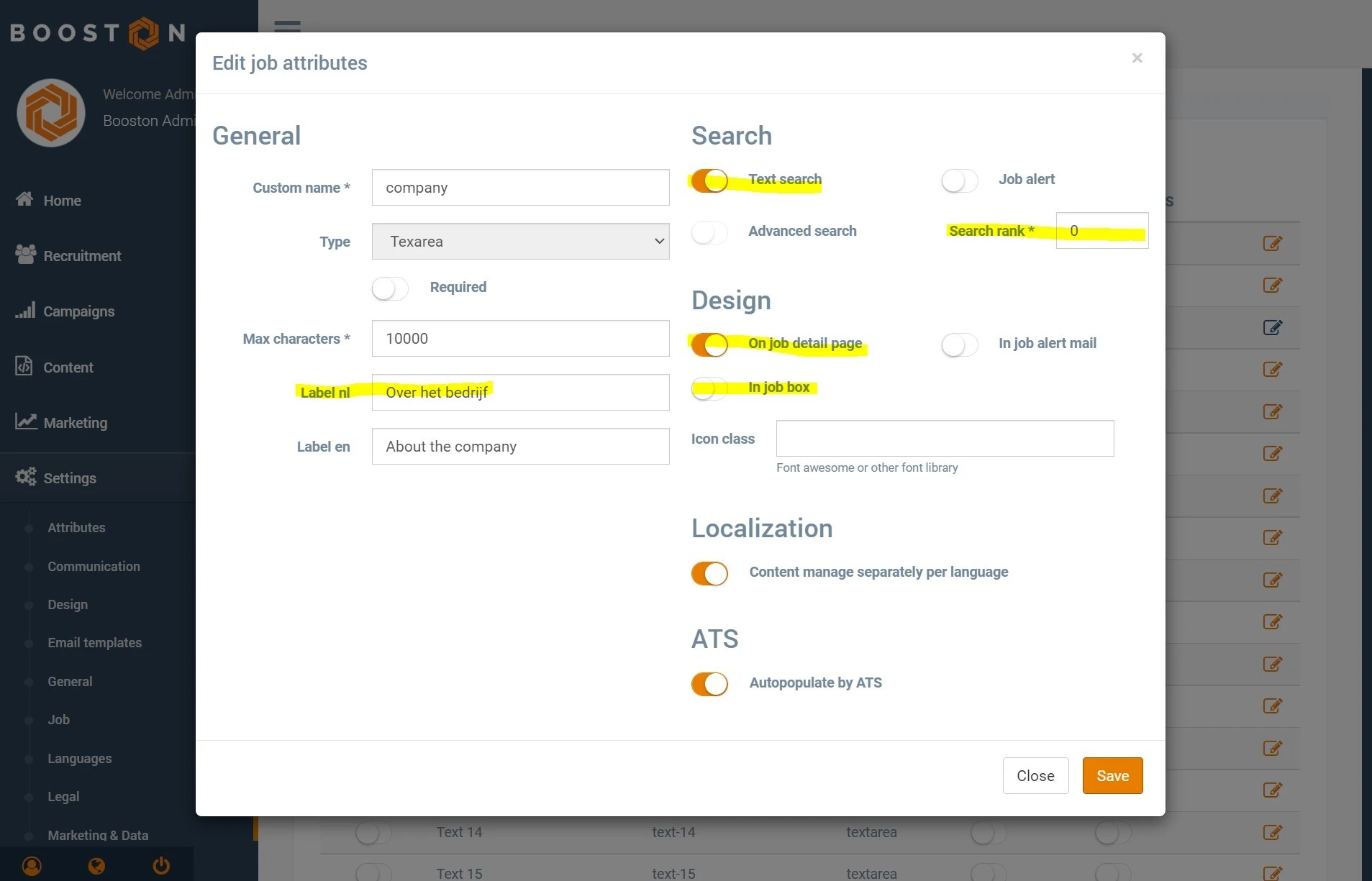
- Label: give the text attribute the desired heading.
- Text search: determine whether the text attribute should be included in website search.
- Search order: determine the order in which attributes are shown, for example on the job detail page.
- On the job detail page: determine whether the text should be visible on the job detail page.
- In job box: determine whether the text should be used as an introduction in a job list.
Check the result via Recruitment > Jobs and click on a job.
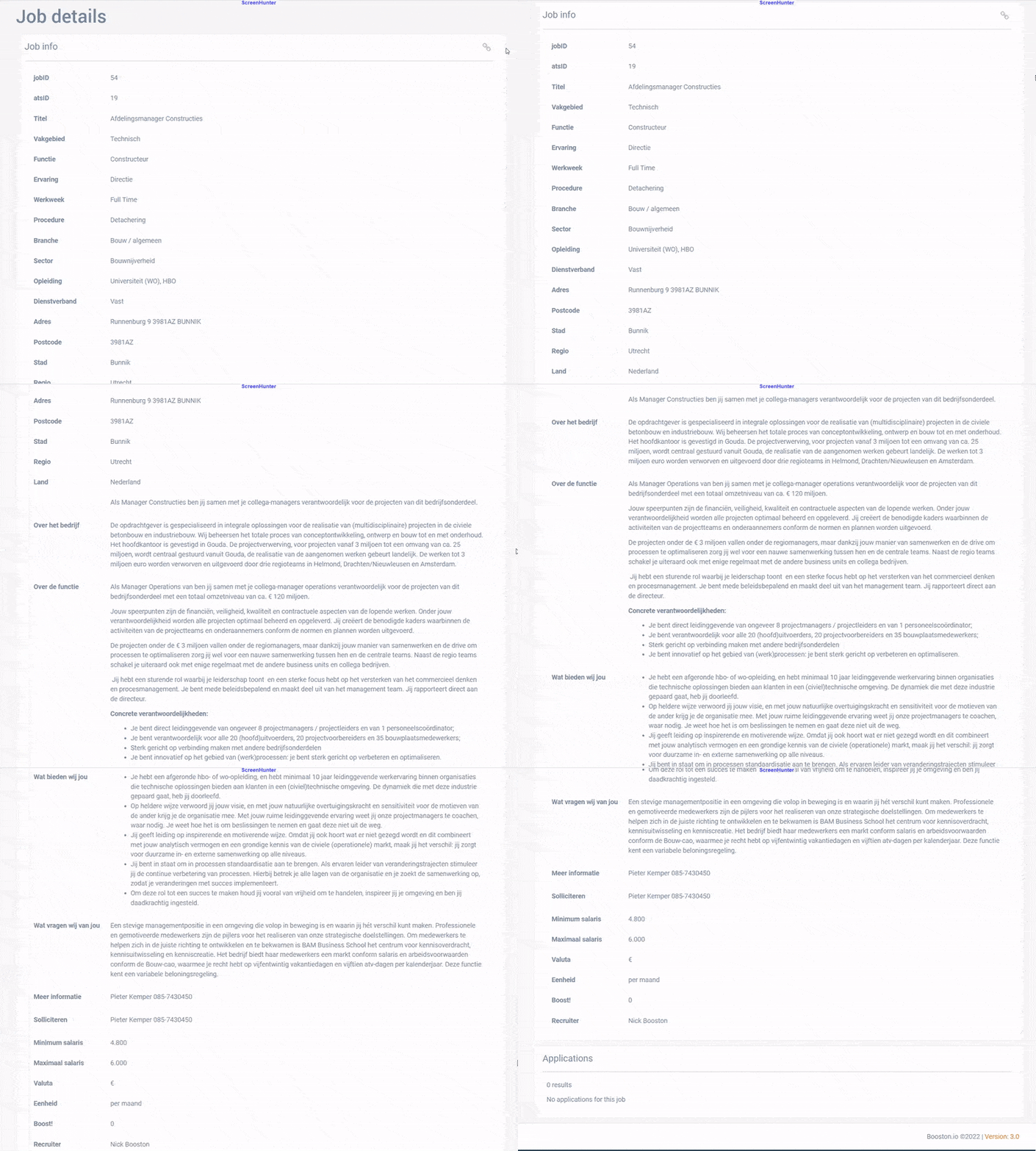
Note: make sure at least one job has been published in ForceFlow to check the result in Booston.
Step 5: Configure other job attributes
In the other sections of Settings > Attributes, you manage the values of job attributes such as categories, industries, salary attributes and location attributes.
- If you deactivate an attribute, the linked attribute value will not be imported.
- If you want ForceFlow to fill the information, enable Automatically filled by ATS.
- If the attribute is active, but Automatically filled by ATS is disabled, you can manually add attribute values through Recruitment > Jobs > Edit job.
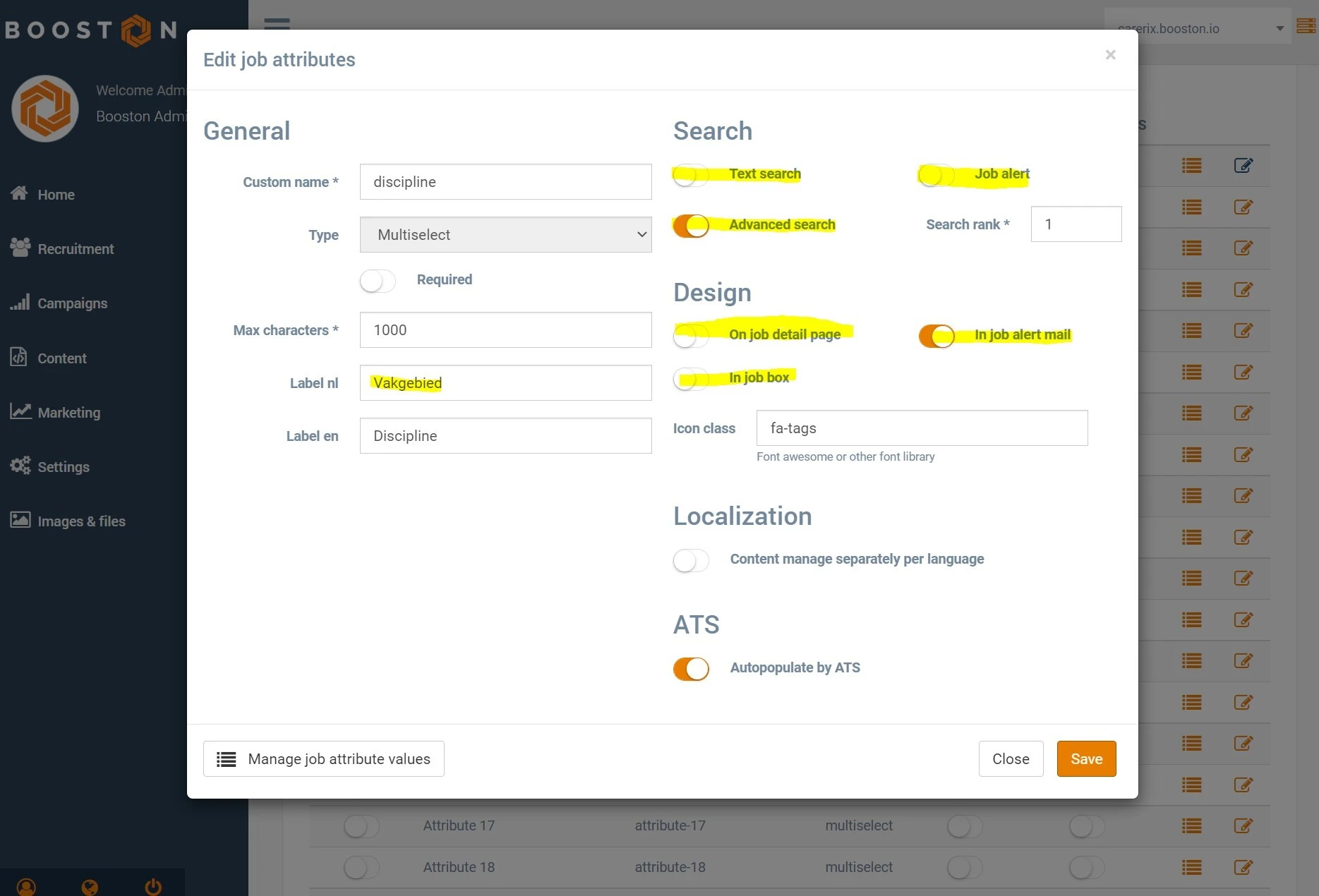
- Label: give the attribute the desired heading.
- Text search: determine whether the attribute should be included in website search.
- Search order: determine the order in which attributes are shown.
- Job alert: determine whether the attribute value should be active in the job alert form.
- On the job detail page: determine whether the attribute should be visible on the job detail page.
- In job box: determine whether the attribute should be used as an introduction in a job list.
- In job alert email: determine whether the attribute value should be shown in the job alert email to candidates.
Check the incoming attribute values from ForceFlow via the hamburger menu.
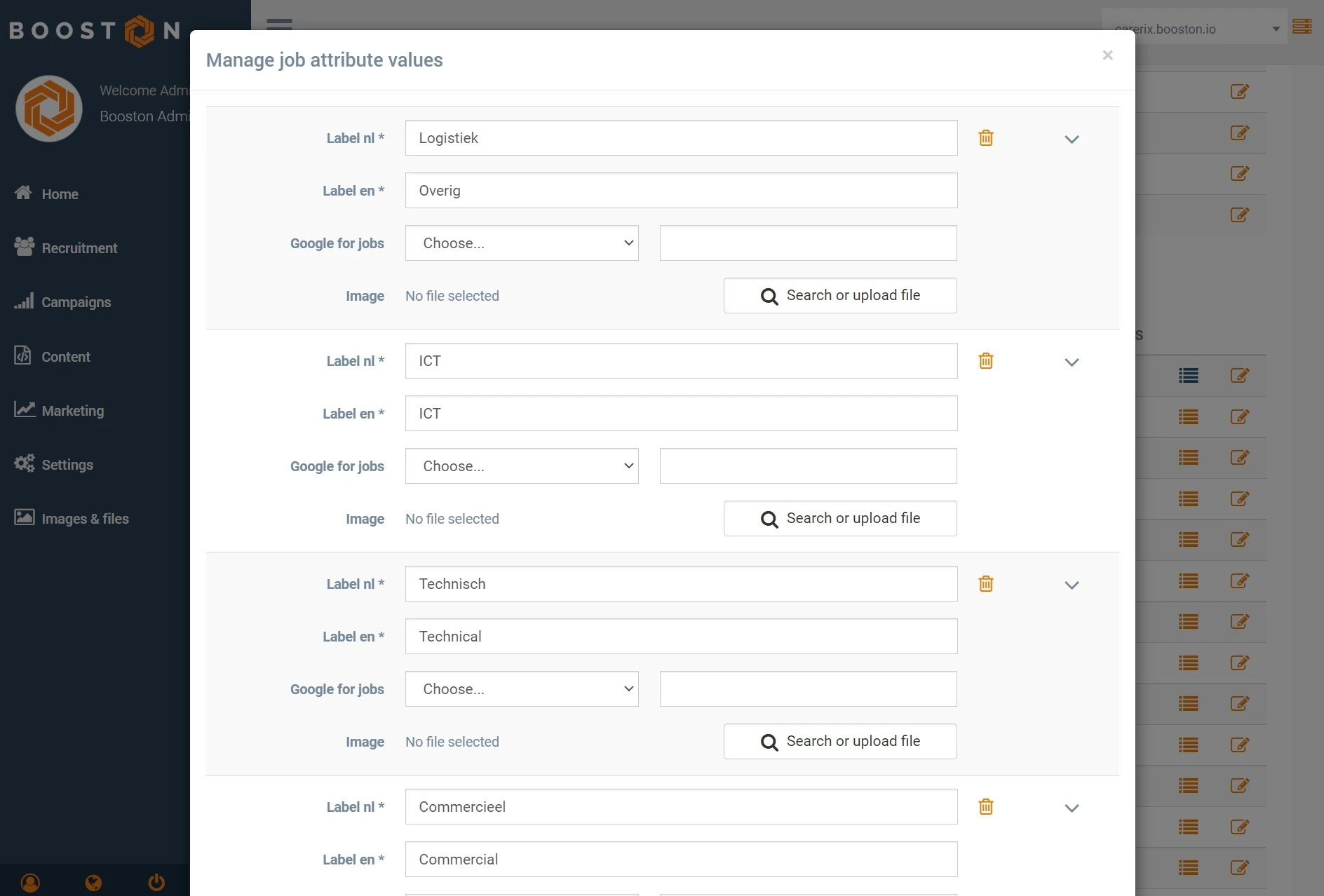
Automatic completion: a new attribute value is automatically added when a new ForceFlow job with an unknown value comes in. You can then rewrite or adjust values independently from ForceFlow.
Publishing jobs from ForceFlow
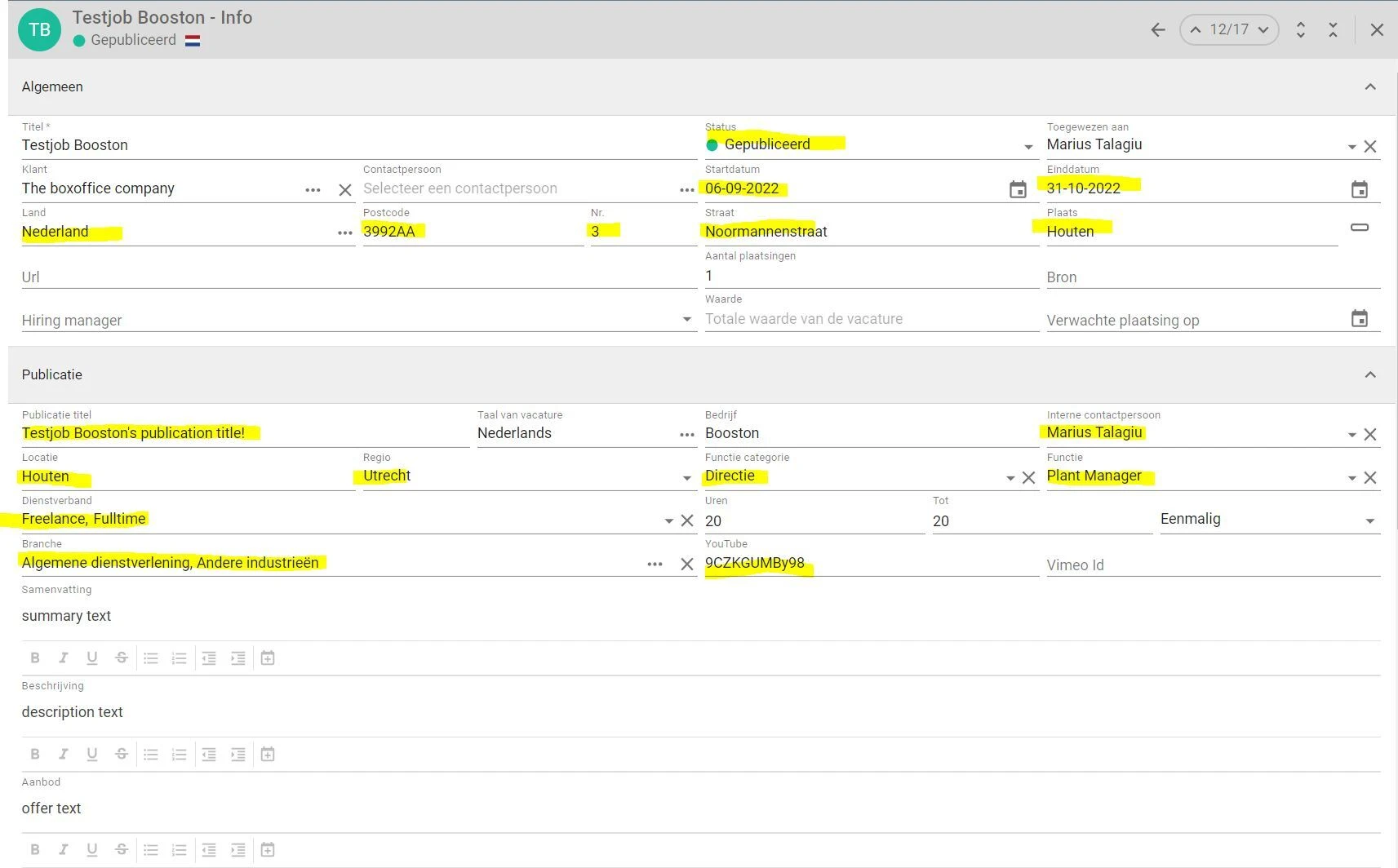
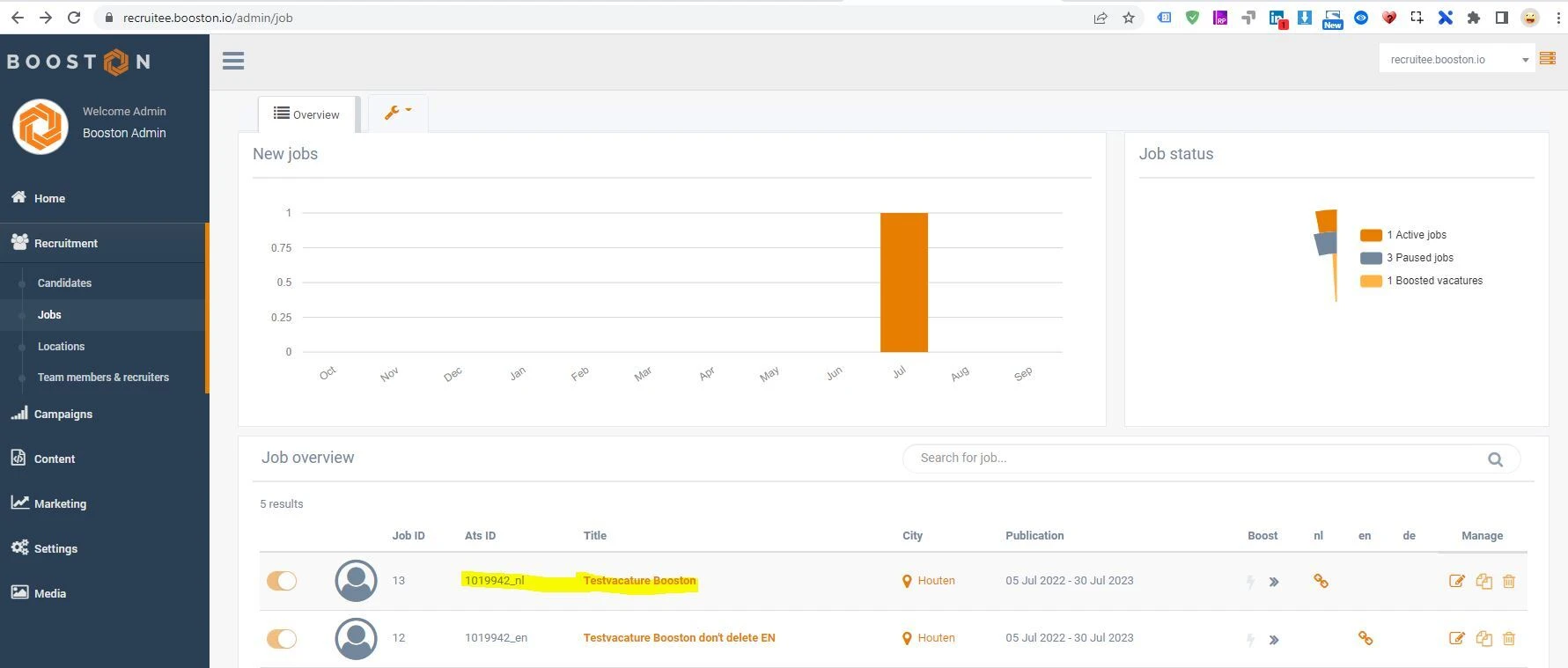
Once the integration is configured with all desired fields, you can create jobs and publish them to Booston. These are some of the fields imported into Booston upon publication:
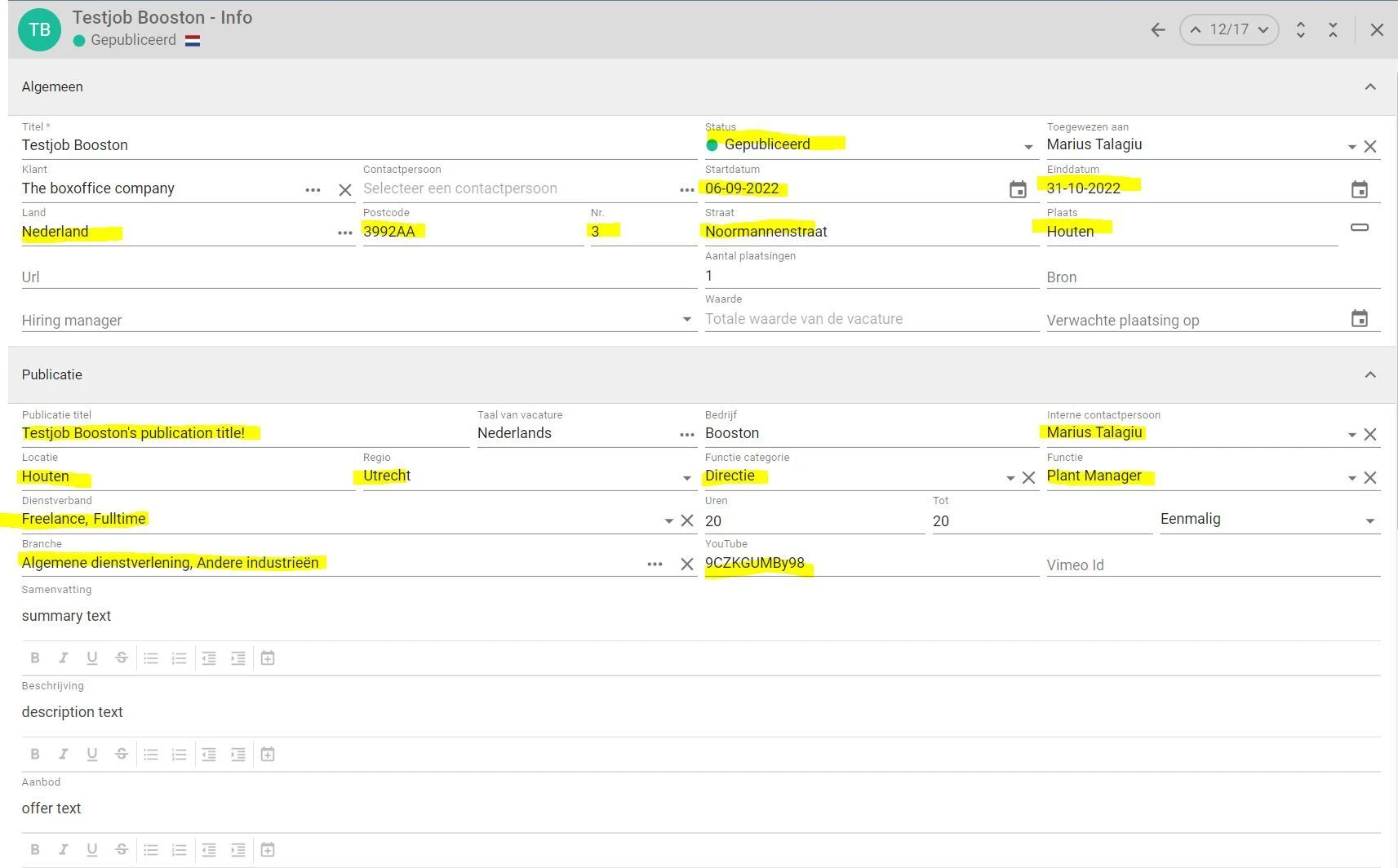
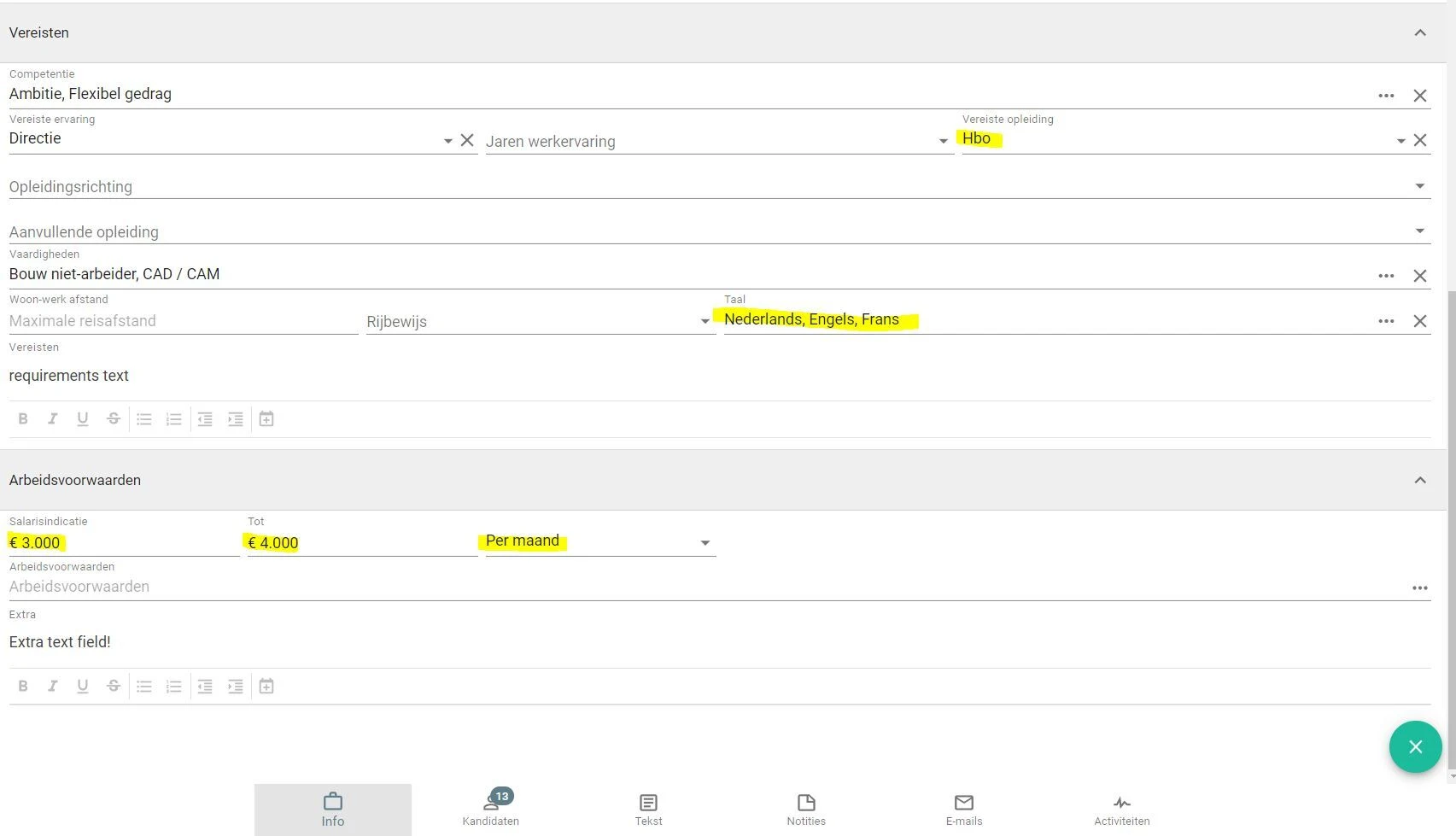
Once the job has been created, publish it live through the dropdown by setting the value to Published.
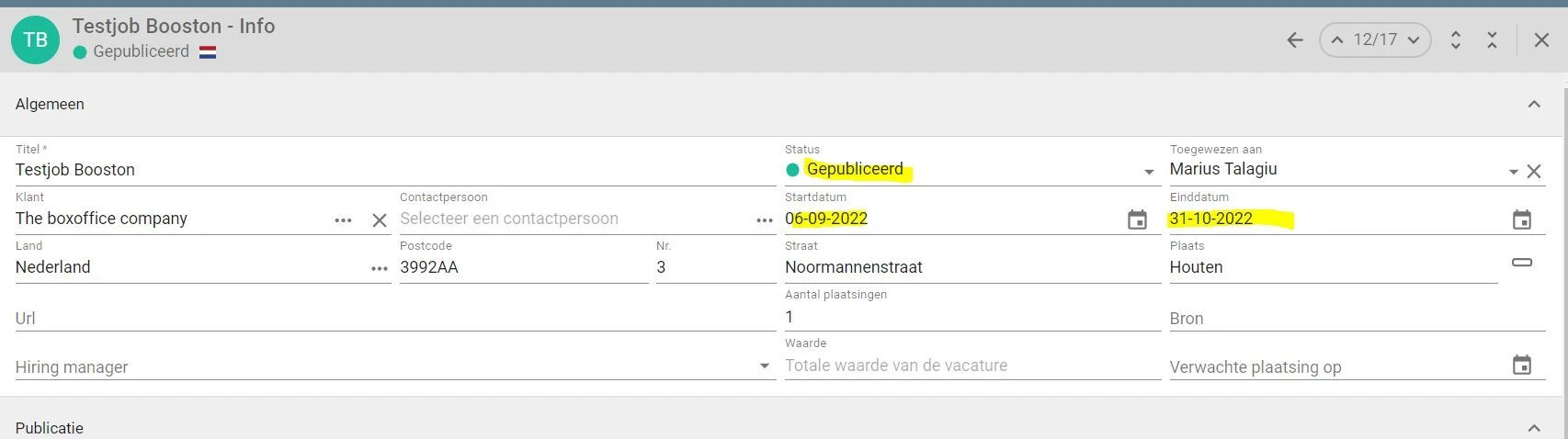
Optionally, do not forget to enter a correct date range. The end date must be in the future if applicable. The start date must be in the past if you want the job to be imported into Booston immediately.
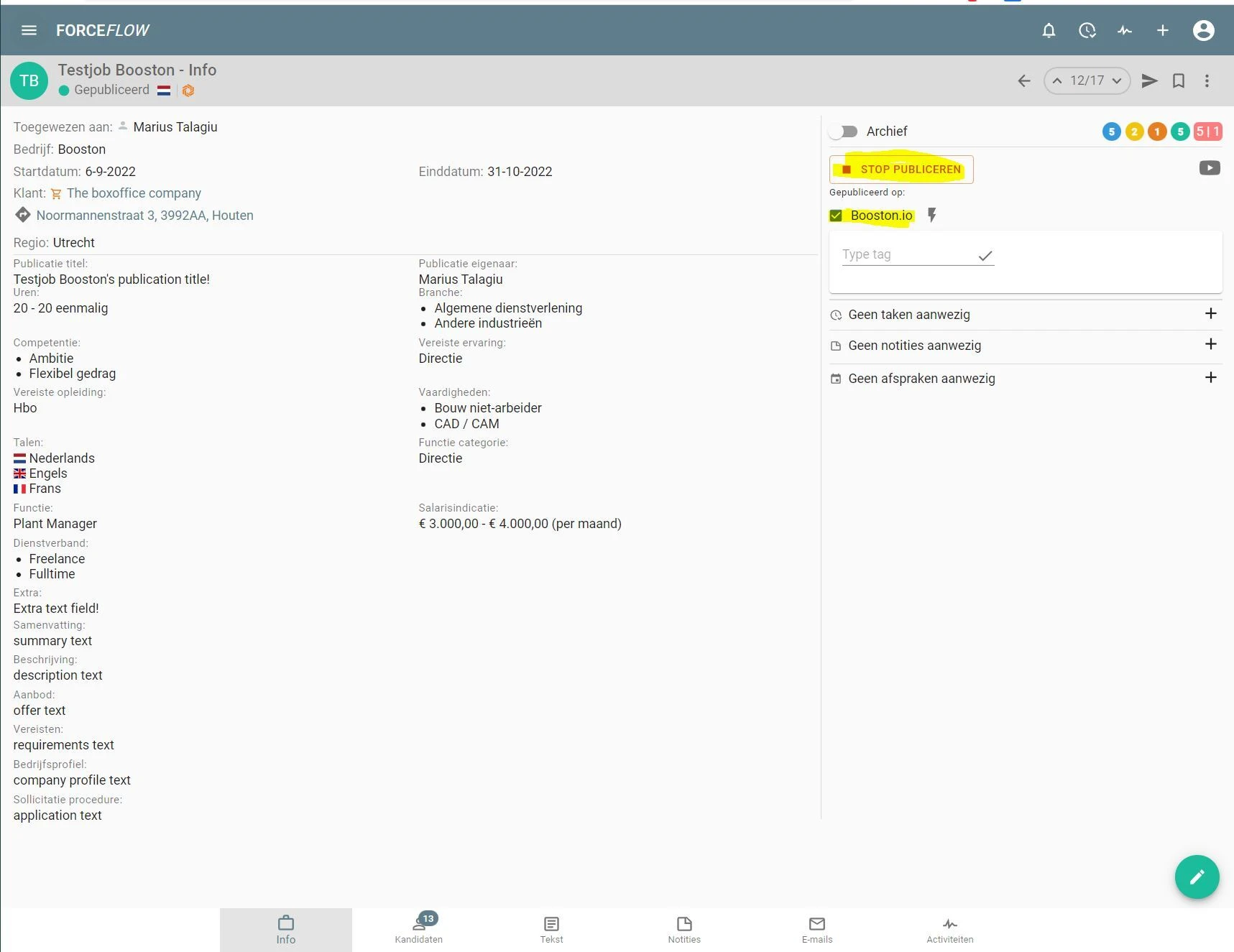
At the next synchronization, or directly through the webhook, your newly created and published jobs are imported into Booston. Check your new job via Recruitment > Jobs.
Receiving candidates in Booston
When someone applies to a published job, Booston processes the application with personal and contact details, CV and motivation letter. Booston AI then determines a match score from 1 to 5 stars. The candidate is then exported to ForceFlow. Status changes are synchronized between ForceFlow and Booston, so your reports remain accurate.
Synchronizing review scores
The integration synchronizes review scores from 1 to 5 stars between ForceFlow and Booston.
- Import: a review given by recruiters in ForceFlow is imported into Booston.
- Export: the review or the Booston AI match score is written back to ForceFlow during candidate export.
This runs through the candidate attribute score. Enable Automatically filled by ATS for this attribute. Also activate Candidate review score and status import in the Functionality step.
Note: an existing manually given score is not simply overwritten. No endless update loops occur between the AI score and the ATS.
Need help?
Are you running into issues during setup, for example with the API key, webhook or attribute configuration? Contact us via support@booston.io. We are happy to help you configure the integration correctly.


