You set up a job in Carerix. After that, the same job has to appear on your careers site, run in your campaigns and be visible on job boards. And when someone applies, that candidate has to come back into Carerix with their CV, motivation letter and answers — attached to the right job. Do that by hand and you lose hours every week to retyping, and the numbers still do not add up.
The Carerix connection handles that traffic automatically. Jobs and publications come in from Carerix, applicants and their files go back, and statuses and review scores stay the same on both sides. What is new is that you can now install the connection from the Carerix store, and that your colleagues then work in Booston from inside Carerix without a separate login. The end goal: you enter a job once in Carerix, and everything Booston does with it — publishing, advertising, sending candidates back — runs by itself from there.
By the end of this article you will know exactly which data goes back and forth, you will be able to set up the connection yourself (from the store or manually), you will know how to configure job texts and attributes, and you will understand what your colleagues see when they click the Booston tab in Carerix. You will find the screen under Settings → Connect → Ats.
Before you start
- In Booston you need the Manager role, and the ATS connector module has to be switched on.
- On the Carerix side you need someone with administrator rights: only a Carerix administrator may install an app or create an OAuth2 client.
- There are two ways to connect. Installing from the Carerix store is the shortest route and fills in the settings for you; connecting manually always works and is needed if your environment does not run through the store.
- The ATS list holds two Carerix entries. Carerix is the current GraphQL connection; Carerix (Deprecated) is the old REST/XML connection that only keeps running for customers already on it. New setups always go on Carerix.
- Using the Carerix API costs you nothing. No separate licence or purchase is required.
What the connection gives you
Briefly, because the rest of this article is about setting it up and using it:
- No double work. You enter the job once in Carerix. Title, texts, attributes and the recruiter come along automatically.
- Everything up to date within ten minutes. Publish or change something in Carerix and shortly afterwards it is in Booston, on your site and in your campaigns.
- Applicants land in Carerix complete, including CV, motivation letter, answers to your own questions and where the application came from.
- Review scores stay in sync. The stars a recruiter gives in Carerix show up in Booston, and we write the Booston AI match score back to Carerix.
- Working without a second login. Your colleagues open a job in Carerix, click the Booston tab and land straight in Booston. See Working from Carerix: the Booston tab.
- Unlimited languages. If you have several languages in Carerix, all of them come along.
Which data goes back and forth
The connection is not one-way traffic. This is the full overview of what is exchanged, in which direction and how often.
| Data | Direction | When |
|---|---|---|
| Jobs and publications | Carerix → Booston | Every ten minutes |
| Job texts per language | Carerix → Booston | Every ten minutes |
| Job attributes and attribute values | Carerix → Booston | Every ten minutes |
| Recruiters and the owner of a job | Carerix → Booston | Every ten minutes |
| Candidate statuses and review scores | Carerix → Booston | Every ten minutes |
| Attribute values for candidate select lists | Carerix → Booston | Daily |
| Applicants with their answers | Booston → Carerix | Immediately on application |
| CV and motivation letter | Booston → Carerix | Immediately on application |
| Source and campaign details of the application | Booston → Carerix | Immediately on application |
| Booston AI match score as a review score | Booston → Carerix | Immediately on application |
| The job URL from your website | Booston → Carerix | After the first synchronisation |
Carerix does not push changes to Booston itself. The connection collects the data periodically, in practice every ten minutes. That is why you do see a Real time connection settings block in the wizard, but for Carerix it stays empty.
From Carerix to Booston
- Jobs and publications. Booston pulls in the publications that match your filter, see The qualifier: which publications come in. Per publication the start and end date, the status and the work location come along.
- Job texts. The text fields from Carerix land in the title and description attributes in Booston. If you work in several languages, every language gets its own text.
- Job attributes. Industry, job family, hours, salary, education level, location: everything you pass as a value in Carerix comes in as an attribute value. If Booston does not know a value yet, it is created automatically.
- Recruiters. The owner of the job in Carerix is linked to the job in Booston, including name and email address.
- Candidate status and review score. If a colleague moves a candidate to another status in Carerix or gives stars, Booston picks that up on the matching application.
- Candidate select lists. The values of your own select lists in Carerix are collected daily, so your application form shows the same options Carerix knows.
From Booston to Carerix
On every application Booston sends a complete candidate profile through in one go. What is included depends on which fields are on your application form:
| Block | What is sent |
|---|---|
| Personal details | First name, infix, last name, date of birth, gender, nationality, language |
| Contact details | Email address, phone number, mobile number |
| Address | Street, house number, postcode, city, country |
| Additional | Notes field, driving licence, availability, plus your own open questions, yes/no questions and select lists |
| Files | CV and motivation letter |
| Source | The source of the application plus the campaign details, so you can see in Carerix where someone came from |
| Review score | The review score or the Booston AI match score, from 1 to 5 stars |
Booston also writes the job URL from your website back into Carerix. You will find it in Carerix on the Admin tab of the publication, so you can jump straight from Carerix to the published job.
Installing Carerix from the store
This is the new and quickest route. You install Booston as an app in Carerix; the connection details are then created and handed over automatically, so you no longer have to retype any client IDs.
In Carerix an administrator does this:
- Open the Marketplace screen in Carerix with the available apps.
- Look up Booston and click Install. Carerix creates the required access.
- After the installation, click Activate. Only a Carerix administrator can activate an app.
After that this happens on the Booston side:
- Booston receives the installation and prepares your environment.
- We check the request and set the environment to active. So there is a manual step on our side here; while it is running you see a waiting screen on the Booston tab.
- As soon as the environment is active, we fill in the Carerix connection automatically: the addresses, the access and the default settings. The default mappings for jobs, attributes, recruiters and candidate statuses are included too.
- The first synchronisation starts automatically. Job import, candidate statuses and writing the job URL back are switched on right away.
So you do not have to fill in anything under Main settings yourself. Worth knowing though: exporting applicants to Carerix is switched off after a store installation. It needs two references to a source inside your own Carerix environment, and that does not exist yet on a fresh installation.
Connecting Carerix manually
If your environment does not run through the store, you set the connection up yourself. You first collect two sets of details in Carerix and then enter them in the Booston wizard.
In Carerix: create an OAuth2 client
- Open the Carerix administration panel.
- Go to Maintenance → Identity & Access.
- Create a new Confidential client and give it a recognisable name, for example Booston.
- Under Scope, enter the value
urn:cx/cx5Wrapper:data:manage. - Generate the client and store the Client ID and the Client Secret. The secret cannot be retrieved afterwards.
In Carerix: find your connection details
After creating the client there is an OpenID Configuration link. Open it and look for the issuer value. It looks something like this:
"issuer": "https://id-s1.carerix.io/auth/realms/booston"From that single line you take two values:
- ATS Base URL — the host part without
https://, in this exampleid-s1.carerix.io. - ATS Customer — the last part after
/realms/, in this examplebooston.
In Booston: work through the wizard
Go to Settings → Connect → Ats and pick Carerix. You work through five steps: Select ATS, Main settings, Functionality, Custom mappings and Activation.
Under Main settings you enter:
| Field | What you enter |
|---|---|
| Username | The Client ID from Carerix |
| Password | The Client Secret from Carerix |
| ATS URL | The Carerix API address, by default https://api.carerix.com |
| ATS Base URL | The host part from the issuer, for example id-s1.carerix.io |
| ATS Customer | The last path part from the issuer, for example booston |
| ATS Fields | The scope urn:cx/cx5Wrapper:data:manage |
| Qualifier | The filter that decides which publications come in |
| Multilingual | Switch this on if you publish jobs in several languages |
The qualifier: which publications come in
The qualifier is a filter on the publications in Carerix. Only publications that match it come through to Booston. The default value is:
publicationStart <= (NSCalendarDate) '%actual_date%' AND (toMedium.mediumID = 1) AND (publicationEnd >= (NSCalendarDate) '%actual_date%' OR publicationEnd = nil) AND deleted=0In plain language: collect every publication that is running today, that sits on medium 1 and that has not been deleted. The mediumID refers to the channel in Carerix; medium 1 is usually your own website. Which number applies to your setup can differ per Carerix environment, and a wrongly set qualifier is the most common cause of "no jobs are coming in".
Functionality: choosing what the connection does
On the Functionality step you switch each part on or off.
| Option | What it does |
|---|---|
| Job, job attribute and recruiter import | Pulls jobs, attributes and recruiters in from Carerix |
| Skip job import on zero results | Skips the import if Carerix returns nothing, so an outage does not empty your whole job list |
| Candidate export | Sends applicants through to Carerix |
| Candidate export retry | Retries a failed export later |
| Candidate review score and status import | Pulls candidate statuses and review scores in from Carerix |
| Postback job URL export | Writes the job URL from your website back to Carerix |
Activation: the last step
Activation holds four switches. The most important one is Apply default attribute settings for this ATS: it sets up the default settings for every attribute in one go, tuned to Carerix. Switch it on for a new connection. The other three switches throw away existing jobs, attribute values or recruiters and reload everything from Carerix.
Then click Save. The first synchronisation starts automatically.
Setting up job texts and attributes
After the first import you decide how the incoming information is shown on your site. You do that under Settings → Attributes → Job attributes. If you switched on Apply default attribute settings for this ATS, most of it is already right and you only use this screen for the finishing touches.
Per attribute you can set:
- Label — the heading as the visitor sees it on your site.
- Search text — whether the value counts in the search function on your site.
- Search order — the order in which the attributes are shown.
- On the job detail page — whether the attribute appears on the job page.
- In the job box — whether the attribute comes along in the job overview.
- In the job alert email — whether the attribute is mentioned in the job alert.
- Autofill by ATS — whether Carerix fills this value. If it is off, you fill the value in Booston yourself and the synchronisation leaves it alone.
Check the result under Recruitment → Jobs and click a job.
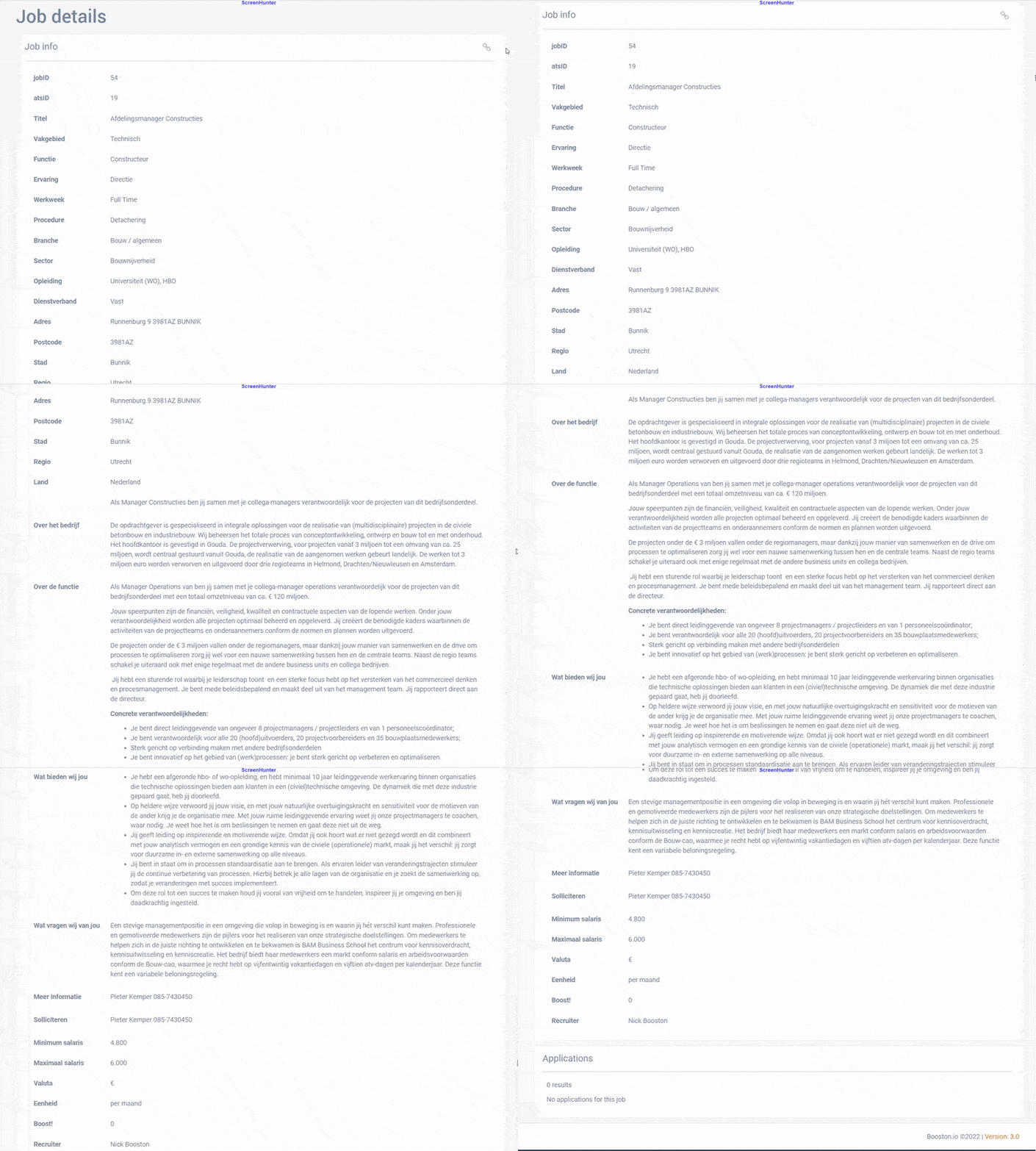
Publishing jobs and receiving candidates
Once the connection is in place, you decide from Carerix which jobs go to Booston. You do that with a publication.
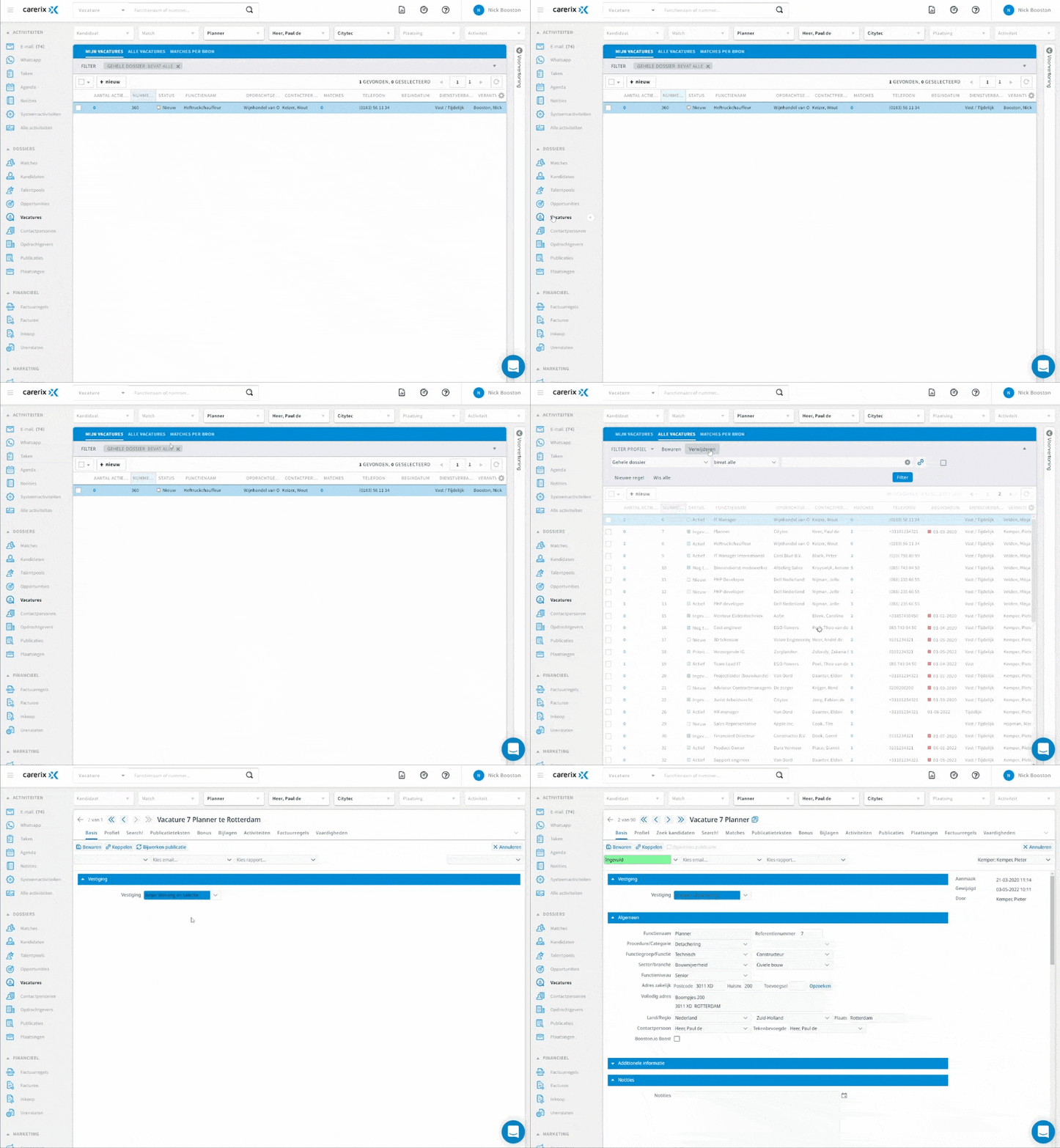
This is how you create a publication in Carerix:
- Fill in the job completely, with every field you want to see back in Booston.
- Go to the Publicaties tab and create a new publication.
- Enter a start and end date if you need one. Leave the end date empty and the publication keeps running.
- Set the status to a publishing value, for example Gepubliceerd.
- Pick the medium you agreed with Booston — the same medium as in your qualifier.
- Click Opslaan.
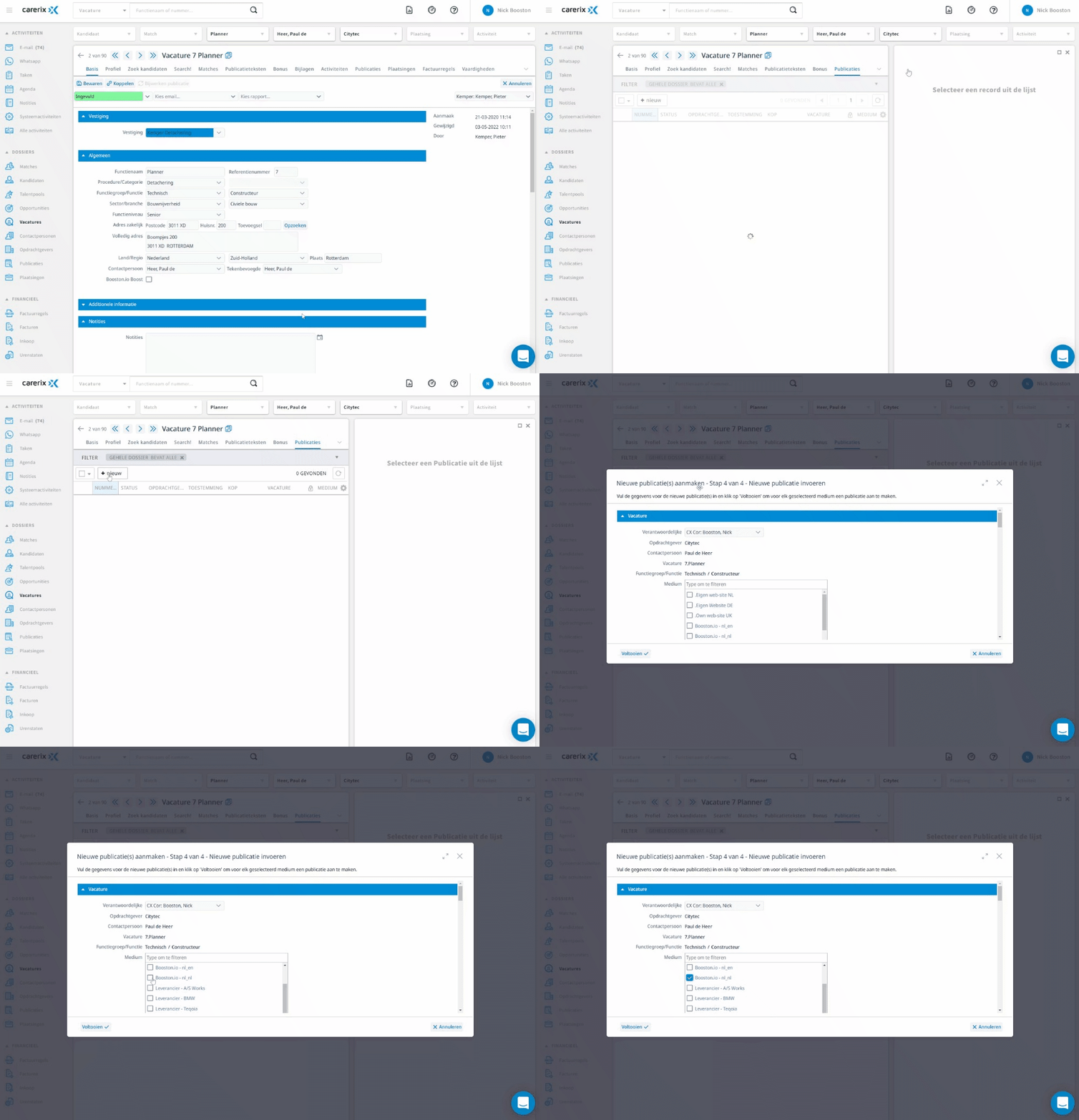
At the next synchronisation the job is in Booston. Remove a publication or let the end date pass and the job disappears from Booston and from your site again.
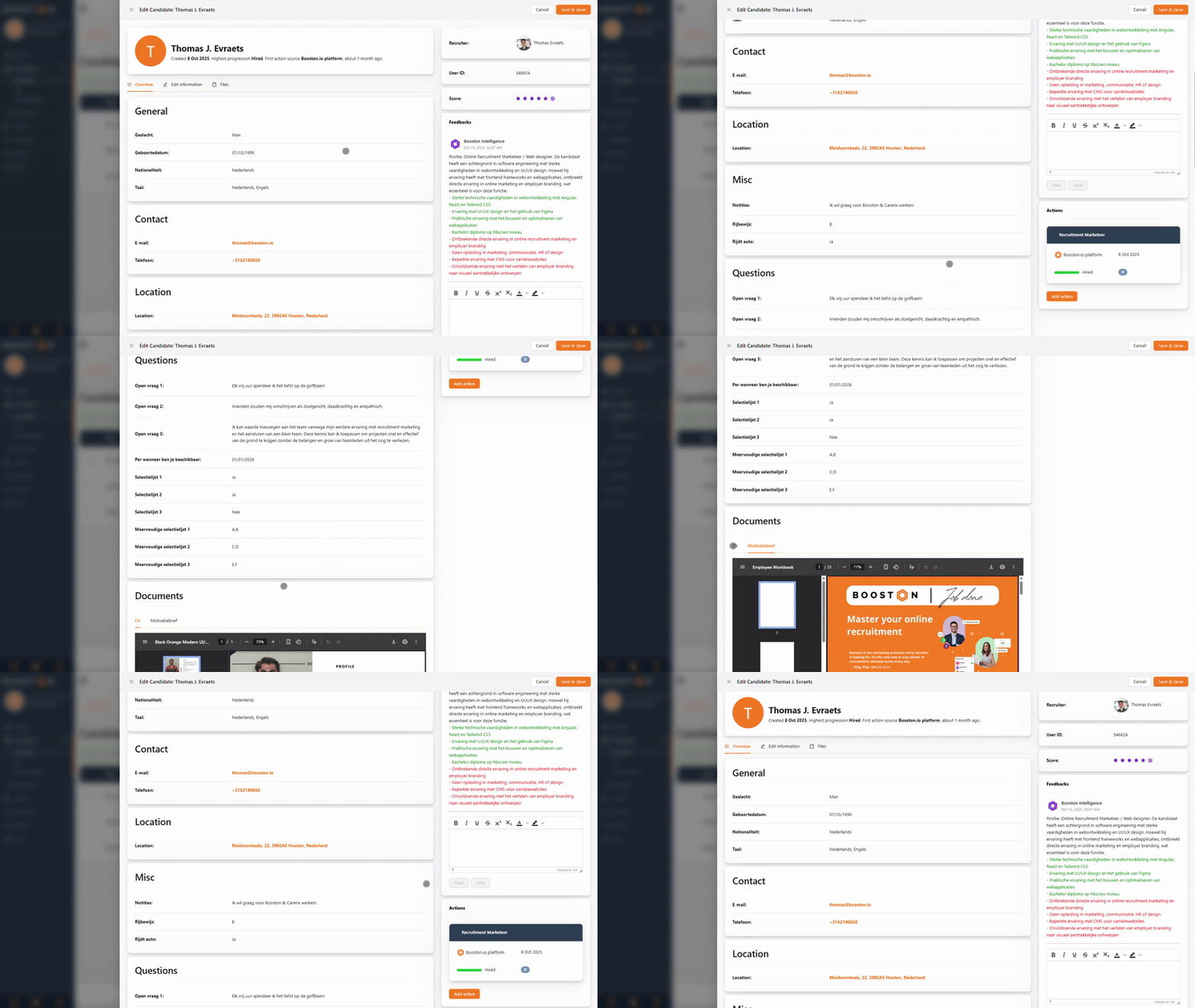
Applicants travel the other way. As soon as someone applies through your website or through a campaign, Booston sends the full profile to Carerix, on the right job.
Working from Carerix: the Booston tab
This is the newest addition to the connection. If you installed Booston from the store, your team gets an extra tab in Carerix: Advertise with Booston, on the vacancy and on the match. One click and your colleague is in Booston, inside the Carerix screen, without a second login. Behind the scenes Booston recognises who is clicking and creates an account if needed.
What your colleague sees on that tab:
| Part | What you do there |
|---|---|
| Campaigns | Switch on and manage the Meta job ads and the Jobboard network campaigns for this job |
| Cost & Performance | See what you are spending on this job and what it brings in |
Two things to keep in mind:
- If the job is paused in Booston, the tab opens on Cost & Performance and you cannot manage campaigns. Activate the job first.
- New colleagues may still need to be released. When someone comes in through Carerix for the first time, Booston creates a user automatically. Whether they can start working right away depends on the Auto-activate iFrame / SSO users setting. If it is off, your colleague sees the message User has been paused. Please contact a Booston manager. and a Manager has to activate the user. How that works is in Users: granting access, choosing roles and signing in from your ATS.
Synchronising review scores
The connection keeps review scores of 1 to 5 stars the same on both sides, in two directions:
- Import. If a recruiter gives a candidate stars in Carerix, Booston picks them up on the matching application.
- Export. We write the review score from Booston or the Booston AI match score back to Carerix, so your colleagues can see there straight away which applications are worth their time.
You switch this on by enabling Autofill by ATS on the score candidate attribute, and by switching on Candidate review score and status import on the Functionality step.
Optional: extra fields in Carerix
If you want more control from Carerix, you can create a few extra fields there. You do that in Carerix under Maintenance → Admin → Tables and the + new button.
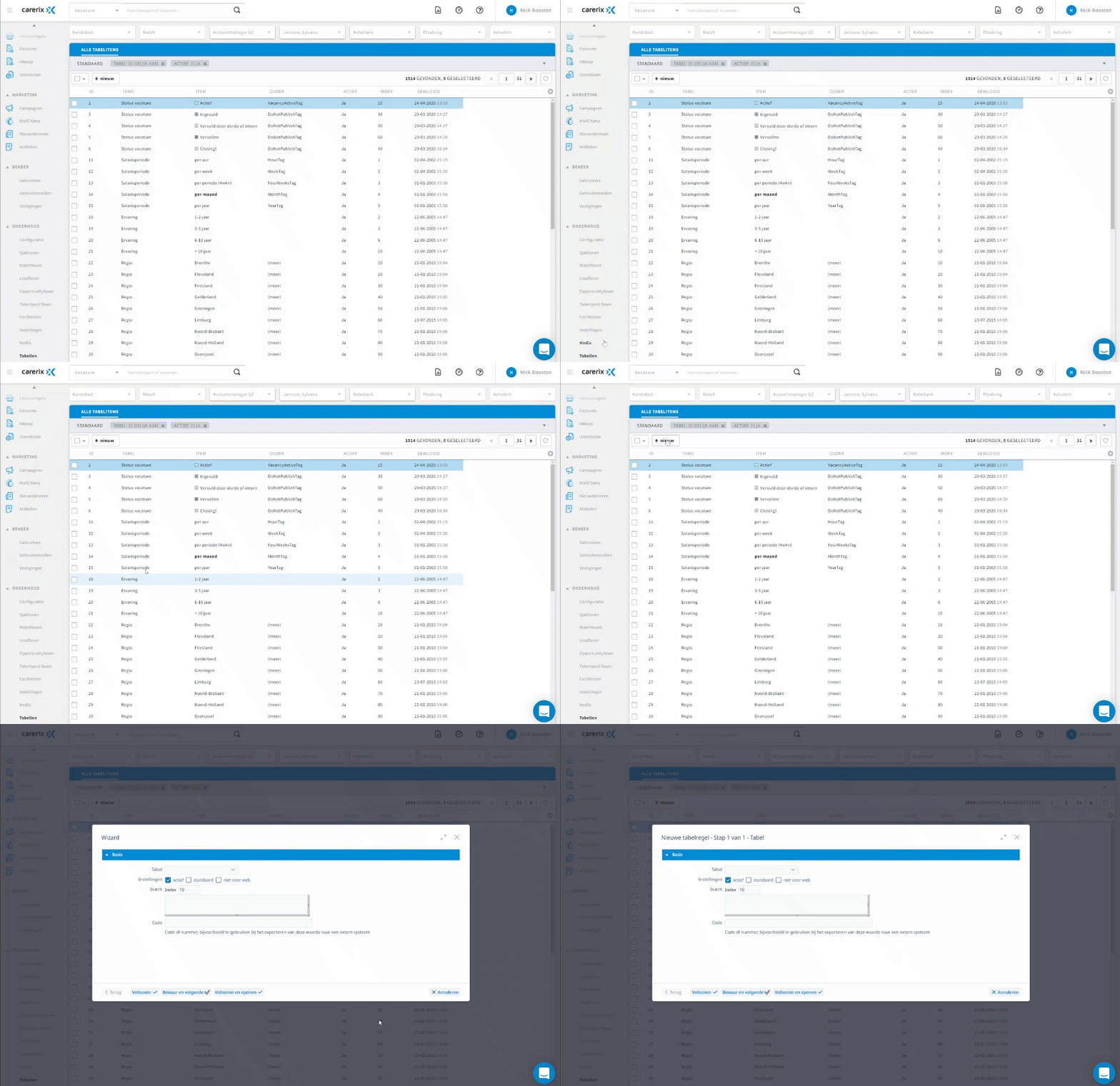
| Field | What it is for |
|---|---|
| Booston.io Boost! | A checkbox with which you indicate from Carerix that a job gets extra promotion |
| Booston Candidate Source | Labels applicants with Booston as their source |
| Booston Source Match | Makes sure the right source is attached to the application |
| YouTube Video ID | Links a video to the job, which then appears on your job page |
These fields are optional. Leave them out and the connection works fine; you then steer those things from Booston.
What you cannot arrange yourself
A few things deliberately go through us, because they sit outside your own environment or cannot be undone:
- Switching the candidate export on after a store installation — this needs two references to a source inside your Carerix to be filled in. Email support@booston.io.
- Non-standard mappings — values that do not map one-to-one onto the default are set up by us on the Custom mappings step. There may be a cost involved.
- Switching Auto-activate iFrame / SSO users on or off — this decides whether colleagues coming in through Carerix can work straight away. Email support@booston.io with the setting you want.
- The status mapping between Carerix and Booston — which Carerix status ends up as which Booston status differs per environment and is set up by us. By default Placed by us maps to Hired.
- Approving an environment that comes in from the store — that is a check on our side and happens during onboarding.
Troubleshooting
No jobs are coming in
In almost every case this comes down to the qualifier or the medium of your publication. Check whether the publication in Carerix sits on the same medium as in your qualifier, whether the start date has passed and whether the end date has not. If that all checks out, email support@booston.io with the name of your environment and an example job.
All jobs are suddenly paused
That usually means the last import returned nothing. Switch Skip job import on zero results on if it is not already, and email us; we can force a full import so everything becomes active again.
I open the Booston tab in Carerix and see "importing job"
The job has not been published in Carerix yet, or the publication does not match the qualifier. Create a publication on the right medium first; the job will be known in Booston at the next synchronisation.
An applicant is attached to the wrong person in Carerix
Carerix merges candidates by its own rules, for example last name plus date of birth or postcode plus date of birth. You run into this quickly while testing, because test candidates often share the same details. Use a unique last name, date of birth and postcode for every test.
The answers to my own questions do not arrive in Carerix
Check whether the candidate attribute is linked to a select list in Carerix. There are three slots available for select lists; if you have more than three select-list questions on your form, only the first three end up in Carerix.
An attribute value appears twice in the list
Usually a value comes in that is written slightly differently from an existing one. Email support@booston.io; we can merge the values and run a full import.
Frequently asked questions
How quickly does a change from Carerix show up in Booston?
Within ten minutes. The connection collects periodically; Carerix does not push changes itself.
Can I edit a job text in Booston that came from Carerix?
You can, but it will be overwritten at the next synchronisation as long as Autofill by ATS is on for that attribute. If you want to manage a field in Booston yourself, switch that option off for that one attribute.
We are still on Carerix (Deprecated). Do we have to move?
The old connection keeps working, but new functionality only lands on the current connection. The Booston tab in Carerix and installing from the store only work on the new one. Email support@booston.io if you want to switch; we will plan it together.
Does the connection work with several languages?
Yes, without a limit. Switch Multilingual on and make sure your job in Carerix contains the languages you need.
Does using the Carerix API cost extra?
No. Carerix charges nothing for API use and you do not need a separate module for it.
What happens if someone switches the app off in Carerix?
The Booston tab disappears and colleagues can no longer sign in through Carerix. Your jobs, candidates and campaigns in Booston simply stay where they are.
Coming soon
- More Booston in the Carerix tab. The tab is growing into a full working screen: alongside switching campaigns on, you will also see all running campaigns for a job in one overview. We will update this article as soon as it is live.
- A smoother start for new environments. We are shortening the step between installing from the store and working in Booston, so there is less manual work from our side in between. We will update this article as soon as it is live.
Need help?
Cannot work it out, or unsure which setting suits your Carerix environment? Email support@booston.io or call 085 0044 215 and mention:
- the name of your environment;
- what you want to achieve;
- the message you see, if there is an error message.
Would you rather go through the settings together? Book a free 30-minute online demo — then we will walk through it with you. Job Done!


